


How To Create A Poll On Discord In Easy Steps?

Do cloud-based genAI services have an enterprise future?

While generative artificial intelligence (genAI) models are expected to shrink down in size to fit more defined needs and corporate budgets, a large number of service providers are still plotting their revenue course based on delivering AI cloud services.
In his annual letter to shareholders last week, Amazon CEO Andy Jassy said the company will focus less on building consumer-facing genAI applications and more on delivering AI models it can sell via web services to enterprise customers.
“Sometimes, people ask us, ‘What’s your next pillar? You have Marketplace, Prime, and AWS, what’s next?,’” Jassy wrote. “If you asked me today, I’d lead with generative AI. We’re optimistic that much of this world-changing AI will be built on top of AWS.”
Jassy’s expectations for revenue streams from AI services are not misplaced. Organizations plan to invest 10% to 15% more on AI initiatives over the next year and a half compared to calendar year 2022, according to an IDC survey of more than 2,000 IT and line-of-business decision makers.
Last fall, Amazon launched Bedrock, which delivers a variety of large language models (LLMs) via the AWS cloud through which organizations can build genAI applications. The company also recently launched Amazon Q, a cloud-based AI-assisted software coding assistant.
Amazon’s Bedrock offers AI “foundational models” from AI21 Labs, Anthropic, Cohere, Meta, Mistral AI, Stability AI, along with Amazon’s own LLM via a single API.
Amazon’s list of AI cloud clients now includes ADP, Delta Air Lines, GoDaddy, Intuit, Pfizer, and Siemens.
Currently, cloud computing leads all other methods for delivering genAI applications to enterprises; that’s because of the high cost of building out proprietary infrastructure. Amazon Web Services, Google, IBM, Microsoft and Oracle have invested billions of dollars in AI cloud offerings since OpenAI set off a firestorm of adoption with the launch of ChatGPT in November 2022.
“No one but the hyperscalers and mega large companies can afford to train and operate the very large LLMs and foundation models,” said Avivah Litan, Gartner distinguished vice president analyst. “The costs are in the hundreds of millions of dollars.”
By “large” Litan was referring to models with hundreds of billions of parameters, as opposed, to say, those with fewer than 100 billion parameters. The costs to use LLMs supplied over cloud services, however, “are relatively manageable by enterprises and for now are also subsidized by the hyperscalers,” Litan said.
However, as enterprises continue to grow their pilots of genAI applications, the cost of cloud services can become a limiting factor. Instead, many organizations are looking to deploy smaller, on-premises LLMs aimed at handling specific tasks.
Smaller domain-specific models trained on more data will eventually challenge the dominance of today’s leading LLMs, including OpenAI’s GPT 4, Meta AI’s LLaMA 2, and Google’s PaLM 2. Smaller models would also be easier to train for specific use cases, according to Dan Diasio, Ernst & Young’s Global Artificial Intelligence Consulting Leader.
Through 2025, 30% of genAI projects will be abandoned after proof of concept (POC) due to poor data quality, inadequate risk controls, escalating costs, or unclear business value, according to Gartner Research. And by 2028, more than half of enterprises that have built their own LLMs from scratch will abandon their efforts due to costs, complexity and technical debt in their deployments.
Current vendor pricing models that pass on the high cost of innovation and developing, training and running LLMs could also mean enterprises won’t see ROI for their AI projects, according to a recent report by Gartner. Even when pricing is subsidized by vendors hoping to gain early market share, it’s often not enough to produce a quick payback, Gartner said. Instead, organizations should take the long approach to productivity gains and ROI from genAI.
Lee Sustar, a principal analyst at Forrester Research, said AI services via cloud will continue to grow as products such as AWS Bedrock, Azure AI and Google Cloud Vertex lower the barrier to entry.
“Given the data gravity in the cloud, it is often the easiest place to start with training data. However, there will be a lot of use cases for smaller LLMs and AI inferencing at the edge. Also, cloud providers will continue to offer build-your-own AI platform options via Kubernetes platforms, which have been used by data scientist for years now,” Sustar said. “Some of these implementations will take place in the data center on platforms such as Red Hat OpenShift AI. Meanwhile, new GPU-oriented clouds like Coreweave will offer a third option. This is early days, but managed AI services from cloud providers will remain central to the AI ecosystem.”
And while smaller LLMs are on the horizon, enterprises will still use major companies’ AI cloud services for when they need access to very large LLMs, according to Litan. Even so, more organizations will eventually be using small LLMs that run on much smaller hardware, “even as small as a common laptop.
“And we will see the rise of services companies that support that configuration along with the privacy, security and risk management services that will be required,” Litan said. “There will be plenty of room for both models — the very large foundation model cloud service delivery and the small foundation model private cloud service delivery on your GPU/CPU of choice.”
One of Amazon’s earliest AI-cloud services was Sagemaker, an integrated development environment (IDE) for developers and engineers to build, train, and deploy machine learning and AI models.
“Bedrock is off to a very strong start with tens of thousands of active customers after just a few months,” Jassy wrote. “Unlike the mass modernization of on-premises infrastructure to the cloud…, this genAI revolution will be built from the start on top of the cloud.”
Amazon Web Services, Cloud Computing, Emerging Technology, ROI and Metrics, Vendors and Providers
Source:: Computer World
Explained: How To Use Spotify’s New AI Playlist Feature?
This month’s Patch Tuesday release is a big one

Microsoft released 149 updates in this month’s Patch Tuesday release, though there were no reports of public disclosures or other zero-days for the Microsoft ecosystem (Windows, Office, .NET). This update is very large, complex and will require some testing time, especially for the OLE, ODBC and SQL focused updates and their impact on complex applications.
Microsoft also moved to make it easier to understand security-related CVE entries much easier by adopting the new CWE vulnerability reporting standard. The team at Application Readiness has provided this infographic detailing the risks associated with the April updates.
Known issues
Each month, Microsoft publishes a list of known issues that relate to the operating system and platforms included in the latest update cycle, including these two reported minor issues:
- After you install KB5034203 or later updates, some Windows devices that use the DHCP Option 235 to discover Microsoft Connected Cache (MCC) nodes in their network might be unable to use those nodes. Microsoft is actively working on this issue, and so we should expect an update soon.
- Some users of Windows Server 2008 will see messages that say, “Failure to configure Windows updates. Reverting Changes. Do not turn off your computer,” when attempting to update legacy devices. This may be a result of an improperly configured ESU configuration. Microsoft has recently updated its guidelines on acquiring and configuring ESU keys, which may help those still struggling.
Major revisions
This month, Microsoft published these revisions to past updates:
- CVE-2022-0001: Branch History Injection. Reason for revision: Corrected one or more links in the FAQ. This is an informational change only. No further action required.
- CVE-2023-24932: Secure Boot Security Feature Bypass Vulnerability: Updated FAQs to include information on how to be protected from this vulnerability for customers running Windows 11 23H2 or Windows Server 2022, 23H2 Edition. No further action required.
- CVE-2013-3900: WinVerifyTrust Signature Validation Vulnerability.
Microsoft has updated the FAQ documentation to inform customers that EnableCertPaddingCheck is data type REG_SZ (a string value) and not data type dword. When you specify ‘EnableCertPaddingCheck” as in “DataItemName1″=”DataType1:DataValue1” do not include the date type value or colon. This will mitigate the impact of this vulnerability.
There was a significant update to the Kerberos security system within Windows, too, with a change to an existing patch (CVE-2024-21427). Microsoft has removed all supported versions of Windows 11 as they are no longer affected by the vulnerability. (Looks like another reason to upgrade to the latest Windows desktop.)
Mitigations and workarounds
Microsoft released the following vulnerability-related mitigation:
- CVE-2024-26232: Microsoft Message Queuing (MSMQ) Remote Code Execution Vulnerability. Microsoft helpfully notes that the MSMQ feature is rarely needed and can be disabled, reducing exposure to this vulnerability. Yep.
Each month, the Readiness team analyzes the latest updates and provides detailed, actionable testing guidance; the recommendations are based on a large application portfolio and detailed analysis of the patches and their potential impact on Windows and apps.
For this release cycle, we grouped the critical updates and required testing efforts into functional area including:
File management
- Test scenarios involving tar.exe or the native support of archives in Windows.
- Test end-to-end scenarios involving File Management Tasks and Storage Reports Management.
Crypto (local security mechanisms)
- Test scenarios that utilize Crypto APIs. Please pay special attention to any operation that relies on CryptDecodeObject or CryptDecodeObjectEx.
- Test your cryptographic operations and key generation, particularly in VTL1 environments.
- Test out variations of replications on different types and sizes of files and folders.
Networking (DHCP and DNS)
- Test functional scenarios where Client DUID is a required parameter.
- Send Message with VendorOption of DomainName.
- Check whether the client UID is provided to the RPC API.
- Test DNS virtual instance and zone management scenarios.
Remote desktop and connections
- Test out point-to-point connections and RRAS servers using the MPRAPI protocols.
- Test your VPN connections with a connect/disconnect, delete and repeat test cycle.
Automated testing will help with these scenarios (especially a testing platform that offers a “delta” for comparison between builds). However, for your line-of-business apps getting the application owner (doing UAT) to test and approve the results is absolutely essential.
There have been a large number (24 of this month’s total of 164) of updates to Microsoft SQL components in Windows and to how OLE operates with other Windows features. Applications that require these kinds of “cooperative” interactions are generally complex line-of-business applications. Trouble-shooting these update scenarios requires specialist application expertise and can be very time consuming.
To prevent downtime, expensive faults and potentially damaging compliance issues, we fully recommend an audit of your application portfolio, identifying SQLOLE, OLEDB, and ODBC dependencies with an assessment and testing plan before general deployment of this month’s patches.
Windows lifecycle update
This section contains important changes to servicing (and most security updates) to Windows desktop and server platforms.
- Windows 10 21H2 (E) ends in June 2024.
- Microsoft .NET 7.0.18 (support ends this month).
- Microsoft Visual Studio (2022 – 17.4 LTSC) support ends this month.
- PowerShell 7.3 main support ends May 8, 2024.
Each month, we break down the update cycle into product families (as defined by Microsoft) with the following basic groupings:
- Browsers (Microsoft IE and Edge);
- Microsoft Windows (both desktop and server);
- Microsoft Office;
- Microsoft SQL Server (not Exchange Server);
- Microsoft Development platforms (ASP.NET Core, .NET Core and Chakra Core);
- Adobe (if you get this far).
Browsers
Microsoft released just five updates to its Chromium-based browser, all rated important. Note that the next release for this browser platform is the week of April 18. Chromium releases are now out of sync with Microsoft Patch Tuesday updates. Add these updates to your standard patch release schedule.
Windows
For this (mammoth) release to the Windows platform, the following broad areas have been updated.
- Windows RAS, ICS, RRAS.
- Windows Message Queuing.
- Windows Cryptographic Services, BitLocker, Kerberos and LSASS.
- Windows Distributed File System (DFS).
- Windows DHCP Server.
- Microsoft WDAC OLE DB provider for SQL.
- Windows Telephony Server.
This month we do not see any reports of publicly reported vulnerabilities or exploits in the wild and if you are on a modern platform (Windows 10/11) all these reported security vulnerabilities are difficult to exploit. Please add this update to your standard Windows release schedule.
Microsoft Office
Microsoft released only two patches (CVE-2024-26251 and CVE-2024-26257) for the Microsoft Office suite affecting Excel and SharePoint. Both updates are rated important by Microsoft and should be included in your standard Office update schedule.
Microsoft SQL Server (not Exchange Server)
In place (and instead) of Microsoft Exchange Server, we have a special guest this month: Microsoft SQL Server. Microsoft released 38 patches for its database platform, making it one of the largest, most complex and technically challenging updates in memory.
The important thing to note here is that these updates affect how OLE (object linking and embedding), ODBC and SQL Server operate. As a critical middle layer for most business applications, this update will require significant attention from your in-house development, testing and deployment teams. It is not just a big update. It’s the multiplicative, interdependent nature of multiple cooperating systems that are being updated. Really, really.
Microsoft development platforms
Microsoft released 11 updates to the development platform, with 10 focused on Microsoft SQL ODBC issues within Microsoft Visual Studio and the other update impacting Microsoft .NET (CVE-2024-21409). This month’s .NET vulnerability has remote in the name, but it requires a local account (and permissions) and so can be added to your standard developer release schedule. The other 10 affecting SQL and ODBC? Your in-house development team will have to have an in-depth look at these updates. It could be really messy, so take your time.
Adobe Reader (if you get this far)
No Adobe updates from Microsoft this month. And (lucky us) there are no other updates to third-party tools or platforms included in this update cycle.
Microsoft, Security, Windows, Windows 10, Windows 11, Windows Security
Source:: Computer World
After cloud providers, UK antitrust regulator takes aim at AI

The UK’s antitrust regulator has put tech giants on notice after expressing concern that developments in the AI market could stifle innovation.
Sarah Cardell, CEO of the UK’s Competition and Markets Authority (CMA), delivered a speech on the regulation of artificial intelligence in Washington DC on Thursday, highlighting new AI-specific elements of a previously announced investigation into cloud service providers.
The CMA will also investigate how Microsoft’s partnership with OpenAI might be affecting competition in the wider AI ecosystem. Another strand of the probe will look into the competitive landscape in AI accelerator chips, a market segment where Nvidia holds sway.
While praising the rapid pace of development in AI and numerous recent innovations, Cardell expressed concerns that existing tech giant are exerting undue control.
“We believe the growing presence across the foundation models value chain of a small number of incumbent technology firms, which already hold positions of market power in many of today’s most important digital markets, could profoundly shape these new markets to the detriment of fair, open and effective competition,” Cardell said in a speech to the Antitrust Law Spring Meeting conference.
Vendor lock-in fears
Anti-competitive tying or bundling of products and services is making life harder for new entrants. Partnerships and investments — including in the supply of critical inputs such as data, compute power and technical expertise — also pose a competitive threat, according to Cardell.
She criticised the “winner-take-all dynamics” that have resulted in the domination of a “small number of powerful platforms” in the emerging market for AI-based technologies and services.
“We have seen instances of those incumbent firms leveraging their core market power to obstruct new entrants and smaller players from competing effectively, stymying the innovation and growth that free and open markets can deliver for our societies and our economies,” she said.
The UK’s pending Digital Markets, Competition and Consumers Bill, alongside the CMA’s existing powers, could give the authority the ability to promote diversity and choice in the AI market.
Amazon and Nvidia declined to comment on Cardell’s speech while the other vendors name-checked in the speech —Google, Microsoft, and OpenAI — did not immediately reply.
Dan Shellard, a partner at European venture capital firm Breega and a former Google employee, said the CMA was right to be concerned about how the AI market was developing.
“Owing to the large amounts of compute, talent, data, and ultimately capital needed to build foundational models, by its nature AI centralises to big tech,” Shellard said.
“Of course, we’ve seen a few European players successfully raise the capital needed to compete, including Mistral, but the reality is that the underlying models powering AI technologies remain owned by an exclusive group.”
The recently voted EU AI Act and the potential for US regulation in the AI marketplace make for a shifting picture, where the CMA is just one actor in a growing movement. The implications of regulation and oversight on AI tooling by entities such as the CMA are significant, according to industry experts.
“Future regulations may impose stricter rules around the ‘key inputs’ in the development, use, and sale of AI components such as data, expertise and compute resources,” said Jeff Watkins, chief product and technology officer at xDesign, a UK-based digital design consultancy.
Risk mitigation
It remains to be seen how regulation to prevent market power concentration will influence the existing concentrations — of code and of data — around AI.
James Poulter, CEO of AI tools developer Vixen Labs, suggested that businesses looking to develop their own AI tools should look to utilise open source technologies in order to minimise risks.
“If the CMA and other regulatory bodies begin to impose restrictions on how foundation models are trained — and more importantly, hold the creators liable for the output of such models — we may see an increase in companies looking to take an open-source approach to limit their liability,” Poulter said.
While financial service firms, retailers, and others should take time to assess the models they choose to deploy as part of an AI strategy, regulators are “usually predisposed to holding the companies who create such models to account — more than clamping down on users,” he said.
Data privacy is more of an issue for businesses looking to deploy AI, according to Poulter.
Poulter concluded: “We need to see a regulatory model which encourages users of AI tools to take personal responsibility for how they use them — including what data they provide to model creators, as well as ensuring foundation model providers take an ethical approach to model training and development.”
Developing AI market regulations might introduce stricter data governance practices, creating additional compliance headaches.
“Companies using AI for tasks like customer profiling or sentiment analysis could face audits to ensure user consent is obtained for data collection and that responsible data usage principles are followed,” Mayur Upadhyaya, CEO of APIContext said. “Additionally, stricter API security and authorisation standards could be implemented.”
Dr Kjell Carlsson, head of AI strategy, Domino Data Lab, said “Generative AI increases data privacy risks because it makes it easier for customers and employees to engage directly with AI models, for example via enhanced chatbots, which in turn makes it easy for people to divulge sensitive information, which an organisation is then on the hook to protect. Unfortunately, traditional mechanisms for data governance do not help when it comes to minimising the risk of falling afoul of GDPR when using AI because they are disconnected from the AI model lifecycle.”
APIContext’s Upadhyaya suggested integrating user consent mechanisms directly into interactions with AI chatbots and the like offers an approach to mitigate risks of falling out of compliance with regulations such as GDPR.
Generative AI, Regulation
Source:: Computer World
New hope for VanMoof as troubled ebike maker resumes sales
Why enhanced rock weathering promises carbon-capturing fields of dreams
Why Did Snapchat Disable Planets Feature? How To Re-enable It?
Apple: People in more than 92 nations are being surveilled

Far from shrinking, the scale of mercenary surveillance companies paid by governments to spy on journalists, human rights campaigners, and other members of the civil state is growing.
Today Apple warned iPhone users in an astonishing 92 nations that attacks against them have taken place. (The company sends out these notifications several times each year.) Without opposition, governments and other entities will not quit this unconstrained descent into becoming a surveillance society.
You are a surveillance target
According to TechCrunch, Apple wrote users: “Apple detected that you are being targeted by a mercenary spyware attack that is trying to remotely compromise the iPhone associated with your Apple ID. This attack is likely targeting you specifically because of who you are or what you do. Although it’s never possible to achieve absolute certainty when detecting such attacks, Apple has high confidence in this warning — please take it seriously.”
The latest rash of warnings means Apple has now identified 150 nations in which such attacks have taken place. There are 196 nations on the planet.
“Since 2021, we have sent Apple threat notifications multiple times a year as we have detected these attacks, and to date we have notified users in over 150 countries in total,” Apple said.
Though it may not be aware of every attack, its security teams work around the clock to protect customers against what it has until recently described as “state sponsored mercenary surveillance.” Many of the firms engaged in selling snooping software are, like NSO Group, Israel-based.
What to do if you receive a warning
If you have received a threat notification, you should act immediately. Amnesty International’s Security Lab tells us that an Apple threat notification should be seen as a very strong indication that you are being attacked.
Amnesty’s own forensic tests with individual devices that have received such notifications confirm they should be taken seriously, and if you have received one, you should take immediate steps to remediate and secure your digital existence.
Apple advises that you secure expert help, such as the rapid-response emergency security assistance provided by the Digital Security Helpline at the non-profit Access Now. Amnesty International and other Security Lab civil society partners are also equipped to provide support to individuals who received the Apple notifications.
Are these attacks proliferating?
Reuters also notes that Apple has changed how it describes the attacks. The company now tells people that they may have been victims of “mercenary spyware attack,” rather than framing the assault as being “state-sponsored” as it did before.
While this is described as a reaction to government reluctance to be linked with such attacks, it is also plausible to believe that it reflects continued growth in the surveillance business. As I’ve warned before, today’s expensive state-sponsored attacks become tomorrow’s $100 bargain deal on the dark web. These offensive technologies are utterly insidious and rot the center of democracy.
Apple also updated its Apple Support article concerning mercenary spyware and the threat notifications it has shared. “Mercenary spyware attacks cost millions of dollars and often have a short shelf life, making them much harder to detect and prevent,” the company said. “The vast majority of users will never be targeted by such attacks.”
Ivan Krstić, head of Apple security engineering and architecture, has previously promised to keep fighting back: “Apple runs one of the most sophisticated security engineering operations in the world, and we will continue to work tirelessly to protect our users from abusive state-sponsored actors like NSO Group.”
That said, a report today from Interpres Security seems to confirm the growing magnitude of these threats.
Security advice
In an increasingly challenging security environment, everyone online should protect themselves:
- Update devices with latest software.
- Use complex passcodes.
- Use two-factor authentication.
- Protect their Apple ID with a strong password.
- Install apps only from trusted sources, such as the App Store.
- Use strong and unique passwords.
- Never click on links or attachments from people you do not know.
Finally, if you think you may be a target, use Lockdown Mode.
Apple developed this mode in response to a wave of sophisticated attacks (Pegasus, Devils Tongue and Hermit). Lockdown Mode provides a great deal of protection at the cost of some utility; Apple is expected to continue to invest in securing its platforms, even against the designed in weaknesses it is being forced to adopt in reaction to some regulations, particularly in Europe and the UK.
Please follow me on Mastodon, or join me in the AppleHolic’s bar & grill and Apple Discussions groups on MeWe.
Apple, iOS Security, Mobile Security
Source:: Computer World
New breakthrough promises ‘entirely secure’ quantum cloud computing
Europe’s first pilot plant for cultivated fish opens in Germany
How to use PivotTables and PivotCharts in Excel
Spreadsheets can be vast, often containing thousands of rows of repetitive data that makes them impossible to parse at a glance. Fortunately, Excel offers two powerful features — PivotTables and PivotCharts — for summarizing data sets and presenting them visually.
What is a PivotTable?
A PivotTable allows you to take an extensive data set with multiple columns and rows and summarize that data in a compact, easy-to-read table. You can create multiple PivotTables from the same data set, each highlighting different aspects of the data. And PivotTables are interactive — you can easily manipulate them to filter or rearrange the data shown in one.
What is a PivotChart?
A PivotChart is a chart visualization based on the summarized information in a PivotTable. You can choose from a wide variety of chart types to best display a PivotTable’s data. The combinations you can create using these tools are countless.
In this tutorial, we will give you step-by-step instructions on how to get started with PivotTables and PivotCharts, and you can apply these steps to any data set you work with in Excel. We’ll demonstrate in Excel for Windows under a Microsoft 365 subscription; if you’re using a different version of Excel, your interface might look a little different and the steps might vary slightly, but things work more or less the same way.
How to create a PivotTable in Excel
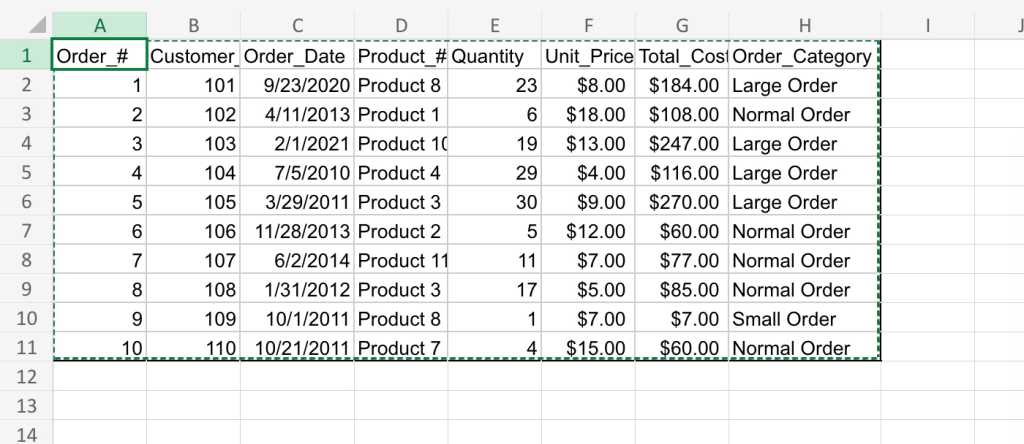
We will use the data set shown below as our starting point:
The starting data set for our PivotTable examples.
Shimon Brathwaite / IDG
To get started, select any cell in the data set, then go to the Ribbon toolbar at the top of the spreadsheet and select Insert. At the far left of the toolbar, select the PivotTable button.
A pop-up appears that lets you select the range of data you want to analyze and where to place the PivotTable. Make sure the whole data set is selected and that the PivotTable will be placed in a new worksheet, then click OK.
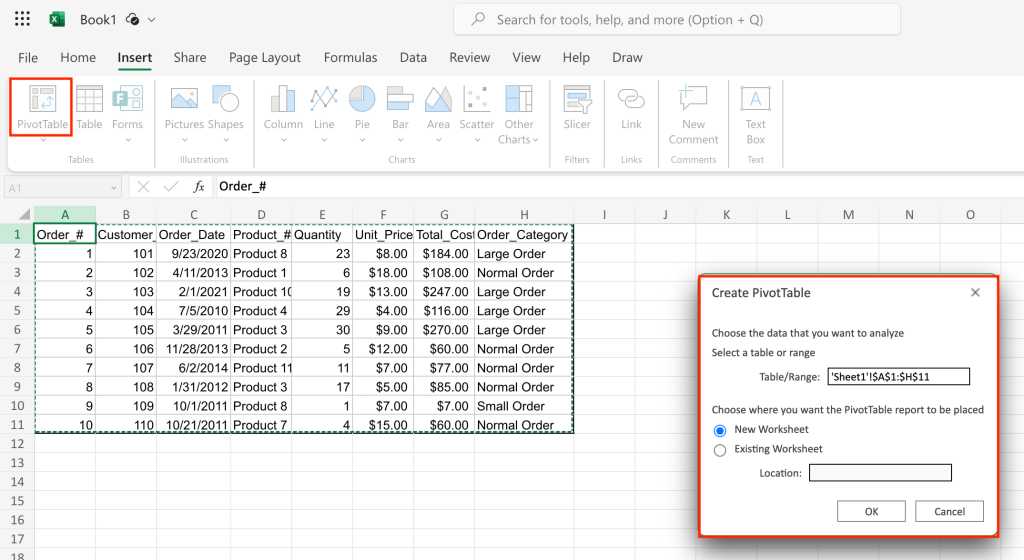
Starting a PivotTable in Excel.
Shimon Brathwaite / IDG
Now we are brought to the starting page for creating a PivotTable. From here, we can begin constructing our first data summary.
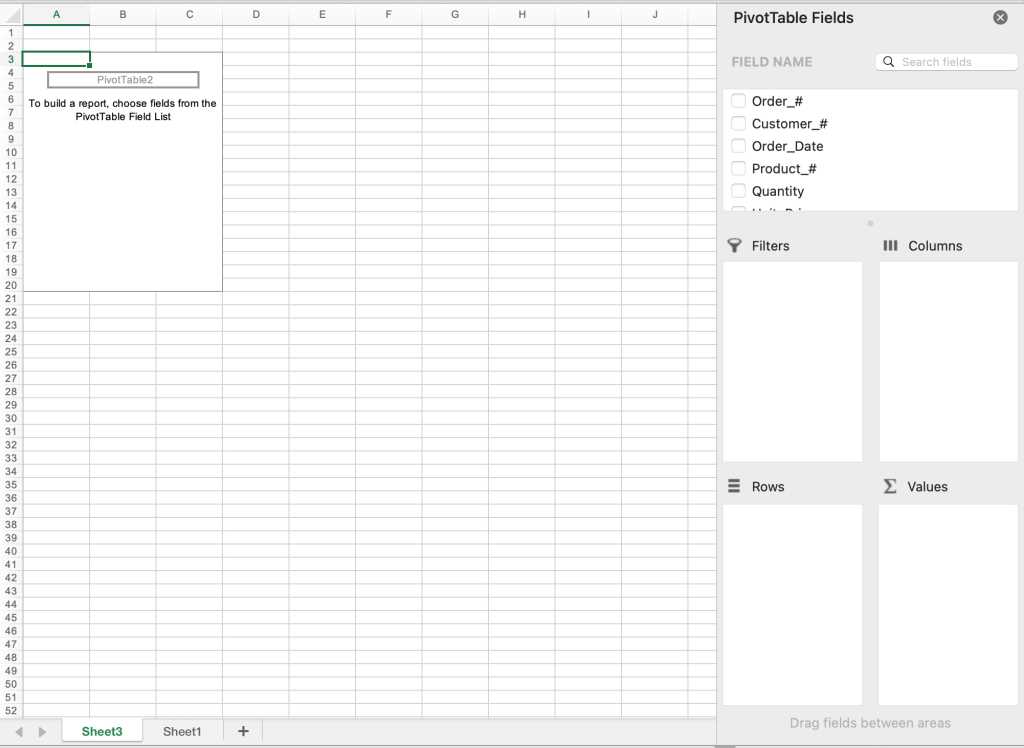
Your blank canvas for PivotTable creation.
Shimon Brathwaite / IDG
First, we will look at the total quantity of each ordered product. To do this, let’s check the checkbox next to Quantity in the PivotTable Fields sidebar on the right. This will move Quantity into the Values area at the bottom right of the sidebar. Next, drag Product_# into the Rows area to sort by Product_#. The screenshot below shows the result.
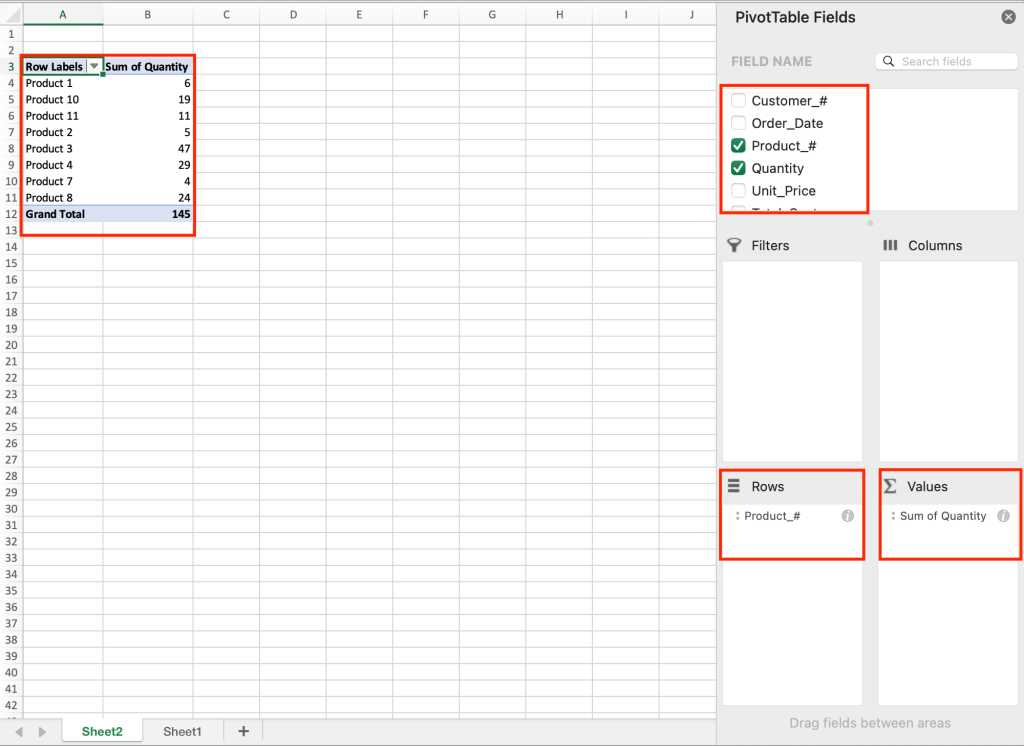
This PivotTable shows the quantity of each product type sold.
Shimon Brathwaite / IDG
Here we see a summary of the quantity of products sold by product number and the total quantity of all products sold. You can do this sort of simple analysis with any two variables, but you can also do more fine-grained summaries.
Next, we will add another layer to our analysis by displaying quantity of products by product number and categorizing them by order category. To do this, drag Order_Category into the Rows section of the sidebar and make sure that Order_Category is on top. (You can reorder the items in any area of the sidebar by dragging and dropping them.)
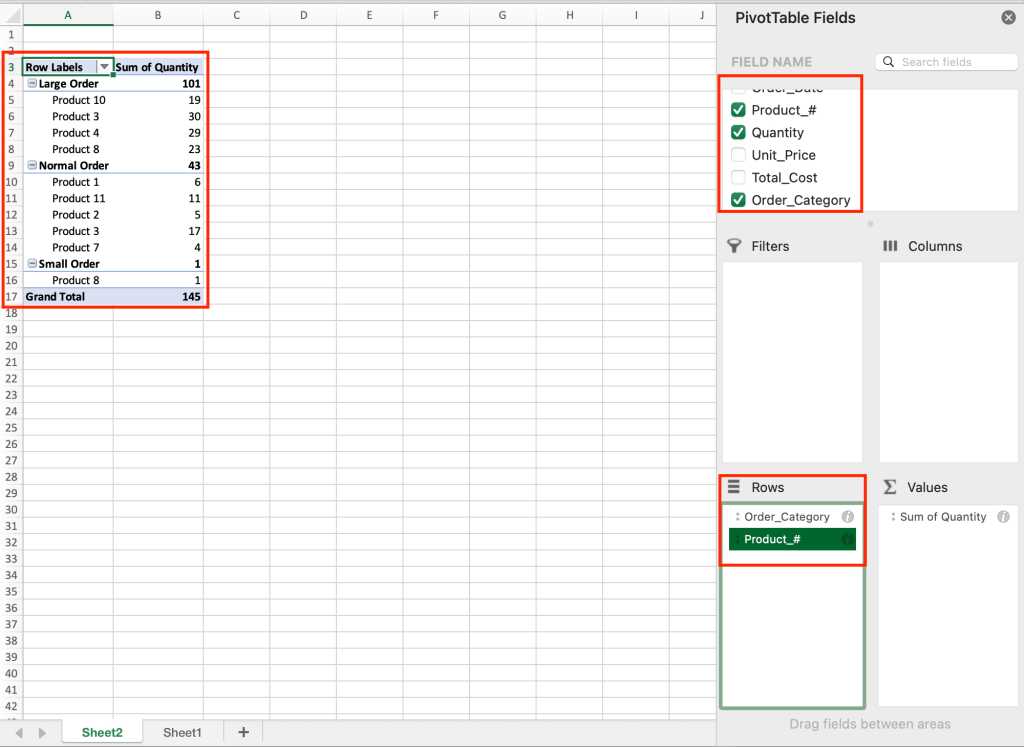
In this version of the PivotTable, another element is shown: Order_Category.
Shimon Brathwaite / IDG
It’s important to understand that you can manipulate how information is shown in the table by the order in which you place the items in any section of the PivotTable. Since we put Order_Category on top of the Rows area, the PivotTable is summarized by that first and then by Product_# inside. To show the opposite sorting, move Product_# to the top in the Rows section and see the result.
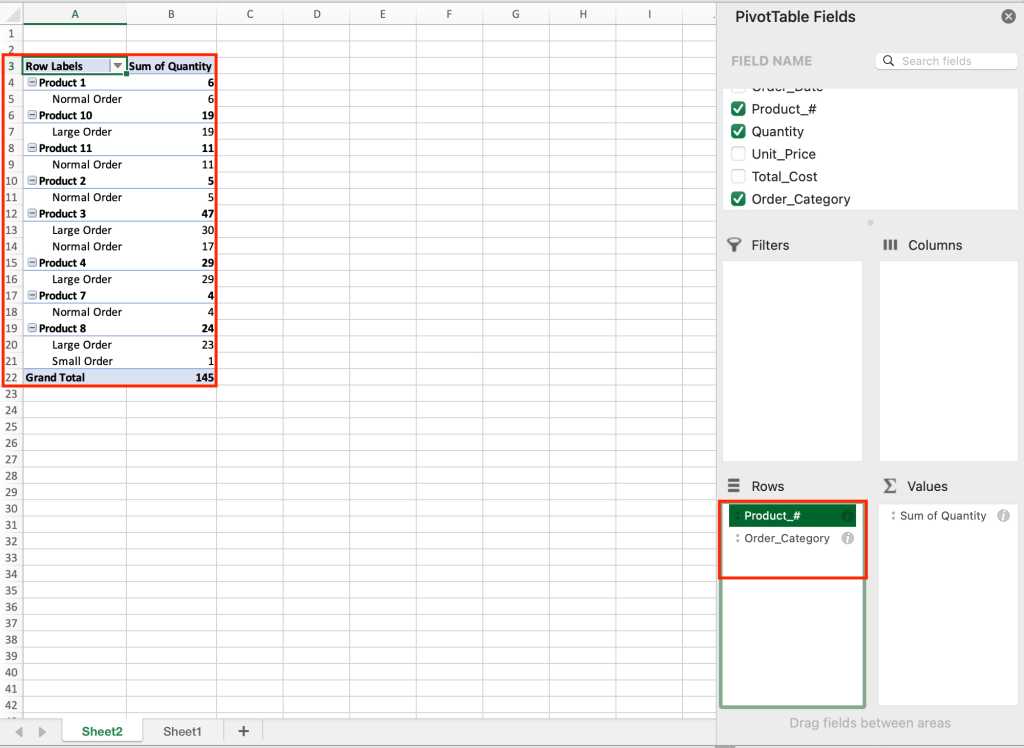
Reversing how Product_# and Order_Category are displayed in the PivotTable.
Shimon Brathwaite / IDG
So far, we have only used the Rows section of the PivotTable builder, but we can show even more information using the Rows and Columns sections together. To demonstrate, we will display the total quantity of products sold at different unit prices. To do this, uncheck the Order_Category checkbox at the top of the sidebar, keep Product_# in the Rows section, and then drag Unit_Price into the Columns section.
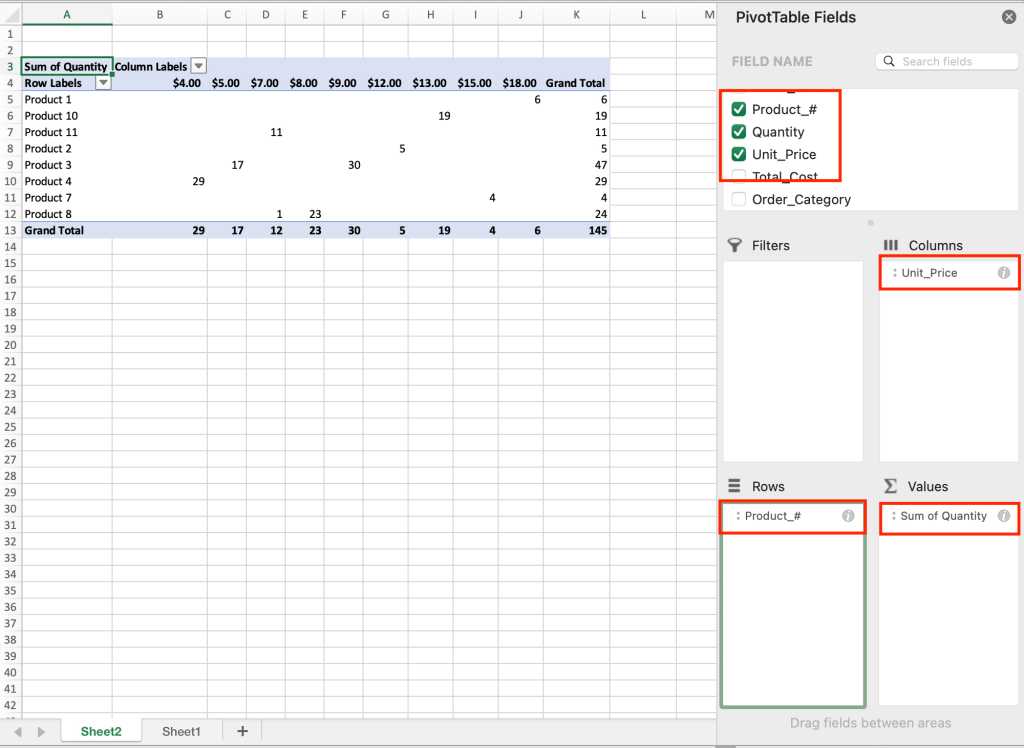
The PivotTable now has columns for different unit prices.
Shimon Brathwaite / IDG
We have created a summary showing the amount of each product sold at a particular unit price. Now, let’s say we don’t want to view all of the products at the same time. We can limit the products shown using the filtering tools built into PivotTables.
First, let’s filter our results by Products 1, 2, and 3. Click the downward triangle icon next to Row Labels. In the filtering pop-up that appears, select Products 1, 2, and 3. The PivotTable will change to show only those three products.
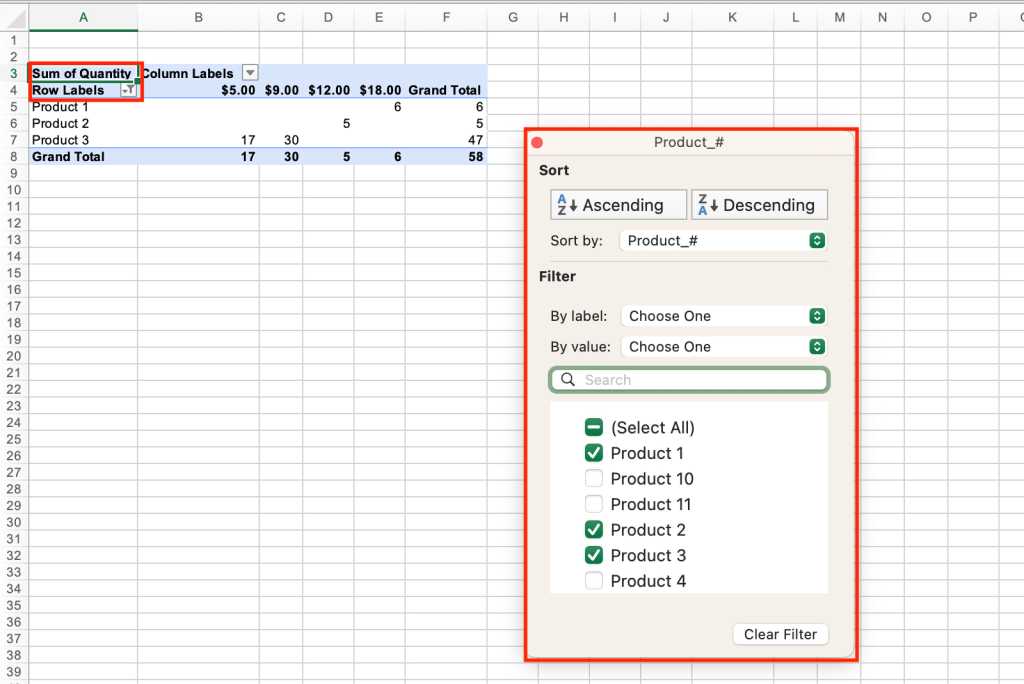
Filtering the PivotTable to show only Products 1, 2, and 3.
Shimon Brathwaite / IDG
Once you are done, select the Clear Filter button in the pop-up, and the full PivotTable reappears.
Next, let’s filter by unit price using the Column Labels filter option. Select that filter and select the $4.00, $5.00, & $7.00 options to change your PivotTable.
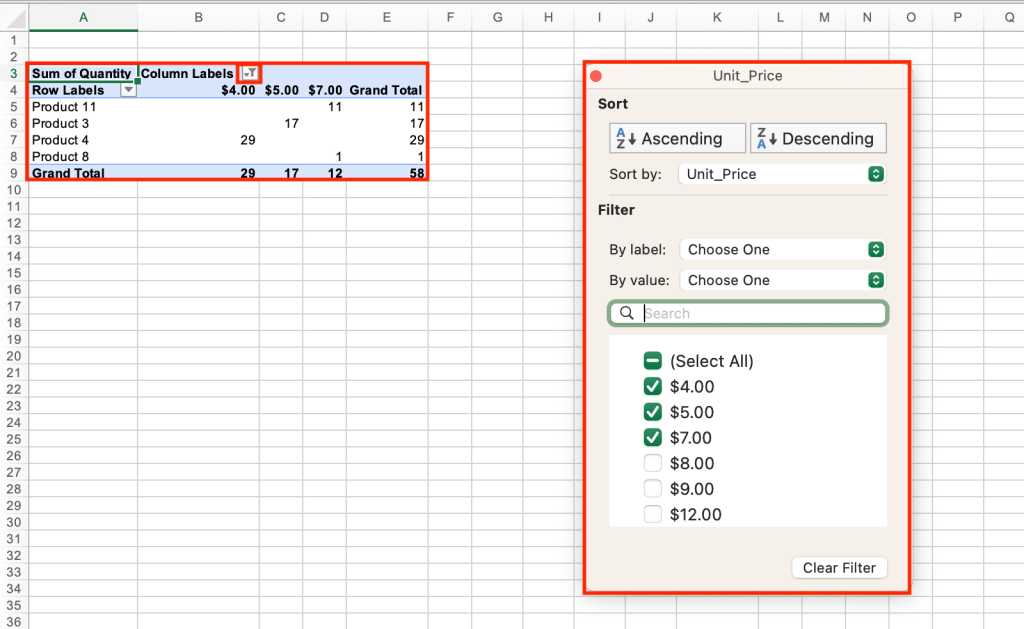
Filtering the PivotTable to show only items that cost $4.00, $5.00, and $7.00.
Shimon Brathwaite / IDG
You can also use the pop-up to sort the items in the PivotTable by various fields, and to filter using conditions such as “Greater Than” or “Contains.” It’s worth spending a little time playing with the options to see what happens; just remember to click Clear Filter when you’re done.
Before we move on to PivotCharts, let’s discuss the Filters area of the sidebar. This can be used to filter out specific items from the PivotTable, but you may find it simpler to remove the field altogether or use the filtering and sorting options that we discussed earlier for more granular control. However, you can see how this box functions by moving the “Product_#” field to the Filters area.
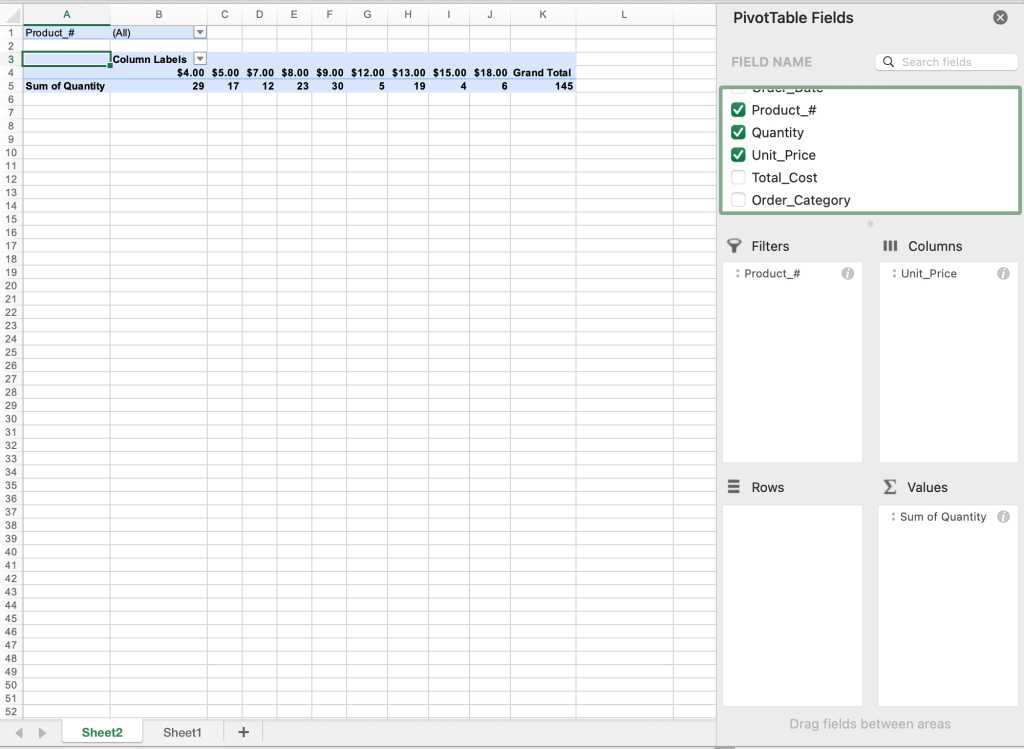
Another way to filter PivotTable data is by using the Filters area in the PivotTable Fields sidebar.
Shimon Brathwaite / IDG
How to create a PivotChart in Excel
Now, let’s move on to how to create data visualizations using PivotCharts. To add a PivotChart to the main data set, go back to the worksheet that contains the main data set, place your cursor in a cell that contains data, and select Insert> PivotChart in the Ribbon.
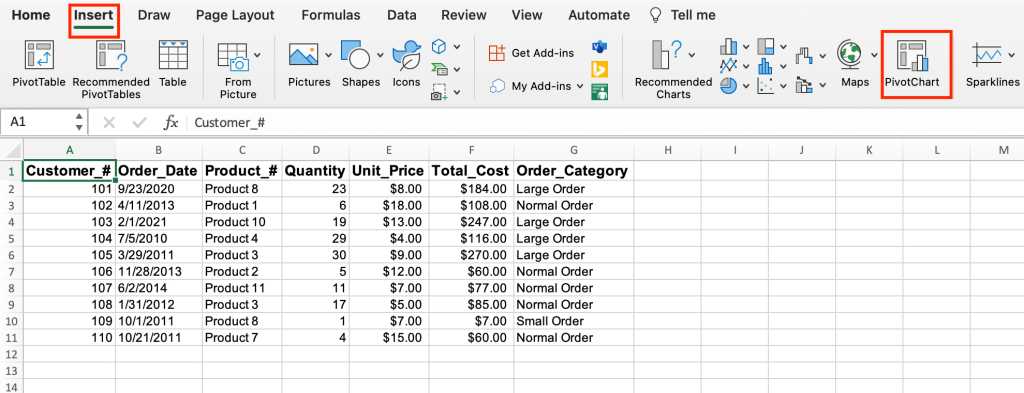
Starting a PivotChart in Excel.
Shimon Brathwaite / IDG
Hit OK on the dialog box that pops up, and the familiar PivotTable builder interface appears, with an additional placeholder for a PivotChart.
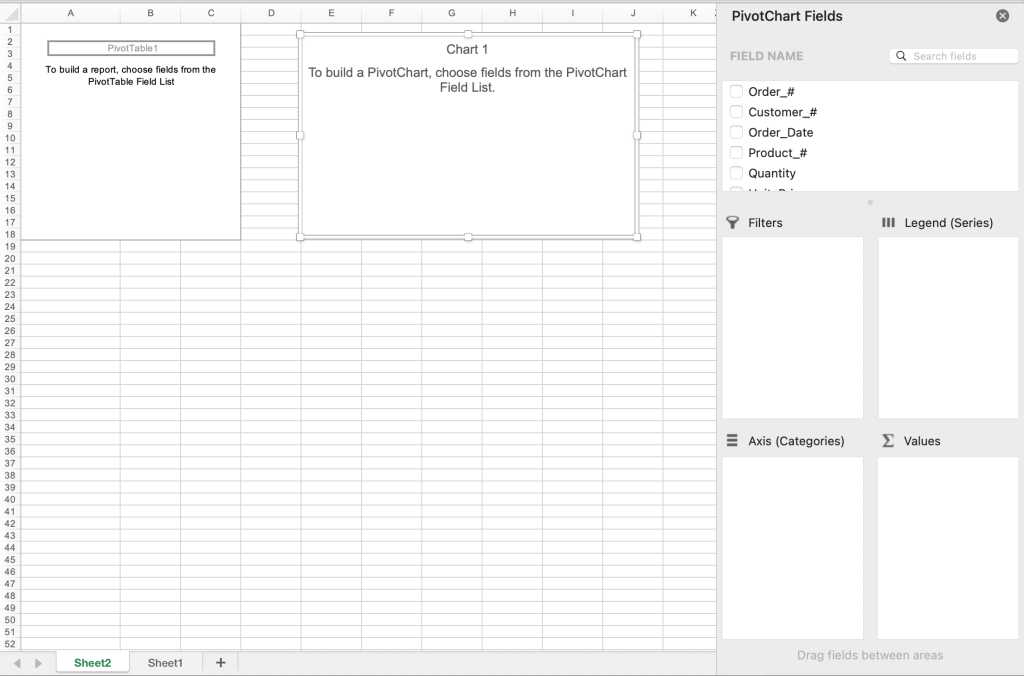
Your blank canvas for PivotChart creation.
Shimon Brathwaite / IDG
We will summarize the quantity of items sold by order category and unit price. In the sidebar, check Quantity to add it to the Values area, then drag Order_Category and Unit_Price to the Axis (Categories) area, with Order_Category on top. This will create a PivotTable and a column chart displaying the information we have selected.
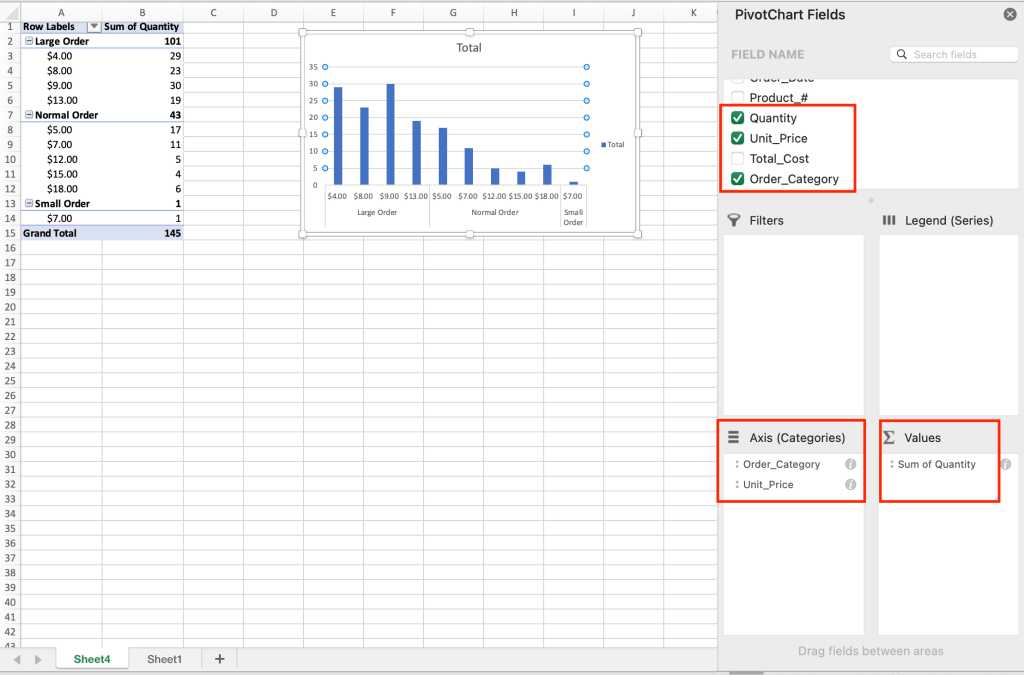
The PivotChart graphically displays the information from the PivotTable at left.
Shimon Brathwaite / IDG
But you’re not limited to column charts; there are multiple types of charts to choose from. Right-click the column chart, select Change Chart Type, and select Pie > 3-D Pie to see a different chart example.
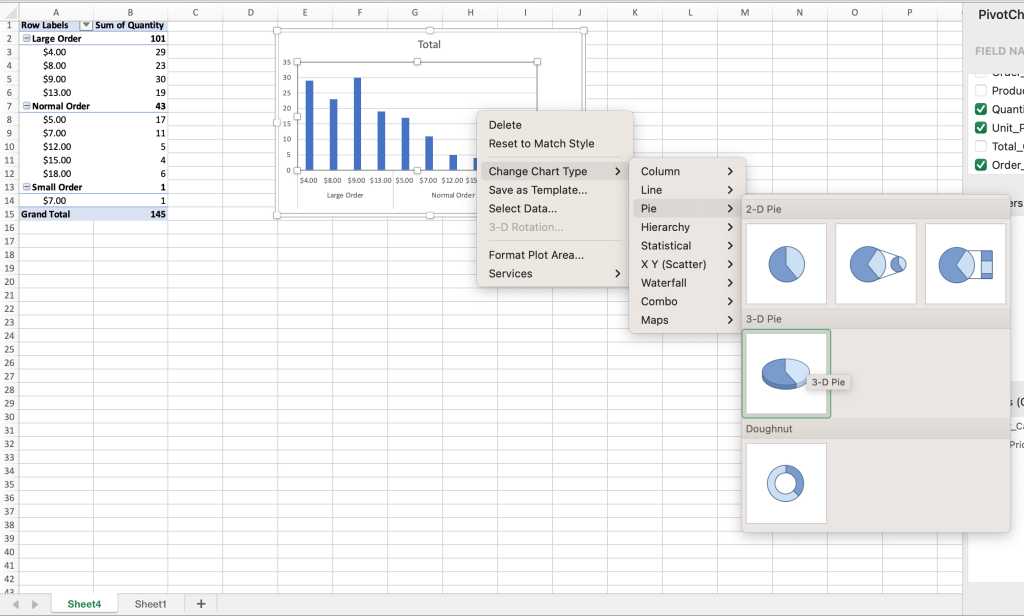
Choosing a different chart type for the PivotChart.
Shimon Brathwaite / IDG
The result will look like the screenshot below.
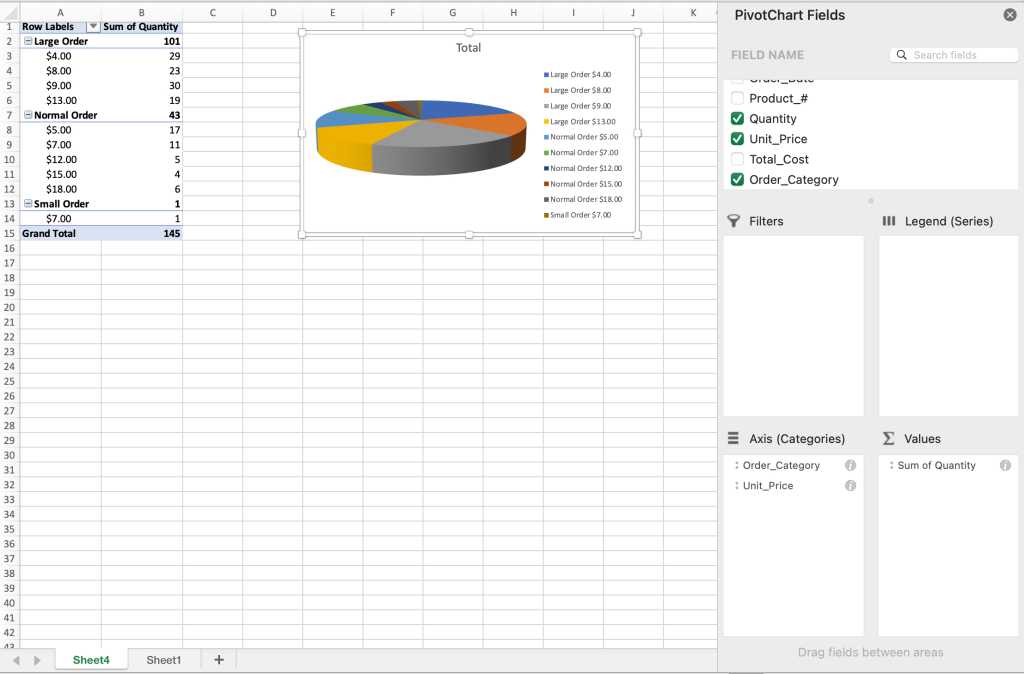
The PivotChart in 3-D pie chart form.
Shimon Brathwaite / IDG
You can filter or sort the data in the PivotTable that a PivotChart is based on, and those changes will be reflected in the PivotChart. To see what this looks like, click the minus sign to the left of Large Order in the PivotTable to the left of the chart. The Large Order section of the PivotTable collapses and shows only the large order total, without breaking it down by unit price. The same thing happens in the PivotChart to the right.
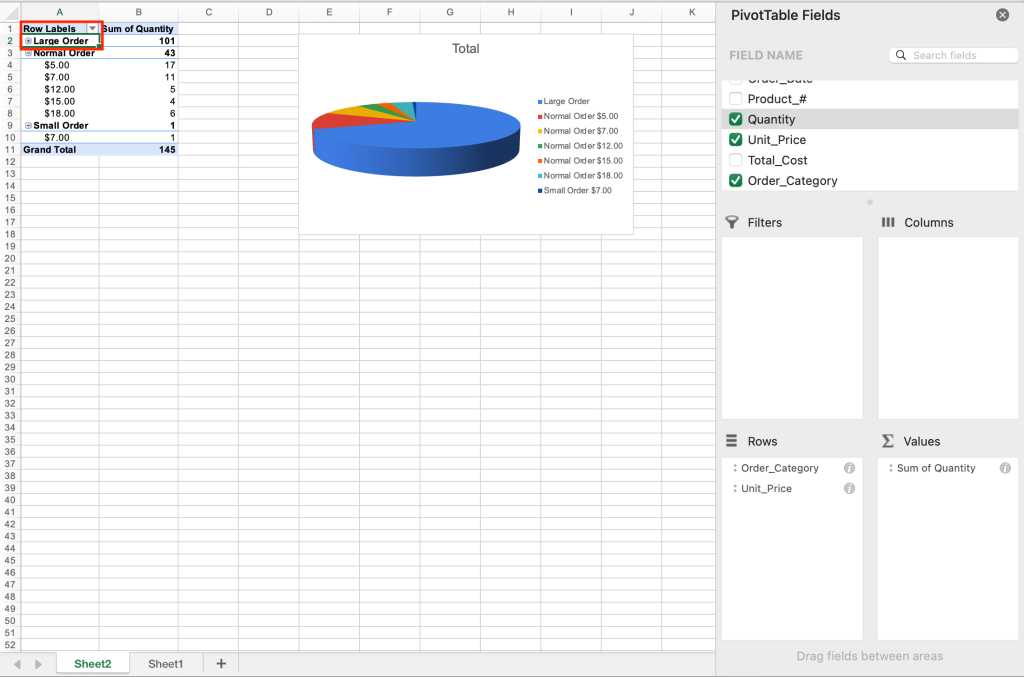
The PivotChart with Large Orders collapsed into a single slice of pie.
Shimon Brathwaite / IDG
Now you see how using PivotTables and PivotCharts lets you create data summaries and visualizations to display specific data quickly and easily. These options can be used on data sets of almost any size and easily customized to show only very specific information. The combinations that you can create using PivotTables and PivotCharts are almost endless, and we encourage you to test them out on any data sets that you work with in Excel.
Microsoft 365, Microsoft Excel, Microsoft Office, Office Suites, Productivity Software
Source:: Computer World
18 ways to speed up Windows 10
The one thing that seems about as certain as death and taxes is that, over time, your Windows 10 PC seems to slow down. There are a variety of reasons this can happen, from accumulated apps and background processes that run amok to registry problems and outdated drivers.
How to speed up your computer
Want your Windows 10 PC to run faster? We’re here to help. By tweaking some of the operating settings, your machine will be zippier and less prone to performance and system issues.
And if you’re already running Windows 11, we’ve got you covered there. Check out our top ways to keep Windows 11 devices chugging along smoothly.
Here’s our list of tips for Windows 10.
The top ways to speed up Windows 10
-
Change your power settings
-
Disable programs that run on startup
-
Go to a previous restore point
-
Use ReadyBoost to speed up disk caching
-
Shut off Windows tips and tricks
-
Stop OneDrive from syncing
-
Use OneDrive files on-Demand
-
Turn off search indexing
-
Clean out your hard disk
-
Clean out your Registry
-
Disable shadows, animations and visual effects
-
Disable transparency
-
Update your device drivers
-
Turn on automated Windows maintenance
-
Kill bloatware
-
Defrag your hard disk
-
Disable Game Mode
-
Shut down and restart Windows
You may notice that that last tip is the most tried-and-true way of (hopefully) smoothing out any problems in Windows 10. There’s a reason it’s effectively an internet meme.
1. Change your power settings
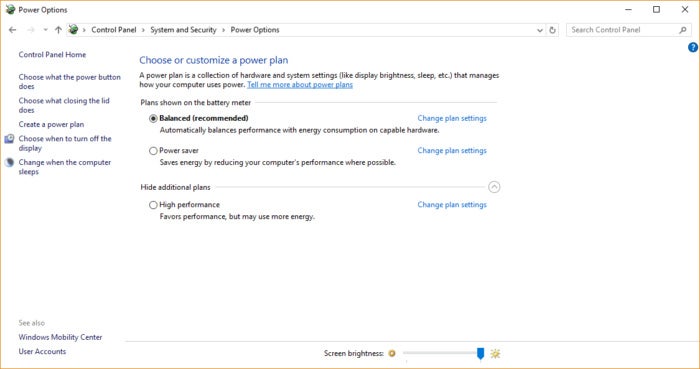
If you’re using Windows 10’s “Power saver” plan, you’re slowing down your PC. That plan reduces your PC’s performance in order to save energy. (Even desktop PCs typically have a “Power saver” plan.) Changing your power plan from “Power saver” to “High performance” or “Balanced” will give you an instant performance boost.
To do it, launch the Control Panel app, then select Hardware and Sound > Power Options. You’ll typically see two options: Balanced (recommended) and Power saver. (Depending on your make and model, you might see other plans here as well, including some branded by the manufacturer.) To see the High performance setting, click the down arrow by Show additional plans.
Change your power settings in Control Panel to give your PC a performance boost. (Click image to enlarge it.)
To change your power setting, simply choose the one you want, then exit Control Panel. “High performance” gives you the most oomph, but uses the most power; “Balanced” finds a happy medium between power use and better performance; and “Power saver” does everything it can to give you as much battery life as possible. Desktop users have no reason to choose “Power saver,” and even laptop users should consider the “Balanced” option when unplugged — and “High performance” when connected to a power source.
2. Disable programs that run on startup
One reason your Windows 10 PC may feel sluggish is that you’ve got too many programs running in the background — programs that you rarely or never use. Stop them from running, and your PC will run more smoothly.
Start by launching the Task Manager: Press Ctrl-Shift-Esc, right-click the lower-right corner of your screen and select Task Manager, or type task manager into the Windows 10 search box and press Enter. If the Task Manager launches as a compact app with no tabs, click More details at the bottom of your screen. The Task Manager will then appear in its full-tabbed glory. There’s plenty you can do with it, but we’re going to focus only on killing unnecessary programs that run at startup.
Click the Startup tab. You’ll see a list of the programs and services that launch when you start Windows. Included on the list is each program’s name as well as its publisher, whether it’s enabled to run on startup, and its “Startup impact,” which is how much it slows down Windows 10 when the system starts up.
To stop a program or service from launching at startup, right-click it and select Disable. This doesn’t disable the program entirely; it only prevents it from launching at startup — you can always run the application after launch. Also, if you later decide you want it to launch at startup, you can just return to this area of the Task Manager, right-click the application and select Enable.
You can use the Task Manager to help get information about programs that launch at startup and disable any you don’t need. (Click image to enlarge it.)
Many of the programs and services that run on startup may be familiar to you, like OneDrive or Evernote Clipper. But you may not recognize many of them. (Anyone who immediately knows what “bzbui.exe” is, please raise your hand. No fair Googling it first.)
The Task Manager helps you get information about unfamiliar programs. Right-click an item and select Properties for more information about it, including its location on your hard disk, whether it has a digital signature, and other information such as the version number, the file size and the last time it was modified.
You can also right-click the item and select Open file location. That opens File Explorer and takes it to the folder where the file is located, which may give you another clue about the program’s purpose.
Finally, and most helpfully, you can select Search online after you right-click. Bing will then launch with links to sites with information about the program or service.
If you’re really nervous about one of the listed applications, you can go to a site run by Reason Software called Should I Block It? and search for the file name. You’ll usually find very solid information about the program or service.
Now that you’ve selected all the programs that you want to disable at startup, the next time you restart your computer, the system will be a lot less concerned with unnecessary programs.
3. Go to a previous restore point
As you use Windows 10, it automatically creates restore points that are essentially snapshots of your system at specific moments in time, including installed software, drivers, and updates. Restore points are a kind of safety net so if something goes wrong, you can always restore your PC to a previous state.
They can also be used to speed up your PC if you notice — for no reason you can fathom — it’s started to slow down. Recently installed problematic drivers, software, or updates could be to blame, so going back to a previous restore point could speed things up again because the system will be returned to the state it was in before the problems started. Keep in mind, though, that you’ll only be able to restore your system to the state it was in during the last seven to 10 days. (Restore points don’t affect your files, so you won’t lose any files by going to a restore point.)
To go to a previous restore point:
- Save any open files and close all your programs.
- In the search box type advanced system and then click View advanced system settings. You’ll be sent to the Advanced tab of System Properties in the Control Panel.
- Click the System Protection tab.
- In the System Restore area, click System Restore.
- On the screen that pops up, the “Recommended restore” option will be chosen for you. Click Next if you want to go that restore point. To see others, click Choose a different restore point. Highlight the one you want to use and click Next.
- Click Finish from the screen that appears.
- Your system will restore to the restore point you chose and shut down. Restart your PC.
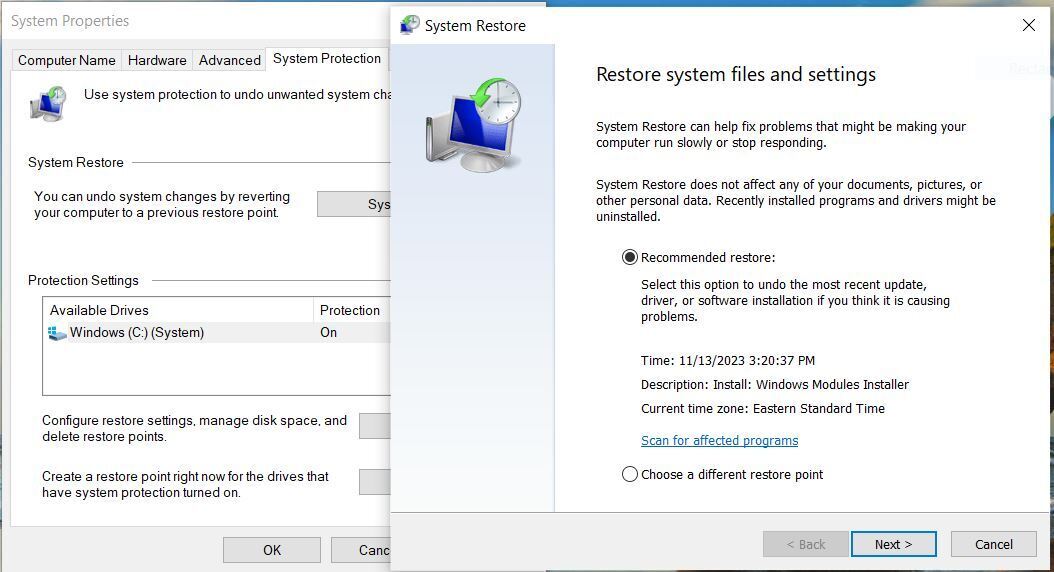
Going to a restore point can help speed up your PC if you’ve recently installed drivers, software, or updates that have slowed down your system. (Click image to enlarge it.)
Note: there’s a chance System Restore isn’t turned on, meaning you won’t be able to use this tip. If that’s the case, you should turn it on to solve any future problems. To do so:
- In the search box, type create a restore point, then click Create a restore point.
- On the System Protection tab, select Configure.
- Select Turn on system protection. Leave the other settings on the page as they are.
- Click OK. From now on, your PC will automatically create restore points.
4. Use ReadyBoost to speed up disk caching
Windows 10 regularly stores cached data on your hard disk, and then when it needs the data, fetches it from there. The time it takes to fetch cached data depends on the speed of your hard disk. If you have a traditional hard disk instead of an SSD, there’s a trick that can help speed up your cache: use Windows’ ReadyBoost feature. It tells Windows to cache data to a USB flash drive, which is faster than a hard disk. Fetching data from that speedier cache should speed up Windows.
First, plug a USB flash drive into one of your PC’s USB ports. The flash drive needs to support at least USB 2.0, and preferably USB 3 or faster. The faster your flash drive, the more of a speed boost you should see. Also, look for a flash drive that is at least double the size of your PC’s RAM for maximum performance.
After you plug in in the drive, open File Explorer and click This PC. Look for the flash drive. It may have an odd name, like UDISK 28X, or something even less obvious. Right-click it, choose Properties, and click the ReadyBoost tab.
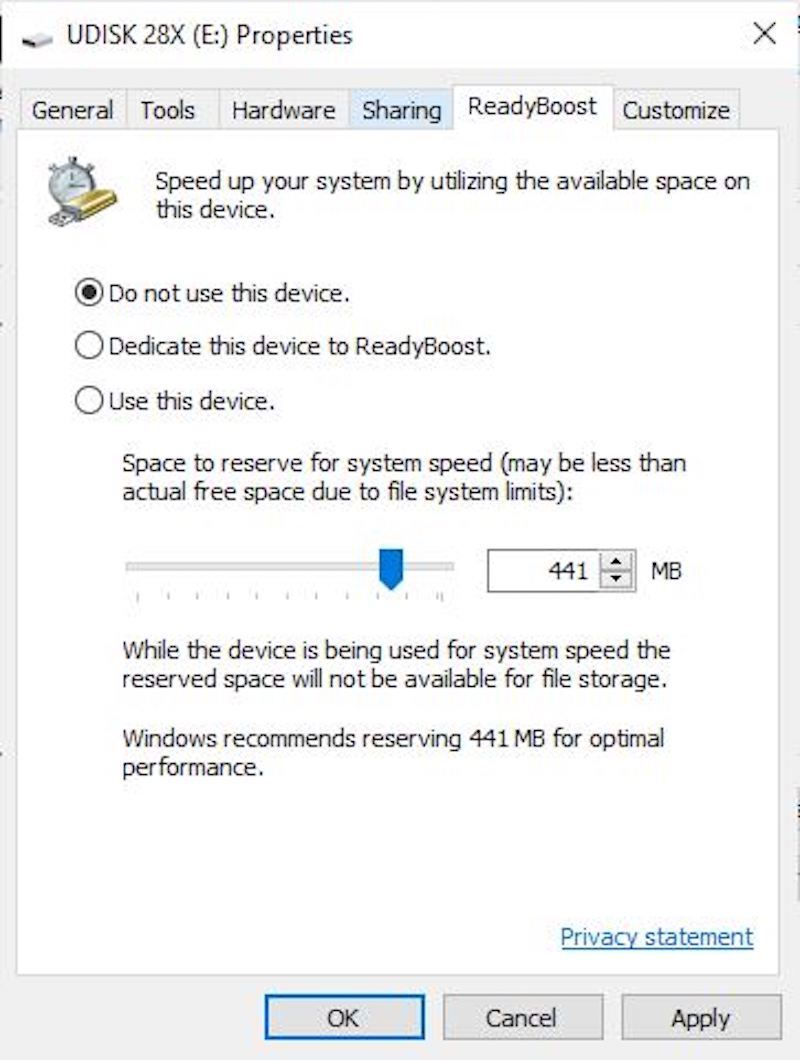
Turn on ReadyBoost from this screen to speed up your PC. (Click image to enlarge it.)
You’ll come to a screen that asks whether you want to use the flash drive as a cache and recommends a cache size. Leave the cache size as is or change it if you like. Then select Dedicate this device to ReadyBoost and click Apply and then OK.
(Note that if you see the message, “This device cannot be used for ReadyBoost” when you click the ReadyBoost tab, it means your flash drive doesn’t meet ReadyBoost’s minimum performance standards, so you’ll have to insert a new one.)
As you use your computer, ReadyBoost will start filling the cache with files, so you may notice an increase in disk activity. Depending on how much you use your PC, it can take a few days for your cache to fill and offer maximum improved performance. If you don’t see an increase in performance, try a flash disk with more capacity.
Note: If you have an SSD, you won’t get any extra speed from ReadyBoost, and it might even hurt performance. So don’t use this on a system with an SSD.
5. Shut off Windows tips and tricks
As you use your Windows 10 PC, Windows keeps an eye on what you’re doing and offers tips about things you might want to do with the operating system. In my experience, I’ve rarely if ever found these “tips” helpful. I also don’t like the privacy implications of Windows constantly taking a virtual look over my shoulder.
Windows watching what you’re doing and offering advice can also make your PC run more sluggishly. So if you want to speed things up, tell Windows to stop giving you advice. To do so, click the Start button, select the Settings icon and then go to System > Notifications & actions. Scroll down to the Notifications section and uncheck the box marked “Get tips, tricks, and suggestions as you use Windows.”
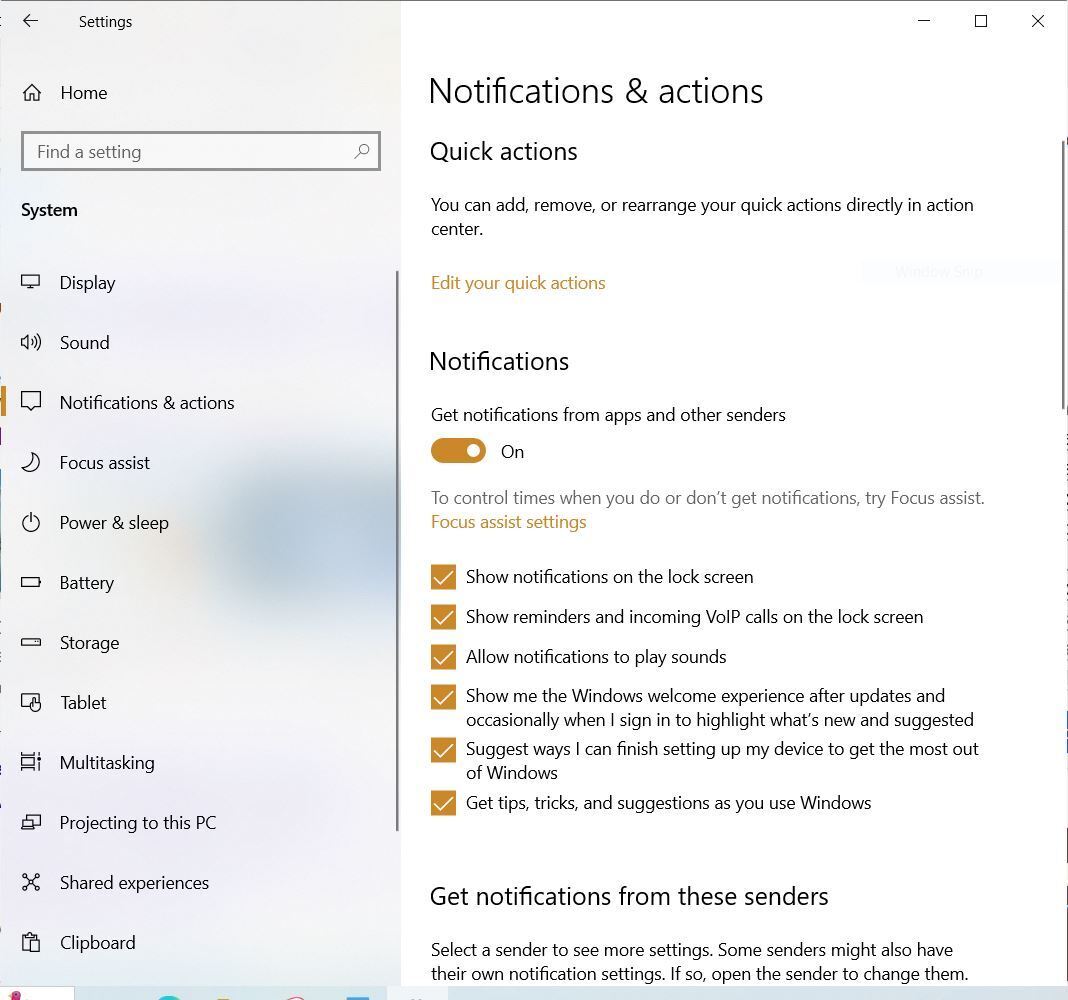
Turning off Windows’ suggestions for you should help things run more smoothly (and give you back a measure of privacy). (Click image to enlarge it.)
That’ll do the trick.
6. Stop OneDrive from syncing
Microsoft’s cloud-based OneDrive file storage, built into Windows 10, keeps files synced and up to date on all of your PCs. It’s also a useful backup tool so that if your PC or its hard disk dies, you still have all your files intact, waiting for you to restore them.
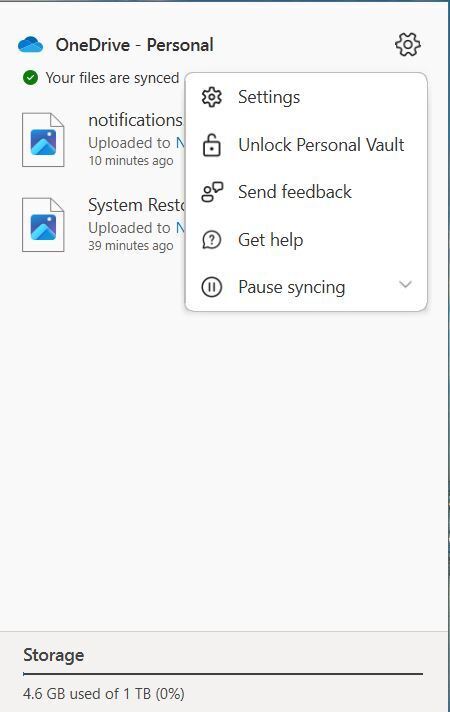
Here’s how to turn off OneDrive syncing temporarily, to see if that boosts system performance. (Click image to enlarge it.)
It does this by constantly syncing files between your PC and cloud storage — something that can also slow down your PC. That’s why one way to speed up your PC is to stop the syncing. Before you turn it off permanently, though, you’ll want to check whether it is actually slowing down your PC.
To do so, right-click the OneDrive icon (it looks like a cloud) in the notification area on the right side of the taskbar. (Note: In order to see the OneDrive icon, you may need to click an upward facing arrow.) From the pop-up screen that appears, click Pause syncing and select either 2 hours, 8 hours, or 24 hours, depending upon how long you want it paused. During that time, gauge whether you’re seeing a noticeable speed boost.
If so, and you decide you do indeed want to turn off syncing, right-click the OneDrive icon, and from the pop-up, select Settings > Account. Click Unlink this PC, and then from the screen that appears, click Unlink account. When you do that, you’ll still be able to save your files to your local OneDrive folder, but it won’t sync with the cloud.
If you find that OneDrive slows down your PC but prefer to keep using it, you can try to troubleshoot OneDrive problems. For info on how to do that, check out Microsoft’s “Fix OneDrive sync problems” page.
7. Use OneDrive Files On-Demand
Some users may not want to stop OneDrive from syncing; doing so defeats its purpose of making sure you have the latest files on whatever device you use. And it would also mean you won’t be able to use OneDrive as a way to safely back up files.
But there’s a way to get the best of both worlds: You can keep syncing to an absolute minimum and only do it when absolutely necessary. You’ll speed up performance, and still get the best of what OneDrive has to offer.
To do this, you use Windows’ OneDrive Files On-Demand feature. With it, you can choose to keep only certain files on your PC, but still have access to all your other OneDrive files in the cloud. When you want to use one of those online files, you open it directly from the cloud. With fewer files on your PC syncing, you should see a performance boost.
Right-click the OneDrive icon on the right side of the Taskbar and select Settings. Click Advanced settings and scroll down to the Files On-Demand section. Click Free up disk space and select Continue. When you do that, all the files on your PC will be set to online-only, which means they’re only available from OneDrive in the cloud not on your PC. From now on, the first time you want to open one of your files, you’ll have to be online – that is, unless you use the following instructions to make some files available on your PC as well as in the cloud, while you leave others available only in the cloud.
After you click the Continue button, you’ll see OneDrive in a File Explorer window. For every folder whose files you want kept on your PC, right-click the folder and select Always keep on this device. You can do the same thing for subfolders and individual files.
Later, if you want to have folders, subfolders, or files stored only in OneDrive in the cloud, right-click it in File Explorer, and uncheck the box next to Always keep on this device. You can change the status of folders, subfolders, and files like this whenever you like.
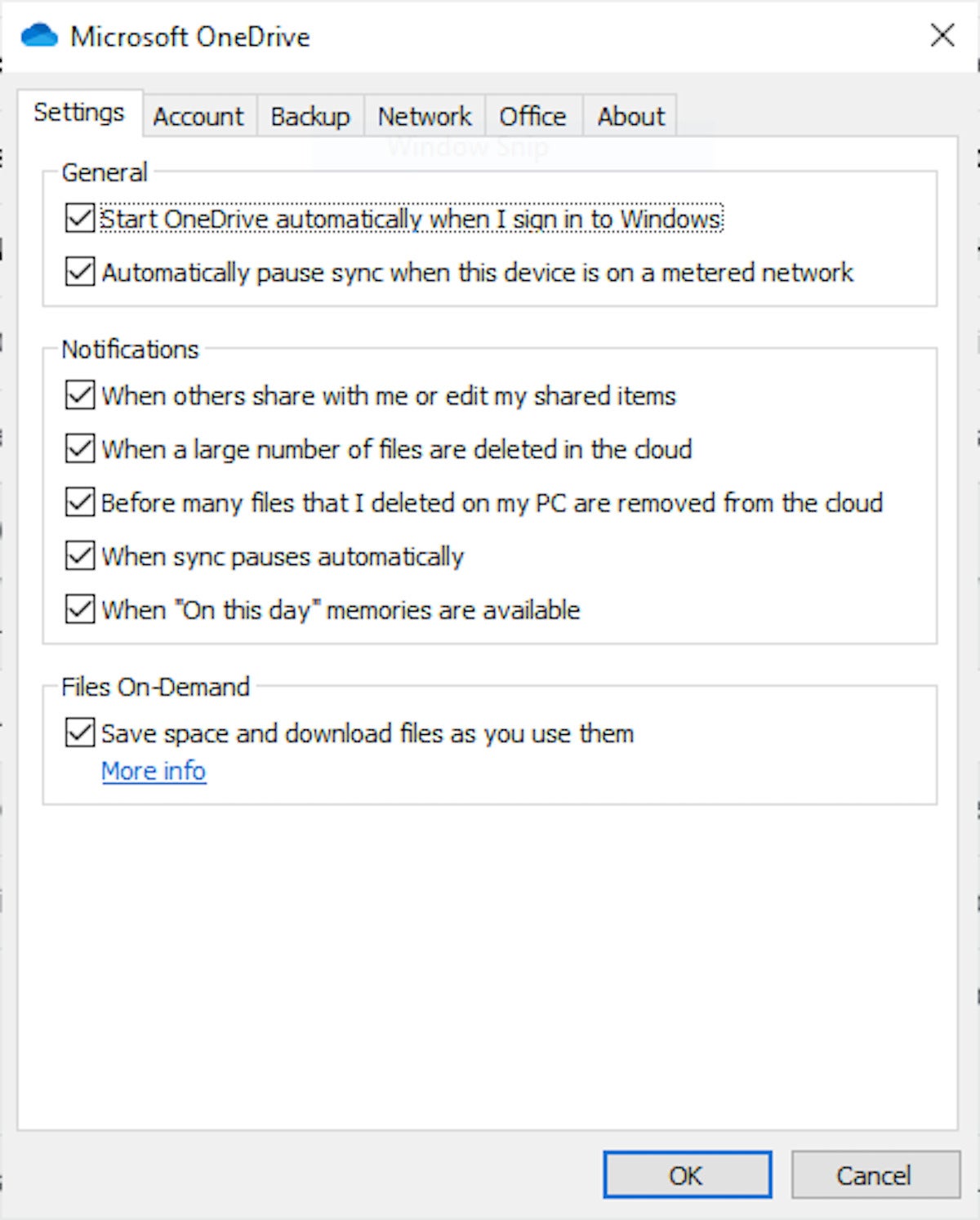
Use this dialog box to turn on OneDrive Files on-Demand
If you change your mind and want all your files stored locally and kept in sync via OneDrive, go back to the “Advanced settings” section of OneDrive settings page, scroll down to the Files On-Demand section and click Download all files.
Note that OneDrive Files On-Demand is available only on Windows 10 version 1709 and higher.
8. Turn off search indexing
Windows 10 indexes your hard disk in the background, allowing you — in theory — to search your PC more quickly than if no indexing were being done. But slower PCs that use indexing can see a performance hit, and you can give them a speed boost by turning off indexing. Even if you have an SSD disk, turning off indexing can improve your speed, because the constant writing to disk that indexing does can eventually slow down SSDs.
To get the maximum benefit in Windows 10, you need to turn indexing off completely. To do so, type services.msc in the Windows search box and press Enter. The Services app appears. Scroll down to either Indexing Service or Windows Search in the list of services. Double-click it, and from the screen that appears, click Stop. Then reboot your machine. Your searches may be slightly slower, although you may not notice the difference. But you should get an overall performance boost.
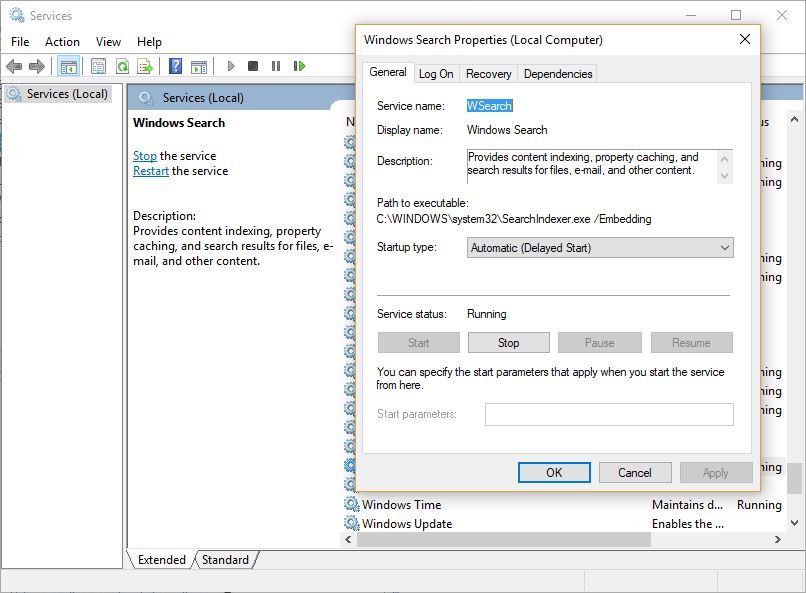
Here’s how to turn off Windows 10 indexing. (Click image to enlarge it.)
If you’d like, you can turn off indexing only for files in certain locations. To do this, type index in the Windows search box and click the Indexing Options result that appears. The Indexing Options page of the Control Panel appears. Click the Modify button, and you’ll see a list of locations that are being indexed, including Microsoft Outlook, Internet Explorer History, and your hard drive or drives. Uncheck the box next to any location, and it will no longer be indexed. If you’d like to customize what gets indexed and what doesn’t on individual drives, click the down arrow next to any drive and check the box next to what you want indexed and uncheck the box of what you don’t.
9. Clean out your hard disk
If you’ve got a bloated hard disk filled with files you don’t need, you could be slowing down your PC. Cleaning it out can give you a speed boost. Windows 10 has a surprisingly useful built-in tool for doing this called Storage Sense. Go to Settings > System > Storage and at the top of the screen, move the toggle from Off to On. When you do this, Windows constantly monitors your PC and deletes old junk files you no longer need — temporary files, files in the Downloads folder that haven’t been changed in a month, and old Recycle Bin files.
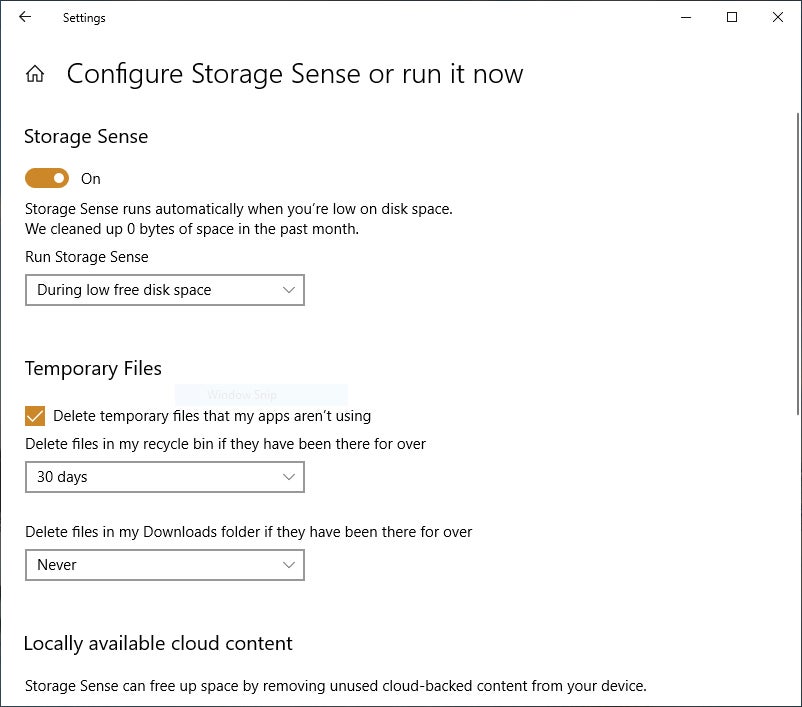
You can customize how Storage Sense works and also use it to free up even more space than it normally would. Underneath Storage Sense, click Configure Storage Sense or run it now. From the screen that appears, you can change how often Storage Sense deletes files (every day, every week, every month or when your storage space gets low).
You can also tell Storage Sense to delete files in your Download folder, depending on how long they’ve been there, and set how long to wait to delete files in the Recycle Bin automatically. You can also have Storage Sense move files from your PC to the cloud in Microsoft’s OneDrive cloud storage if they’re not opened for a certain amount of time (every day, or every 14 days, 30 days, or 60 days).
 IDG
IDGHere’s how to customize the way Storage Sense works, and to tell it to delete old versions of Windows. (Click image to enlarge it.)
10. Clean out your Registry
Under the Windows hood, the Registry tracks and controls just about everything about the way Windows works and looks. That includes information about where your programs are stored, which DLLs they use and share, what file types should be opened by which program, and just about everything else.
But the Registry is a very messy thing. When you uninstall a program, for example, that program’s settings don’t always get cleaned up in the Registry. So over time, it can get filled with countless outdated settings of all types. And that can lead to system slowdowns.
Don’t even think of trying to clean any of this out yourself. It’s impossible. To do it, you need a Registry Cleaner. There are plenty available, some free and some paid. But there’s really no need to outright buy one, because the free Auslogics Registry Cleaner does a solid job.
Before using Auslogics or any other Registry cleaner, you should back up your Registry so you can restore it if anything goes wrong. (Auslogics Registry Cleaner does this for you as well, but it can’t hurt to have it backed up twice.) To do your own Registry backup, type regedit.exe in the search box, then press Enter. That runs the Registry editor. From the File menu, select Export. From the screen that appears, make sure to choose the All option in the “Export range” section at the bottom of the screen. Then choose a file location and file name and click Save. To restore the Registry, open the Registry editor, select Import from the File menu, then open the file you saved.
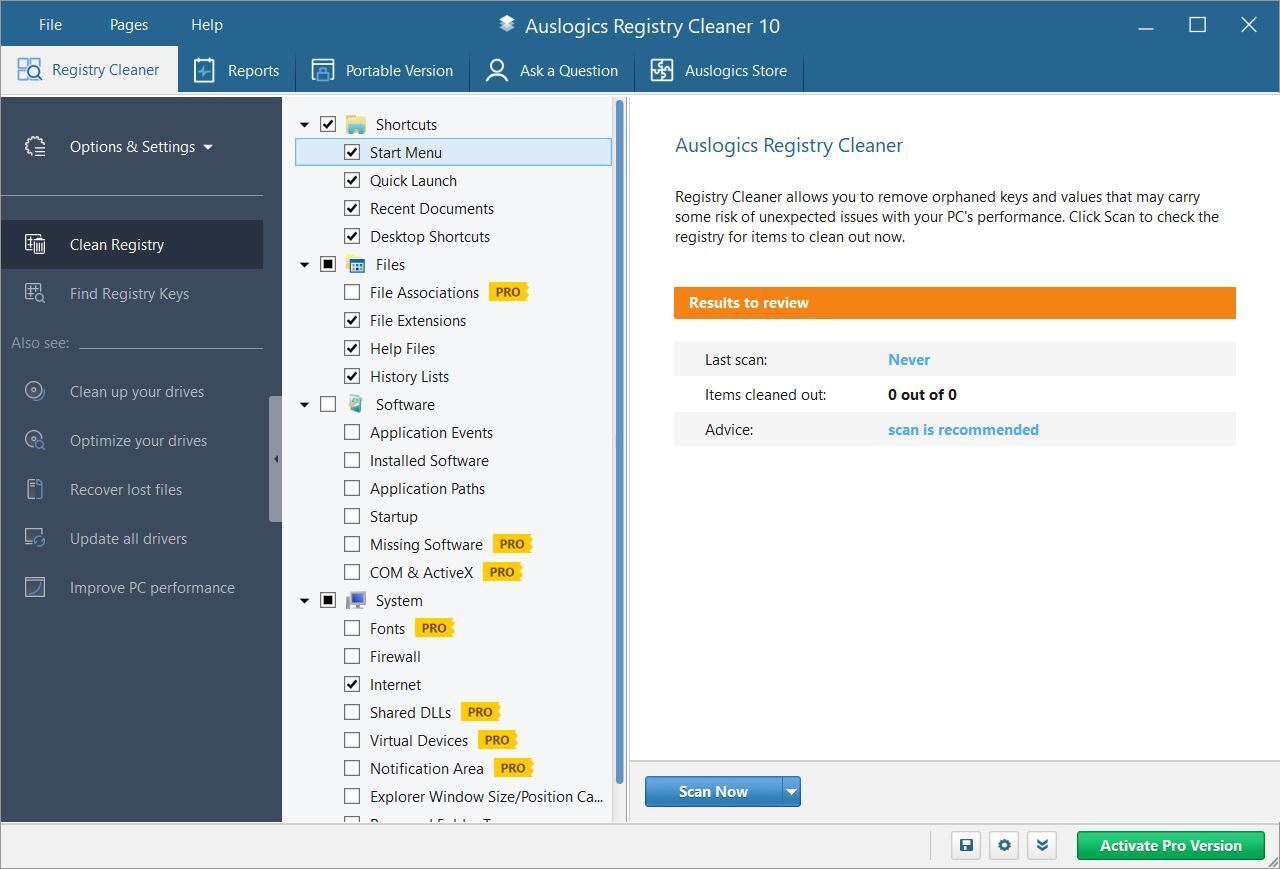
Now download, install, and run Auslogics Registry Cleaner. On the left-hand side of the screen you can select the kinds of Registry issues you want to clean up — for example, File Associations, Internet, or Fonts. I generally select them all.
 IDG
IDGAuslogics Registry Cleaner scans for and fixes problems in your Windows Registry. (Click image to enlarge it.)
Next, tell it to scan the Registry for problems. To do that, click Scan Now, and from the drop-down menu that appears, select Scan. That lets you first examine the Registry problems it finds. If you instead choose Scan and Resolve, it makes the fixes without you checking them.
It now scans your Registry for errors, then shows you what it found. Uncheck the boxes next to any you don’t want it to fix. Click Resolve when you’ve made your decision, and make sure that Back Up Changes is checked, so you can restore the Registry easily if something goes wrong. If you want to see details about what it’s done, click View detailed report at the bottom of the screen.
11. Disable shadows, animations, and visual effects
Windows 10 has some nice eye candy — shadows, animations, and visual effects. On fast, newer PCs, these don’t usually affect system performance. But on slower and older PCs, they can exact a performance hit.
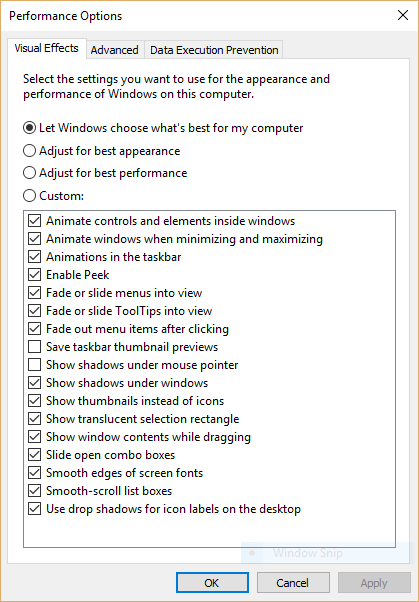
It’s easy to turn them off. In the Windows 10 search box, type sysdm.cpl and press Enter. That launches the System Properties dialog box. Click the Advanced tab and click Settings in the Performance section. That brings you to the Performance Options dialog box. You’ll see a varied list of animations and special effects.
 IDG
IDGThe Performance Options dialog box lets you turn off effects that might be slowing down Windows 10. (Click image to enlarge it.)
If you have time on your hands and love to tweak, you can turn individual options on and off. These are the animations and special effects you’ll probably want to turn off, because they have the greatest effect on system performance:
- Animate controls and elements inside windows
- Animate windows when minimizing and maximizing
- Animations in the taskbar
- Fade or slide menus into view
- Fade or slide ToolTips into view
- Fade out menu items after clicking
- Show shadows under windows
However, it’s probably a lot easier to just select Adjust for best performance at the top of the screen and then click OK. Windows 10 will then turn off the effects that slow down your system.
12. Disable transparency
In addition to turning off shadows, animations, and visual effects, you should also disable the transparency effects that Windows 10 uses for the Start menu, the Taskbar, and the Action Center. It takes a surprising amount of work for Windows to create these transparency effects, and turning them off can make a difference in system performance.
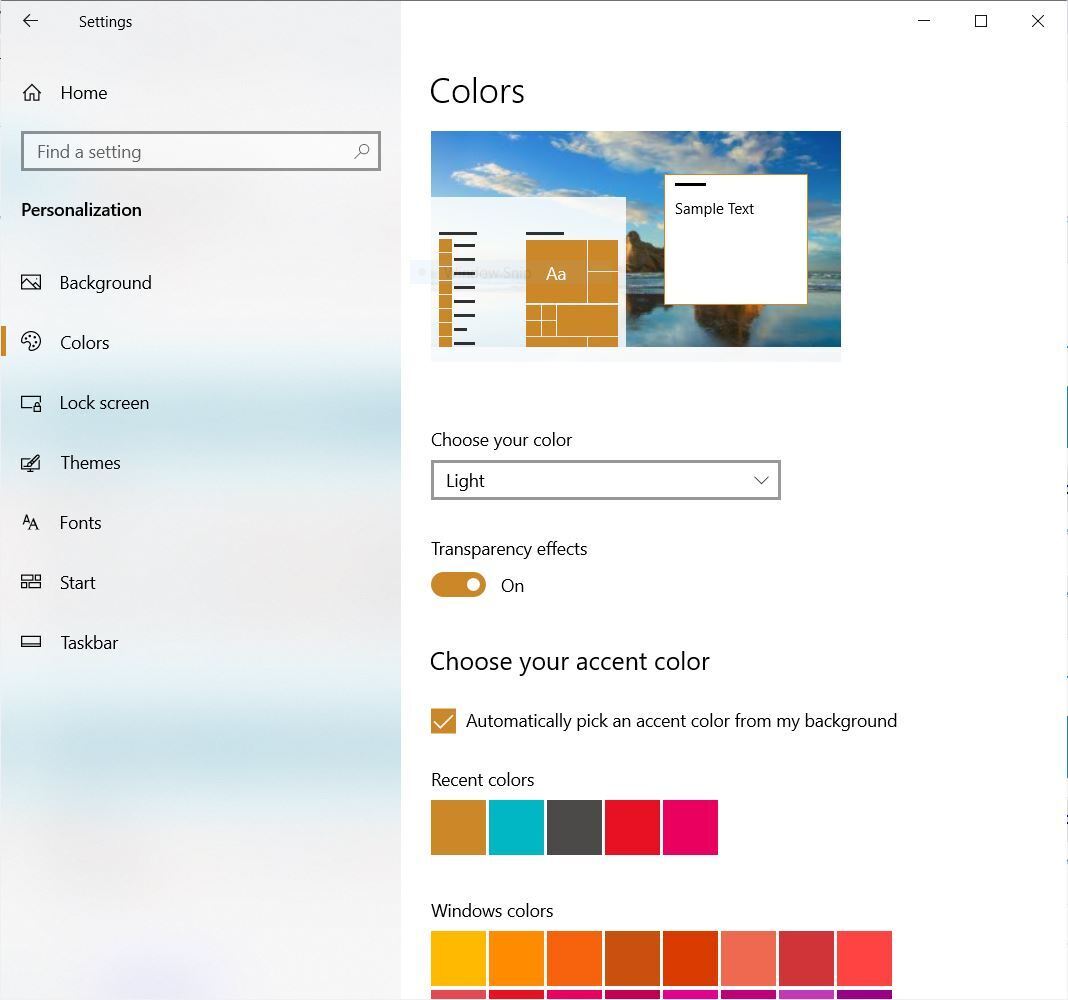
To do it, from Settings, choose Personalization > Colors, scroll down to “Transparency effects” and move the slider to Off.
 IDG
IDGTurning off Windows 10’s transparency effects can help speed up performance. (Click image to enlarge it.)
13. Update your device drivers
Windows 10 can take a big performance hit if it’s using outdated drivers. Installing the latest ones can go a long way towards speeding it up. Particularly problematic are graphics drivers, so those are the ones you should make sure to update. To do it:
- Type devmgmt.msc into the Search box and click the Device Manager icon that appears in the right pane.
- Scroll to the Display Adapters entry and click the side-facing arrow to expand it.
- Right-click the driver that appears.
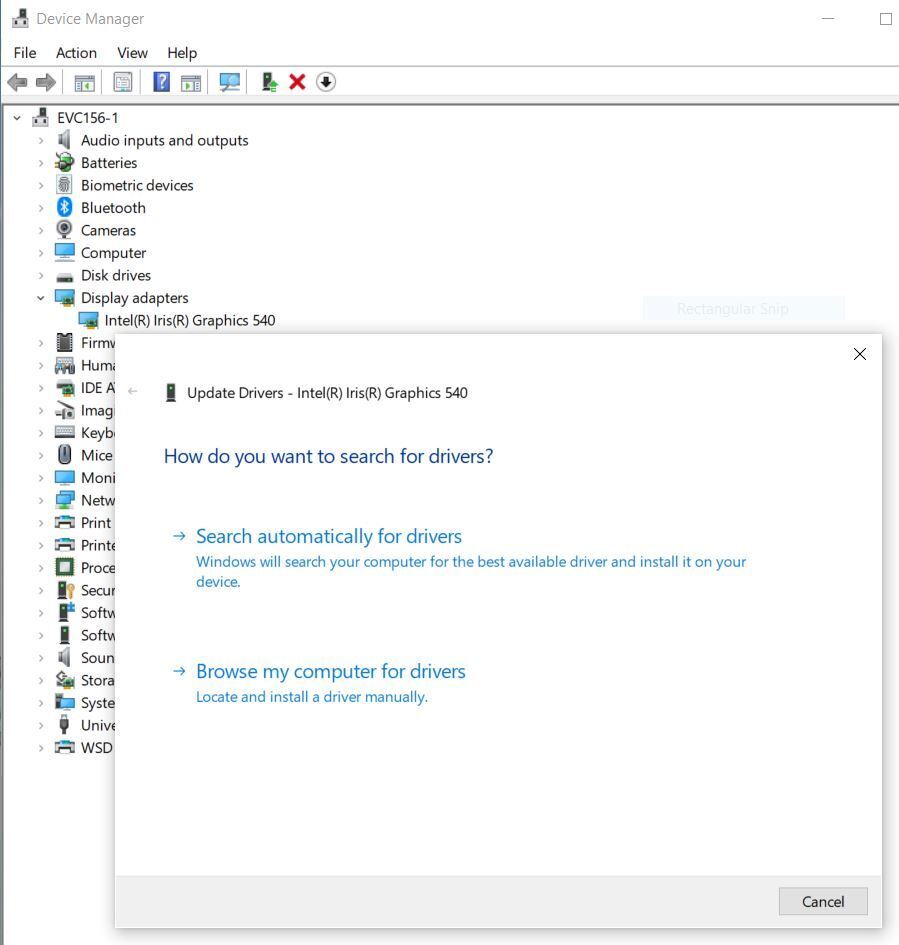
- From the context menu that appears, select Update driver.
- You’ll be asked whether to have Windows search for an updated driver or if you want to find one and install it manually. Your best bet is to let Windows do the work. Follow the on-screen instructions to install the driver.
 IDG
IDGUpdating your device drivers with the Device Manager can give Windows 10 a speed boost. (Click image to enlarge it.)
You can do this to update all your drivers, not just graphics-related ones. It can take a while to do that one by one using the Device Manager, so you might want to use Windows Update to do it for you instead.
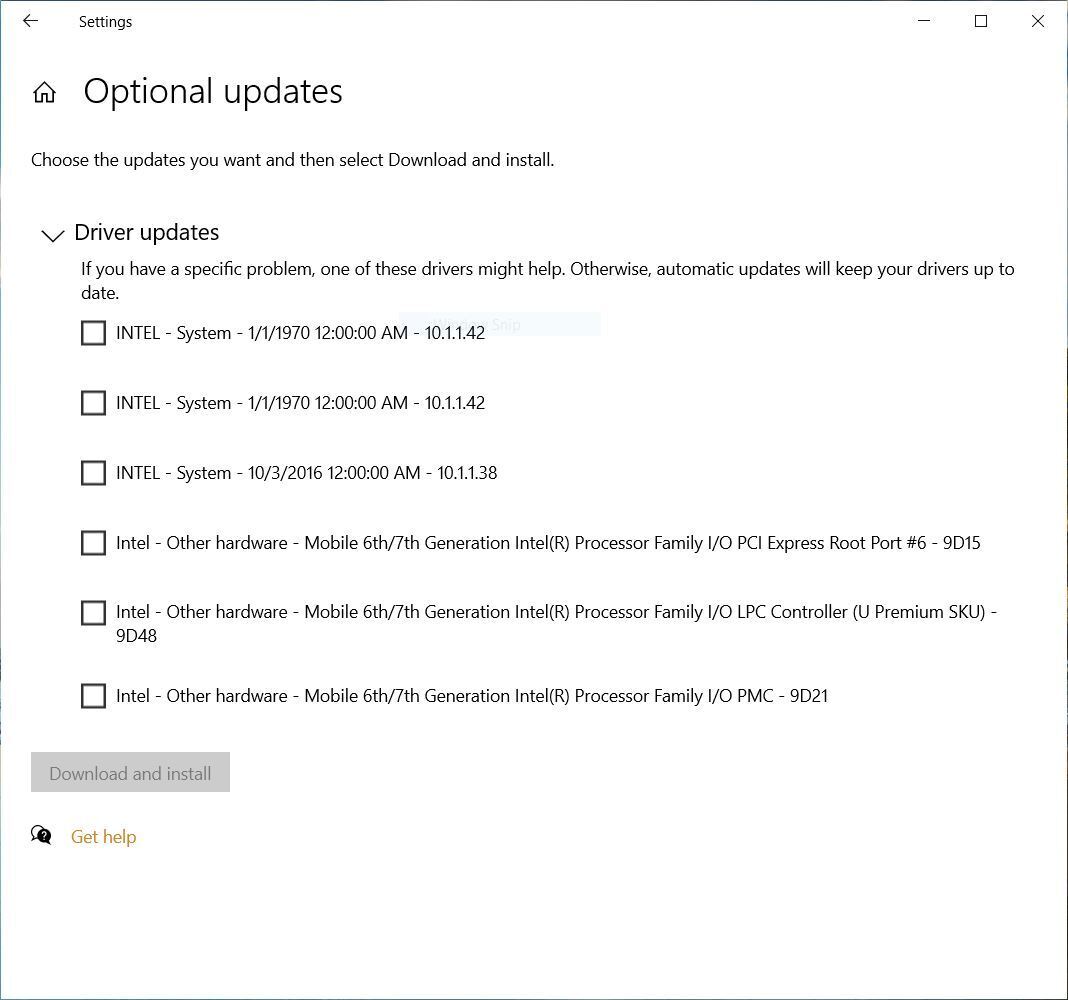
- Launch the Settings app and select Update & Security > Windows Update.
- Select Advanced Options > View optional updates > Driver updates. A list of all driver updates that Windows has found but hasn’t installed appears.
- Select any of the drivers you want to install and click Download & Install.
 IDG
IDGWindows Update finds drivers you might want to update. (Click image to enlarge it.)
14. Turn on automated Windows maintenance
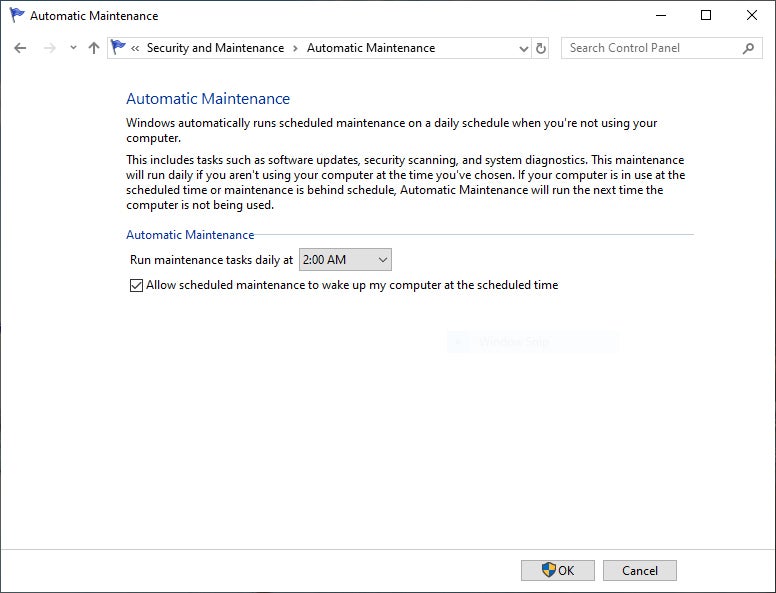
Every day, behind the scenes, Windows 10 performs maintenance on your PC. It does things like security scanning and performing system diagnostics to make sure everything is up to snuff — and automatically fixes problems if it finds them. That makes sure your PC runs at peak performance. By default, this automatic maintenance runs every day at 2:00 a.m., as long as your device is plugged into a power source and is asleep.
There’s a chance, though, that the feature has been accidentally turned off or you haven’t had your PC plugged in for a while, so the maintenance hasn’t been done. You can make sure it’s turned on and runs every day, and run it manually if you’d like.
Run the Control Panel app and select System and Security > Security and Maintenance. In the Maintenance section, under Automatic Maintenance, click “Start maintenance” if you want it to run now. To make sure that it runs every day, click “Change maintenance settings,” and from the screen that appears, select the time you’d like maintenance to run, and check the box next to “Allow scheduled maintenance to wake up my computer at the scheduled time.” Then click OK.
 IDG
IDGYou can designate a time each day for Windows to run its maintenance tasks. (Click image to enlarge it.)
15. Kill bloatware
Sometimes the biggest factor slowing down your PC isn’t Windows 10 itself, but bloatware or adware that takes up CPU and system resources. Adware and bloatware are particularly insidious because they may have been installed by your computer’s manufacturer. You’d be amazed at how much more quickly your Windows 10 PC can run if you get rid of it.
First, run a system scan to find adware and malware. If you’ve already installed a security suite such as Norton Security or McAfee LiveSafe, you can use that. You can also use Windows 10’s built in anti-malware app — just type windows security in the search box, press Enter, and then select Virus & threat protection > Quick Scan. Windows Defender will look for malware and remove any it finds.
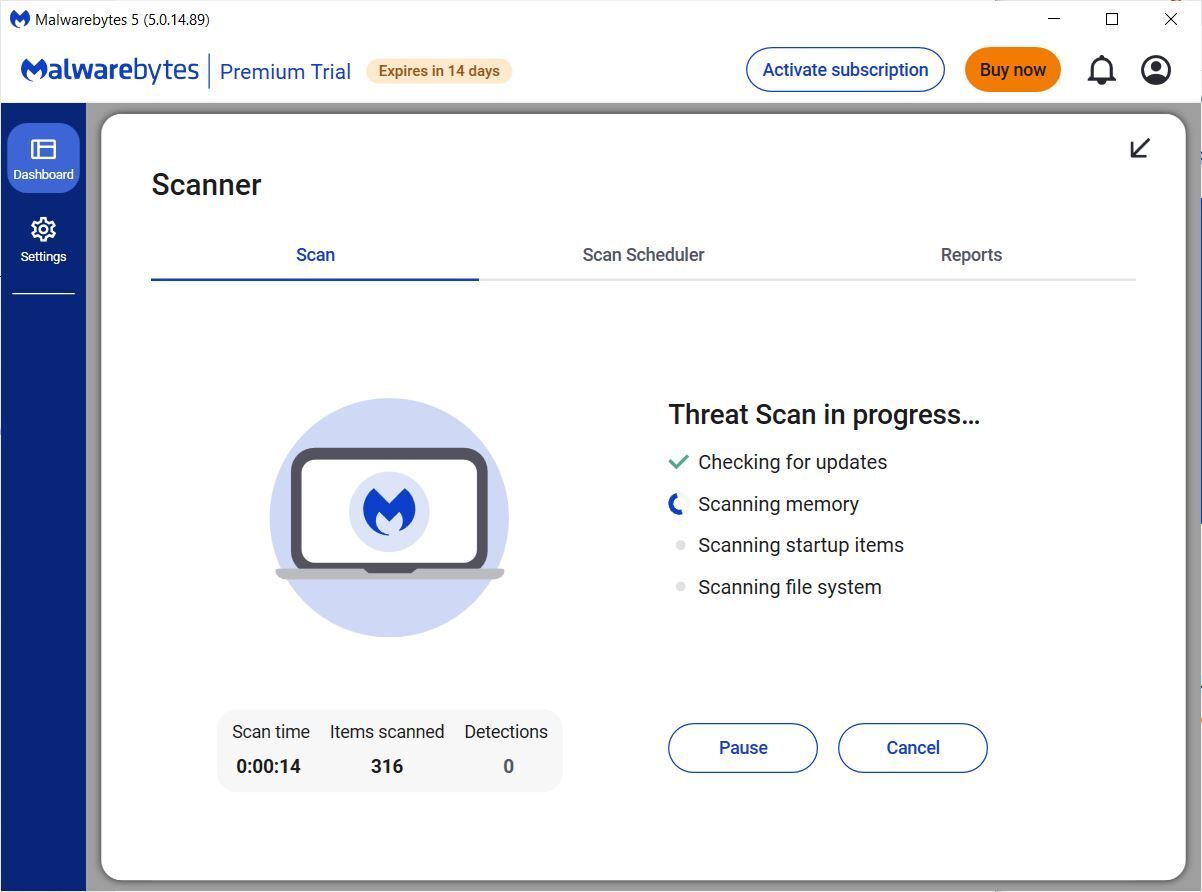
It’s a good idea to get a second opinion, though, so consider a free tool like Malwarebytes Anti-Malware. The free version scans for malware and removes what it finds; the paid version offers always-on protection to stop infections in the first place.
 IDG
IDGMalwarebytes Anti-Malware is a useful application that will scan for and fix Windows 10 PC problems. (Click image to enlarge it.)
Now you can check for bloatware and get rid of it. A good program to do that is PC Decrapifier. And Should I Remove It? is a website that offers advice on what files may be malware or bloatware.
For more details about removing bloatware, check out Computerworld’s article “Bloatware: What it is and how to get rid of it.”
16. Defrag your hard disk
The more you use your hard disk, the more it can become fragmented, which can slow down your PC. When a disk gets fragmented, it stores files willy-nilly across it, and it takes a while for Windows to put them together before running them.
Windows 10, though, has a built-in defragmenter you can use to defragment your hard disk. You can even tell it to run automatically so it stays constantly defragmented.
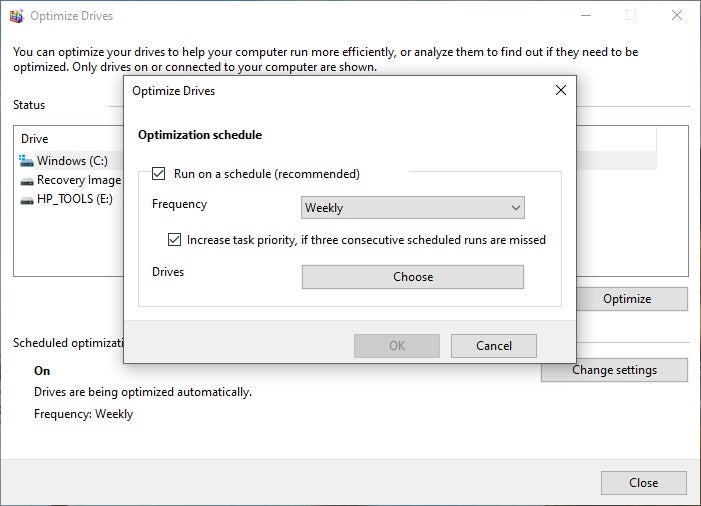
To do it, type defrag into the search box and press Enter. From the screen that appears, select the drive you want you want to defragment. Click the Optimize button to defragment it. Select multiple disks by holding down the Ctrl key and clicking each one you want to defragment.
If you want to have your disk or disks defragmented automatically, click the Change settings button, then check the box next to Run on a schedule. Now select the frequency at which you want the disk(s) defragmented by clicking the drop-down next to Frequency and selecting Daily, Weekly, or Monthly. (Weekly will be your best bet.) From this screen you can also choose multiple drives to defragment.
Note: If you have an SSD, defragging won’t offer any noticeable performance boost, and it could cause wear on the disk. So it’s not worth your while to defrag SSDs.
 IDG
IDGYou can set Windows 10’s built-in disk defragmenter to run automatically on a schedule. (Click image to enlarge it.)
17. Disable Game Mode
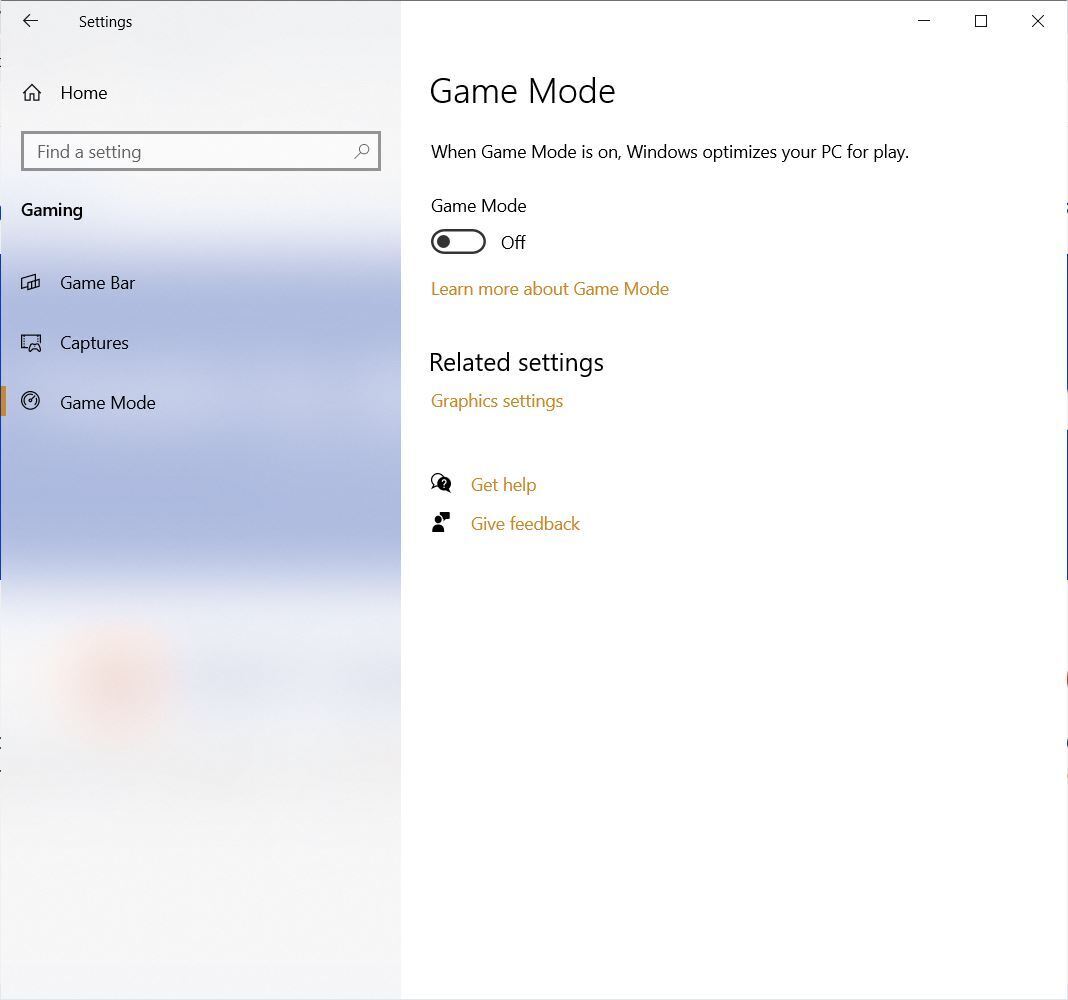
If you’re a serious gamer, you probably know all about Game Mode, which optimizes your PC for playing games. That’s great for when you’re doing just that, but it can slow down your system when you’re not playing because it keeps some system resources in reserve in case you start playing a game and has occasionally been linked to stability issues. So turning off Game Mode can give your PC a quick boost. (You can always turn it back on again when you want to play a game.)
Game Mode is turned on by default, so even if you’ve never played a game on your PC, it’s probably enabled. To turn it off, go to Settings > Gaming > Game Mode and move the Game Mode slider to Off.
 IDG
IDGTurning off Game Mode can give your PC an instant boost. (Click image to enlarge it.)
18. Shut down and restart Windows
Here’s one of IT’s not-quite-secret weapons for troubleshooting and speeding up a PC: Shut it down and restart it. Doing that clears out any excess use of RAM that otherwise can’t be cleared. It also kills processes that you might have set in motion and are no longer needed, but that continue running and slow your system. If your Windows 10 PC has turned sluggish over time for no apparent reason, you may be surprised at how much more quickly it will run when you do this.
Try just some of these tricks, and you’ll find that you’ve got a faster Windows 10 PC — and one that is less likely to have any reliability problems.
This article was originally published in February 2016 and most recently updated in December 2023.
Computers, Microsoft, Small and Medium Business, Windows, Windows 10
Source:: Computer World
Google adds a premium option for Chrome Enterprise

Google has rolled out a premium tier for Chrome Enterprise, offering additional security features for the popular web browser.
Google launched Chrome Enterprise in 2017 as a business-focused edition of its Chrome browser with built-in management features for IT admins and security teams. On Tuesday, Google unveiled Chrome Enterprise Premium, promising enhanced security with features not available in the core version.
This includes malware deep scanning, data loss prevention, the ability to filter URLs based on website category, and “context-aware access controls” that help enforce zero-trust access to cloud applications. There are also additional controls that enable admins to enforce enterprise policies and manage software updates, Google said.
The growth in remote work has created new challenges around endpoint security, Parisa Tabriz, Google’s vice president for Chrome, said in a blog post, with businesses forced to contend with variety of employee devices outside of an organization’s managed fleet. “As these trends continue to accelerate and converge, it’s clear that the browser is a natural enforcement point for endpoint security in the modern enterprise,” she said.
Indeed, with many business apps running in the cloud, the browser is becoming the entire endpoint environment for many end users, said Phil Hochmuth, research vice president for endpoint management and enterprise mobility for IDC. The new features will allow IT and security teams to manage browsers “like a PC endpoint,” he said, “allowing for granular access control, data protection and usage polices to be applied to the Enterprise Chrome browser environment separately from the underlying hardware device.”
When managed-device-level security can be enforced at the browser level, he said, it’s possible to extend corporate apps and data access to more types of users, including remote or contract workers with BYOD endpoints. “It can help workers become more productive with a more flexible, but secure and managed, computing environment,” said Hochmuth.
Chrome Enterprise Premium is generally available now, with prices starting at $6 per user, per month.
Browser Security, Chrome, Enterprise Applications, Google, Vendors and Providers
Source:: Computer World
Green transition at the centre of EU-China tech rivalry
Max Planck spinout nets €20M to build ‘stellarator’ fusion machine
Smart Door Lock Statistics 2024 By Market Size, Usage, Brands And Trends
By Barry Elad
Introduction
Smart Door Lock Statistics: The most recent report of research about the world’s Smart Door Lock market for 2023 gives a complete overview of the industry, including quantitative and qualitative aspects like size, definition and share, estimates, and growth rate. This report will provide readers with an in-depth understanding of the market, which includes drivers, constraints, potential growth, technological advances, and macroeconomic variables that affect the dynamics of the market. The report highlights the impressive expansion that is evident in Smart Door Lock Statistics, including detailed information about the size, participation, and revenue projections up to 2031.
- Smart locks are the latest version of a traditional lock. It is fitted with a range of new technologies including Bluetooth and Wi-Fi which permit users to lock and unlock 33 doors with a single voice command or a touch. The increasing incidence of theft and burglary in urban areas is likely to boost the demand for novel lock solutions for doors, which will drive the market for smart door locks.
- It is expected that the Global Smart Door Lock market is predicted to grow by a substantial amount in the forecast timeframe, between 2023 and 2030. The market in 2022 is expanding at a steady pace as well as with the growing acceptance of strategies by the major players The market is predicted to grow over the forecast period.
- Door locks with smart sensors are readily available and let users open and close the door without keys. Smart door locks offer people a higher level of security than standard alarms and locks.
Editor’s Choice
- Smart locks are essential technology that can make the door more secure since it offers security as well as convenience.
- Modern technology, such as Machine Learning (ML), Artificial Intelligence (AI), and the Internet of Things (IoT), can make smart doors possible.
- Smart doors permit homeowners to control access to their homes and buildings, while removing the requirement for keys in physical form because they come with sophisticated security options like two-factor authentication, tamper identification, and encryption that’s difficult to hack or break by burglars.
- According to the report by Insight Partners, the Smart Door Lock market size will reach $2,733.05 million by the close of 2023. It will be $6,309.13 million by the year 2028. This is an annual growth rate of 18.2 percent. In contrast, according to the findings of Fortune Business Insights, the worldwide market for smart door locks is expected to reach $2.49 billion in 2023 and $8.21 billion before 2030. This is with an annual growth rate of 18.6 percent.
- Based on Global News Wire’s findings, the total revenue from biometric sensors could reach $1.6 billion by 2023. The various types of sensors employed in smart doors include PIR motion sensors, image sensors, biometrics and cameras, metal detectors, audio modules that can be used with speakers, and the MIC.
- Based on the information provided by Mordor Intelligence, in the United States smart doors will become available to more than 12 million houses by 2023. (Source: technavio.com)
- The Automatic Doors Market is forecast to grow to $7,390.33 million in 2023 and an estimated CAGR of 6.75 percent from 2023 through 2027. Based on Technovio’s research, by 2027, the market for automated doors is expected to grow the highest in the Asian Pacific region by a 29.4 percent market percentage.
- Smart Door Lock Statistics shows an incredibly high rise in demand for Automated Doors in 2023.
Smart Door Lock Market
Due to the COVID-19 virus, The worldwide Smart Door Lock market size is estimated at approximately USD 6736.6 million by 2022 and is projected to grow to 22880 million dollars by 2028. This will be accompanied by an annual growth rate of 22.6 percent in the review time.
In full consideration of the changes to the economy caused due to this health crisis Electronic Cipher Locks representing a percent of the Smart Door Lock global market in 2021, will be projected to be worth USD 1 million in 2028 and grow at a rate of a revised percent CAGR after COVID-19. While the household segment is changed to a Percent CAGR over the forecast period.
- The world’s Smart Door Lock key players include ASSA ABLOY, Allegion, Dormakaba Group, Spectrum Brands, and more. The top four companies in the world hold more than 15 percent.
- Asia Pacific is the biggest market, having more than 70 percent. It is followed by Europe and the Americas both with more than 25.
- In terms of product type, Electronic Cipher Locks is the most popular segment, having around 50. As for the applications, the most popular is Household and is followed by Commercial
- The global market for smart locks was valued at $2,366.51 million in 2020. It is predicted to reach $14,972.3 million by 2030 and grow at a rate of 20.1 percent from 2021 to 2030.
“In the post-COVID-19 era, the companies are focused on cutting-edge technology like artificial intelligence (AI) and machine-learning (ML) Internet of things (IoT), and cloud computing across the residential commercial and residential sectors to carry out the operation of contactless. This is likely to increase demand for app-based smart lock systems that are expected to boost the use of smart locks across the world
(Source: mordorintelligence.com)
Smart Lock Market Analysis
It is estimated that the Smart Lock Market size is projected to increase by a staggering 2.43 billion by 2023, to 4.98 billion in 2028. 4.98 billion before 2028 at an annual rate of 15.40 percent over the time frame (2023-2028).
The rising popularity of smart home design worldwide including features like remote access, voice-controlled control as well and seamless connection, is driving the use of smart locks for residential properties. Furthermore, the lack of requirement to carry key locks around in a mechanical way has drawn the attention of homeowners.
- The growing popularity of smart home technology globally and the growing number of businesses offering home automation services are also contributing to the growing demand for locks that are smart. The players in the industry are focused on advancing techniques and market-ready products like remote locking windows and opening them, doors, and.
- In addition, they can pair their products with these devices, as the number of homes with voice assistants is increasing and allows for voice-controlled locks. It is anticipated that customers will increase their use of these advances as they are seeking out advanced and easy lock and unlocking solutions. An increasing number of buildings require identification and certification such as individual residences hotels, restaurants, supermarkets banks, corporate buildings, financial institutions, and commercial buildings.
- The rising use of smartphone users is encouraging the development of connected devices that permit users to remotely control their door locks and open the doors with a variety of mobile applications. According to Oberlo the e-commerce firm it is estimated that there are 3.5 billion people using smartphones in the world and the rate of penetration is around 45.4 percent of the worldwide number which is 7.7 billion. In simple terms, the four-in-a-row of 10 people around the globe are currently using the smartphone.
- In the face of a variety of driving forces that are influencing the development of the smart lock market is likely to be slowed by the current vulnerability to hacking and the increasing threat of cybercrimes. Smart locks in particular are frequently targeted by cybercriminals. In July of this year, according to security researchers from NCC Group, 11 security vulnerabilities afflicted Nuki smart lock systems which included ones that can allow intruders to unlock doors. This kind of incident creates a feeling of fear among people who use the system.
- The COVID-19 pandemic has resulted in the decline of investments in the ICT industry, especially in the Internet of Things, 5G technologies, as well as other new technologies. Companies in the market of smart locks have been forced to reduce their operating expenses. They have seen a decrease in the hiring process and capital budgets, as well. Furthermore, consumer discretionary spending is also decreased the sales of smart locks. The outlook for this market is grim and is likely to see a decline that is expected to last until at least the end of this year.
Biggest Producer Of the Smart Door Lock?
- ASSA ABLOY had a net worth of $27.26 billion.
- Allegion‘s market capitalization was $9.34 billion, with an enterprise value of $10.99 billion.
- Dormakaba Group reported a net sales increase to CHF 1,419.8 million, with an adjusted EBITDA of CHF 184.6 million.
- Spectrum Brands saw revenue of $740.7 million for the quarter ending in September 2023.
- Master Lock‘s annual revenue reached $750 million.
- MIWA Lock reported revenues of $5 million.
- Samsung‘s total revenue was $200.26 billion TTM, with a decrease from the previous year’s $240.71 billion.
- Sargent and Greenleaf generated annual revenue of $32 million.
- Dessmann‘s total revenue for the quarter ending on September 30th, 2023, was Rs. 12,308 crores.
Impact of the COVID-19 Pandemic

(Source: theinsightpartners.com)
Smart locks are an innovative security device that increases access control to physical spaces. It incorporates technology to offer an easy and secure way to enter. It lets users secure and unlock doors remotely with a smartphone, tablet, or any other device connected to it. It offers a variety of options, including fingerprint authentication, keyless entry as well as temporary codes for access which allow users to control access for themselves as well as others. Smart locks can integrate into smart home systems to allow seamless automation. Since it provides a higher degree of security than traditional locks, the market for these locks is growing around the globe.
Digital Door Lock Revenue 2017-2021 vs. Demand Outlook 2022-2032
North America is a prominent market due to the growing demand for digital locks systems in the U.S., which is expected to expand at a rate of 20% and attain a market size of US11 billion dollars in 2032.
Europe is predicted to be home to an estimated market value of US$3 Bn by 2022, due to the rapid adoption of technology.
In the past, East Asia and Europe contributed significantly to the expansion of the door lock with digital technology and will represent approximately 27 percent and 13% market share by 2022 and thereafter.
The top five providers of digital door locks held between 20 and 25% market share by 2021 because the market is split.

(Source: dorlotec.com)
Demand For Smart Home and Digital Door Lock
The demand for wireless home accessories is growing and smart home technology is a hot topic with customers. The latest home technology makes use of technology that can be connected via wireless connections and can be monitored from any location, ultimately resulting in the demand for smart devices such as the digital door lock system, which is just one. This has caused the digital door lock market to develop and grow at a rate of 18% during the evaluation time.
- The Digital Door Lock market is expected to be valued at USD 6799.8 million by 2022 and reach an adjusted size of 19600.0 million USD by 2028. This is based on an annual growth rate of 19.3 percent during that review.
- The Smart Door Lock market size is estimated to be USD 6736.6 million by 2022. It is projected to reach an adjusted size of 22880 million USD in 2028, with an annual growth rate of 22.6 percent during that review phase.
- The WiFi Smart Lock market was valued at 896 million USD in 2020. It is predicted to be worth USD 4531.7 million by 2027 and grow at a rate of 25.9 percent between 2021 and 2027.
- Smart Electronic Lock market size is estimated to be USD 5708.8 million by 2022. It is expected to reach adjusted to USD 10390 million by 2028, with an annual growth rate of 10.5 percent over that review.
- Globally, the Market for Smart Homes size is predicted to grow to around USD117820 by the year 2027. from USD 72040 in 2020. This is an annual rate of 6.8 percent from 2021 to 2027.
- It is estimated that the global Home Security Products and Solutions market size is expected to grow to approximately USD 92340 billion by 2028. This is from 53800 million USD in 2021. That’s an annual rate of 7.9 percent from 2022 to 2028.
- Globally, the Grocery Lockers market was estimated at USD 121.4 million in the year 2020 and is predicted to grow to USD 157.5 million by 2027’s end and grow at a rate of 4.0 percent between 2021 and 2027.
- IoT integration Automation and centralized control are made possible through the ever-growing incorporation of smart locks into bigger Internet of Things (IoT) ecosystems. This trend allows users to create smart, networked environments for their homes or buildings, with features such as remote monitoring and voice control.
- Mobile phone-friendly Smart locks simplify the lives of users by making them manageable via smartphone applications. They can even allow guests access to their property while receiving immediate notifications. Instead of traditional passwords, keys, and PINs, users can gain access to their homes using biometric information.
- The use of biometric locks is increasing. Smart locks increasingly use biometric technologies, including fingerprint and facial recognition, to enhance security and users’ experiences.
Comparative View
Smart Lock Market
| CAGR from 2023 to 2033 | 14.90% |
|---|---|
| Market Value in 2023 | US$ 3,404.70 million |
| Key Trends | The market for smart locks is anticipated to grow as a result of growing concerns about safety and security, the increasing use of smartphones along with other connected devices, and the benefits of smart locks over traditional locking systems. |
| Key Opportunities | The hospitality sector is about to see a tidal wave of digital disruptions, which are anticipated to be reinforced by new developments. This will likely enhance not just smart lock systems but also hotel services, reservation procedures, meal delivery, and other areas. |
(Source: futuremarketinsights.com)
Mechanical Lock Market
| CAGR from 2023 to 2033 | 3.9% |
|---|---|
| Market Value in 2023 | US$ 7,112.1 million |
| Key Trends | Over the assessment year, it is anticipated that growing demand for interconnected and tubular locks will continue to drive sales of mechanical locks. |
| Key Opportunities | Modern lock innovations like biometric locks and keyless entry provide increased security and convenience. The market for integrated mechanical locks is driven by the increasing use of smart home automation systems. |
(Source: futuremarketinsights.com)
Smart Home Solutions Market
| CAGR from 2023 to 2033 | 12.3% |
|---|---|
| Market Value in 2023 | US$ 87,978.74 million |
| Key Trends | Smart home solutions are becoming more and more popular as a result of information technology and computing devices that link different appliances and equipment in the home to meet the demands of the residents. |
| Key Opportunities | The owners can ascertain whether the electrical equipment in their house is running effectively and meeting the intended consumption targets by utilizing data analytics programs along with home automation systems. |
(Source: futuremarketinsights.com)
- Over four-fifths of millennials are likely to pay an additional 20% of capital for smart apartments.
- Over 50% of the Gen Y population is likely to pay additional capital on buildings with smart door locks and high-end security and automation solutions.
- In 2020, the deadbolt lock segment generated the highest demand, accounting for over 31% of market revenue.
- The demand for Wi-Fi-enabled smart locks is expected to observe the highest growth rate due to increased convenience.
- The Northeast region is likely to grow at the highest CAGR during the forecast period due to the increased population, expanding residential sectors, and growing disposable incomes.
- The increasing application in end-users such as hospitality and healthcare is expected to boost smart locks from the commercial sector.
- The US Western region accounts are likely to observe an incremental growth of over USD 197.43 million during 2020–2026.
The United States is the world’s largest market for smart door locks.
The United States has the largest market for smart locks due to its higher proportion of single-family homes and consumers’ greater desire for home automation and security services. Other regions’ consumers have different preferences. For the majority of consumers in Western Europe, temperature control is more important. Smart locks aren’t often included in smart home solutions.
Smart home solutions for smart homes installed in multi-dwelling homes within South Korea usually have shared entryways that have commercial-grade electronic locks. In the last few years, due to the advancement of technology for smart locks and the rise in awareness of markets, China has become a world leader in the area in the field of digital locks. No matter the form of the product or function, or the quantity of companies and brands, China is already ahead of the majority of countries around the world.
It is expected to show a growing trend in 2023, particularly within Japan, South Korea, and European and American markets. Generally speaking, the household usage rate of smart locks in South Korea is more than 50% and around 10% to 5 percent in China the region country where intelligent locks are still in their early stages. Smart locks are likely to be available through door lock makers, builders as well as door manufacturers.
Doors With Facial Recognition Lock

(Source: acumenresearchandconsulting.com)
- The global market for door locks with facial recognition revenues is expected to be $3314.9 million in 3,314.9 million by the year 2030, with an annual growth rate of 16.6 percent from 2022 to 2030.
- According to a study, the 2016 average across the 74 countries was 783 crimes per 100,000 inhabitants.
- North America’s facial recognition door lock market share will increase to over USD 322.4 million by 2021.
- Asia-Pacific door locks with facial recognition market growth will be an increase of over 18% from 2022 until 2030.
- In the report, it is reported that the residential segment had a 37% share in 2021.
- Within application types, the commercial segment was worth the largest share of 195.1 million of revenue by 2021.
- The growing integration of AI and big data as well as IoT for facial recognition has become a favored market trend that drives market demand.

(Source: acumenresearchandconsulting.com)
Face Recognition Lock Market Dynamics
Market Drivers
- The number of thefts is increasing.
- Security and safety concerns are growing in the minds of people
- The use of more applications that are both for the government and commercial sector.
Market Restraints
- Privacy concerns related to this technology
- Complexity and rules for regulation
Opportunity Markets
- The increasing importance of AI and IoT in security and safety solutions
- Rapid technological advances in the field of facial recognition
The survey revealed that consumers rank thermostats, light doors, thermostats, smart TVs, and video cameras among the top five gadgets they’d most want to control using a voice assistant. While some people express concerns regarding using voice assistants to give access to their homes, however, the majority of integrations do not permit voice-controlled unlocking. Instead, the voice assistants’ capabilities are limited to limiting entry, closing doors, and arming systems.
It’s now standard for businesses to connect the devices they sell with Amazon Alexa or Google Assistant. While the integrations to Apple HomeKit lag behind the other two major voice assistants, the majority of the major players have already integrated Siri voice-based assistance to door locks. To stay competitive, device makers must include voice control.
Be it established players or startup products dominate the market, smart access control and system makers are constantly pressured to stay ahead of the curve. Not only have previously innovative features become commonplace, however, but in some areas of access control, the prices are dropping. The median selling price for the smart door lock within the U.S. was $101 in the fourth quarter of 2021, a decrease from $133 a year before. Smart thermostats, video doorbells, and other smart home devices have seen similar price trends.

(Source: restechtoday.com)
Large Market Participants Have Adopted Recent Strategies
- ASSA ABLOY and JOTEC Services and Vertriebsges.mbh, a leading industrial door manufacturer and service supplier in Germany have agreed definitively to sell the former. The acquisition of JOTEC will help them achieve their goal of enhancing their current entry automated offerings.JOTEC has a substantial customer base, an impressive department for service, as well as an extensive range of products.
- A leading private investment company Ardian has purchased GANTNER Electronic Austria Holding GmbH(often called “GANTNER”). SALTO Systems (“SALTO”), a top supplier of electronic locks and Access Control solutions has acquired an organization that specializes in ticketing, electronic access, and billing systems that are less secure than smart locker locks.
- Sentril Lock, LLC has collaborated with Omni MLS, a multi-listing service for the first ever in Mexico. It will ensure that realtors can access the most up-to-date technological advancement, and Omni will be able to support 230,000 potential customers in Mexico. The ability to manage time Management and a seamless process to show properties are just two advantages of the partnership it has with Central Lock.
Conclusion
The need for better management of security has impacted both developing and developed economies, requiring them to guard against unknown threats like cyber-attacks or rivalries as well as other dangerous actions. The need to use smart locks which is a more modern security platform, is predicted to enhance the security of homes or commercial premises. The majority of consumers in the world have embraced smart lock technology to safeguard themselves against theft, which is anticipated to boost the market to grow.
Additionally, the increasing use of mobile applications that are cloud-based increases the market’s growth across the globe. Additionally, the rapid change in business models and expansion of companies create opportunities for the rapid expansion of the market for smart locks. However, the initial price and the fear of privacy invasion could impede the development of the market.
Source:: Coolest Gadgets
Smart Rings Statistics 2024 By Country, Brands and Users
By Barry Elad

Introduction
Smart Rings Statistics: After the outbreak of the COVID-19 pandemic, global people become more conscious about their health and fitness this is the reason why people are showing more interest in smart health and fitness devices. Over smart rings, sectors are growing with billions of users around the world. Due to the rapid technological developments, the market is also evolving enormously around the world in recent days and will enhance more in the coming future.
Several brands manufacture new smart rings every year, and if you are thinking of buying one, this article on smart ring Statistics includes insights from various aspects that shed light on the global importance of this smart device.
Editor’s Choice
- A report published by Customer Market Insights states that the expected global growth of the Smart Rings Market is going to reach a CAGR of 21% from 2023 to 2032.
- By 2023, the market size valuation has accounted for USD 5.93 million, which has increased from 2022 ($4.1 million).
- The online segment is the largest market segment with a market share above 63.48%.
- The global market size of Smart Rings is expected to reach above USD 22.49 million by the end of 2032.
- Counterpoint published a report stating that by 2024, the sales volume of smart rings in India will reach $25 million (Rs 207 crore).
- The major players in this industry are Akcom, Kerv Wearables, NFC Ring, Ringly, Logbar, Mota, and others.
- The North American region captured the largest market share of the Smart Ring market, with a 34% share in 2023.
- As of 2028, the market size of the global smart ring is expected to gain USD 1096.54 million at a CAGR of 29.39% from 2022 to 2028.
- The market is expected to reach USD 747.41 million with a CAGR of 25.8% from 2023 to 2030.
(Reference: custommarketinsights.com)
What is Smart Rings?
This is a wearable electronic device those are available in the usual size of traditional rings that can be easily connected via Smartphone so that users can manage a few applications such as receiving calls and replying to short messages, and many other activities. This smart device also includes a gesture control function when it’s connected via an electronic device.
Facts About Smart Rings
- Smart rings are used for tracking activity, notification alerts, health and wellness, payment and authentication, communication, timekeeping, navigation, smart home control, fashion and personalization, and emergency alerts.
- The leading manufacturers of the Smart Rings industry are Boat, Noise Oura, e-Senses, McLear Ltd, Bellabeat, Motiv, Circular Ring, Sleepon, Kerv Wearables, etc.
- Technologies used in the smart ring market are Bluetooth and NFC.

(Source: technavio.com)
- As of the above graph analysis, the largest market share of the Smart Ring market is accounted by North America with a share of 34% in the year 2023.
- The smart rings are segmented into 3 operating systems Microsoft Windows, Android, and iOS.
- According to the reports of transparency market research, Android OS in the smart rings industry is going to lead by the end of 2023 as monthly Android users are going to be 2 billion and iOS users around 1 billion.
General Smart Rings Statistics
- As of 2023, the total revenue earned by Boat is $500 million.
- Research and Market report analysis states that the market size of Smart Rings in the United States accounted for almost $1.6 million.
- Whereas, in 2022 the market value of Smart Rings Main Unit in the Asia Pacific region was $686 million, with the market growth going to reach a CAGR of 8.2% from 2023 to 2032.
- Whereas, by the end of 2032, the market valuation is expected to grow above $1.5 billion.
- As of October 2023, the total number of visitors to smartringsnews.com was 66.6K and the bounce rate was around 69.12%.
- The website smartringnews.com has 86.38% organic traffic and 11.25% direct traffic.
- In the United States, the global rank of the website is 2.92 million which has increased by 55.8K.
By Company
- The major players in the Smart Ring industry are Bellabeat, Boat, McLear Ltd., Motiv, Noise, etc.
- According to Data Horizon Research reports, as of 2023 total revenue earned by Boat is $500 million.
- Furthermore, revenue generated by other companies is followed by Bellabeat ($30 million), McLear Ltd. ($1.77 million), Motiv ($1.1 million), and Noise ($243 million).
By Country
- The United States had the largest market share in the Smart Rings industry, with almost $1.6 million in 2022.
- China will earn the second-largest market share, with a market valuation of $4 million by 2030 and a CAGR of 20.5% from 2022 to 2030.
- During the forecasted period, the markets of other countries are predicted to grow in Japan (18.1%), Canada (17.8%), Europe, and Germany (14.7%) CAGR.
By Users

(Source: maximizemarketresearch.com)
- According to Maximize Market Research reports, in the United States the number of smart rings users has reduced to 7% in 2022 and revenue accounted by the users was $78.1 million.
- Furthermore in the U.S. expected smart rings users statistics by change percentage and revenue earned in coming years are followed by 2024 (6% and $82.7 million), 2026 (5% and $86.78 million), and 2029 (4% and $90.041 million).
Smart Ring Brand Adoption Statistics by Asian Countries
- The smart rings industry is highly competitive in the Asia Pacific region in which the adoption rate of Apple smart rings remained highest in Hong Kong with a 44% share.
- Other brand adoption shares are followed by Samsung (20%), Xiaomi (20%), Boat (13%), and others (3%).
- Japan: Apple (40%), Samsung (2%), Xiaomi (7%), Boat (4%), and others (47%).
- Taiwan: Apple (32%), Samsung (12%), Xiaomi (29%), Boat (18%), and others (9%).
- Vietnam: Apple (29%), Samsung (35%), Xiaomi (24%), Boat (10%), and others (2%).
- Thailand: Apple (29%), Samsung (23%), Xiaomi (25%), Boat (5%), and others (18%).
- Singapore: Apple (29%), Samsung (18%), Xiaomi (10%), Boat (3%), and others (40%).
- China: Apple (28%), Samsung (8%), Xiaomi (42%), Boat (4%), and others (18%).
- South Korea: Apple (25%), Samsung (51%), Xiaomi (11%), Boat (6%), and others (7%).
- Malaysia: Apple (20%), Samsung (19%), Xiaomi (29%), Boat (5%), and others (27%).
- Philippines: Apple (20%), Samsung (29%), Xiaomi (22%), Boat (4%), and others (25%).
- India: Apple (18%), Samsung (30%), Xiaomi (29%), Boat (16%), and others (7%).
- Indonesia: Apple (15%), Samsung (38%), Xiaomi (39%), Boat (7%), and others (1%).
Website Traffic Statistics of Smart Rings
By Country

(Source: similarweb.com)
- As of October 2023, the United States of America had 24.42% of total traffic on smartringnews.com, but it recorded a decrease in total website visitors by 0.4%.
- Other countries recorded the following contribution in total traffic: the United Kingdom = 5.28% (+2.89%), Australia = 4.15% (+101.4%), Turkey = 2.3% (+34.88%), Czech Republic (2.17%), and other countries collectively made around 61.68%.
By Device

(Reference: semrush.com)
- Around the world, 61.67% belong to mobile users, and 38.33% belong to desktop smart ring users.
- 42.05% of total Smart Rings users belong to the United Kingdom resulting in 15.35K, out of these 100% are mobile users.
- The United States has 8.84K users resulting in 24.22% out of these 100% belonging to desktop.
- Out of the total players, 19.62% are from Italy resulting in 7.16 thousand, with 100% access to mobile devices.
- In Australia and Hong Kong, there are around 1.7K and 1.16K respective players resulting in 3.76% and 3.19%.
- Out of these desktop viewers of Australia and Hong Kong are followed by 100% and 100% users have accessed respectively.
By Age Distribution

(Reference: similarweb.com)
- The Smart Ring Statistics by the demographic state that, the highest number of users observed is between the age group of 25 years to 34 years resulting in 33.54%.
- There are 19.19% of smart ring users aged between 35 years to 44 years.
- 17.38% and 12.54% belong respectively to 45 years to 54 years and 45 years to 54 years.
- Only 8.42% of users are aged between 18 years to 24 years.
- And there are 8.2% of Smart rings users contributing from the age group of 65 years and above.
- According to the reports of the similar web, the male and female users are 56.2% and 43.8% respectively.
By Marketing Channel Distribution

(Reference: similarweb.com)
- According to Smart Rings Statistics, the highest rate of traffic towards smartringnews.com is by organic search resulting in 86.38%.
- 11.25% is direct sources while 2.1% is from social media and 0.27% is from mail.
Best Smart Rings

(Source: zdnet.com)
- Oura Ring Gen3 (overall best smart ring) Costs $299
- This ring requires $5.99 monthly membership costs
- Specifications require only 20 to 80 minutes to get fully charged, battery life is 4-7 days, easily compatible with iOS and Android, includes automatic firmware updates, and can be used in airplane mode.

(Source: zdnet.com)
- McLear RingPay (best for contactless payments) material uses hypoallergenic ceramic which costs $114
- Specifications: This device has built its first near-field communication or wireless data transferring for unlocking doors digitally.
- The best features are compatible with iOS and Android, waterproof, charging is not required, and available in different sizes starting from 4.5 to 16.

(Source: amazon.com)
- Leagway R Smart Ring (with the best multi-functional screen mode)
- This smart wearable costs around $24.99 and is available at Amazon
- This is one of the best contactless payment rings which is connected via NFC card readers.
- Specifications include multi-functional screen modes, made up of epoxy crystal ceramic, volcanic magnet, and germanium Grau.
- The advantages are waterproof, fall-resistant, does not require a charge, and unlocks the phone screen.

(Source: zdnet.com)
- Circular Ring (best ring for tracking health) made up of hypoallergenic material; with interchangeable out shells.
- Specification: This device is compatible with both Android and iOS, charging time required 60 minutes, and battery life (of 4 days), and is water resistant.
- This smart ring cost almost $395

(Source: amazon.com)
- Oumij NFC Smart Ring (best designed)
- This is built with an ultra-sensitive chip termed NFC (near-field communication chip) this is not just a smart wearable but a smart jewelry ring with innovative technology included within.
- Available at Amazon it costs $13.86, the dimension of the product is 1.57*1.97*0.2 inches, and the weight (is 0.352 ounces).
- The benefits are waterproof, launches applications instantly, does not require charge, sleek with an attractive design.
Conclusion
After completing the article on Smart Rings Statistics, it can be easily stated that this is the latest wearable technology in recent days as this device includes several advantages and features. If still you are not using it then go and give it a try once but before making your purchase must go through the above detailed variations that are best suitable for you. The markets of Smart Rings are enhancing and the future is looking bright due to more innovation in technology. These articles include possible information those are explained elaborately and, hopefully, will help to understand the topic better.
Source:: Coolest Gadgets
Windows 11: A guide to the updates

A Windows launch isn’t the end a process — it’s really just the beginning. As with Windows 10, Microsoft continually works on improving Windows 11 by fixing bugs, releasing security patches, and occasionally adding new features.
In this story we summarize what you need to know about each update released to the public for the most recent version of Windows 11 — currently version 23H2. For each build, we’ve included the date of its release and a link to Microsoft’s announcement about it. The most recent updates appear first.
The easiest way to install updates is via Windows Update. Not sure how? See “How to handle Windows 10 and 11 updates” for full instructions. Note that Windows 11 version 23H2 is being released as a phased rollout and may not be available to you in Windows Update yet.
If you’re still using Windows 10, see “Windows 10: A guide to the updates.” And if you’re looking for information about Insider Program previews for upcoming feature releases of Windows 11, see “Windows 11 Insider Previews: What’s in the latest build?”
KB5036893 (OS Builds 22621.3447 and 22631.3447)
Release date: April 9, 2024
This build offers a wide variety of minor new features, including dedicated mode for Windows 365 Boot. When you sign in on your company-owned device, you also are signed into to your Windows 365 Cloud PC. This uses passwordless authentication, like Windows Hello for Business.
The update also adds suggestions to Snap Layouts. When you hover over the minimize or maximize button of an app to open the layout box, app icons will display various layout options. Use them to help you to choose the best layout option.
In addition, the update changes the apps that appear in the Windows share window. The account you use to sign in affects the apps that are in “Share using.” For example, if you use a Microsoft account (MSA) to sign in, you will see Microsoft Teams (free). When you use a Microsoft Entra ID account (formerly Azure Active Directory) to sign in, your Microsoft Teams (work or school) contacts show instead.
This build also has a wide variety of security updates. For details, see Microsoft’s Security Update Guide and April 2024 Security Updates.
What IT needs to know: Because this is a security update, it should be applied relatively soon. Over the next few weeks, check for reports about problematic issues, and if all seems well, apply the update.
(Get more info about KB5036893.)
Windows 11 KB5035942 (OS Builds 22621.3374 and 22631.3374) Preview
Release date: March 26, 2024
In addition, in Windows Hello for Business admins can now use mobile device management to turn off the prompt that appears when users sign in to an Entra-joined machine. To do it, turn on the “DisablePostLogonProvisioning” policy setting. After a user signs in, provisioning is off for Windows 10 and Windows 11 devices.
There is one known issue in this build, in which Windows devices using more than one monitor might experience issues with desktop icons moving unexpectedly between monitors or other icon alignment issues when attempting to use Copilot in Windows.
(Get more info about KB5035942 Preview.)
KB5035853 (OS Builds 22621.3296 and 22631.3296)
Release date: March 12, 2024
This build fixes a bug that affected the February 2024 security and preview updates. They might not have installed, and your device might shave stopped responding at 96% with the error code “0x800F0922” and the error message, “Something did not go as planned. No need to worry – undoing changes. Please keep your computer on.”
This build also has a wide variety of security updates. For details, see Microsoft’s Security Update Guide and March 2024 Security Updates.
What IT needs to know: Because this is a security update, it should be applied relatively soon. Over the next few weeks, check for reports about problematic issues, and if all seems well, apply the update.
(Get more info about KB5035853.)
KB5034848 (OS Builds 22621.3235 and 22631.3235) Preview
Release date: February 29, 2024
In this build, you can now use the Snipping Tool on your PC to edit the most recent photos and screenshots from your Android device. You will get an instant notification on your PC when your Android device captures a new photo or screenshot. To turn this on, go to Settings > Bluetooth & devices > Mobile devices. Choose Manage devices and allow your PC to access your Android device.
The build also adds support for the USB 80Gbps standard, the next generation of USB4 that has twice the bandwidth of USB 40Gbps. To use USB 80Gbps, you must have a compatible PC and USB4 or Thunderbolt peripheral.
The build also fixes several bugs, including one in which the Windows Settings Home page randomly stopped responding when you went to the page, and another in which devices failed to make the automatic switch from cellular to Wi-Fi when they could use Wi-Fi.
There is one known issue in this build, in which Windows 11 devices attempting to install the February 2024 security update, released February 13, 2024 (KB5034765), might face installation failures and the system might stop responding at 96%.
(Get more info about KB5034848 Preview.)
KB5034765 (OS Builds 22621.3155 and 22631.3155)
Release date: February 13, 2023
In this build, the Copilot in Windows icon now appears on the right side of the system tray on the taskbar. Also, the display of “Show desktop” at the rightmost corner of the taskbar will be off by default. To turn it back on, go to Settings > Personalization > Taskbar. You can also right-click the taskbar and choose Taskbar settings. These changes will be gradually rolled out.
This build also has a wide variety of security updates. For details, see Microsoft’s Security Update Guide and February 2024 Security Updates.
What IT needs to know: Because this is a security update, it should be applied relatively soon. Over the next few weeks, check for reports about problematic issues, and if all seems well, apply the update.
(Get more info about KB5034765.)
KB5034204 (OS Builds 22621.3085 and 22631.3085) Preview
Release date: January 23, 2024
This build fixes a variety of bugs, including one that stopped search from working on the Start menu for some users because of a deadlock, and another that that caused devices to intermittently stop responding after you installed a print support app.
There is one known issue in this build, in which Windows devices using more than one monitor might experience issues with desktop icons moving unexpectedly between monitors or other icon alignment issues when attempting to use Copilot in Windows (in preview).
(Get more info about KB5034204 Preview.)
KB5034123 (OS Builds 22621.3007 and 22631.3007)
Release date: January 9, 2024
This build fixes several bugs, including one in which devices shut down after 60 seconds when you used a smart card to authenticate on a remote system, and another in which some Wi-Fi adapters could not connect to some networks, particularly those that use 802.1x to authenticate.
It also has a wide variety of security updates. For details, see Microsoft’s Security Update Guide and January 2024 Security Updates.
What IT needs to know: Because this is a security update, it should be applied relatively soon. Over the next few weeks, check for reports about problematic issues, and if all seems well, apply the update.
There are three known issues in this build, including one affecting ID admins, in which using the FixedDrivesEncryptionType or SystemDrivesEncryptionType policy settings in the BitLocker configuration service provider (CSP) node in mobile device management apps might incorrectly show a 65000 error in the “Require Device Encryption” setting for some devices in your environment. To mitigate the issue in Microsoft Intune, you can set the “Enforce drive encryption type on operating system drives” or “Enforce drive encryption on fixed drives” policies to not configured.
(Get more info about KB5034123.)
KB5033375 (OS Builds 22621.2861 and 22631.2861)
Release date: December 12, 2023
This build has a wide variety of security updates. For details, see Microsoft’s Security Update Guide and December 2023 Security Updates.
What IT needs to know: Because this is a security update, it should be applied relatively soon. Over the next few weeks, check for reports about problematic issues, and if all seems well, apply the update.
There are four known issues in this build, including one which affects ID admins, in which using the FixedDrivesEncryptionType or SystemDrivesEncryptionType policy settings in the BitLocker configuration service provider (CSP) node in mobile device management (MDM) apps might incorrectly show a 65000 error in the “Require Device Encryption” setting for some devices in your environment. To mitigate the issue in Microsoft Intune, you can set the “Enforce drive encryption type on operating system drives” or “Enforce drive encryption on fixed drives” policies to not configured.
(Get more info about KB5033375.)
KB5032288 (OS Builds 22621.2792 and 22631.2792) Preview
Release date: December 4, 2023
In this update, Copilot in Windows (in preview) can be used across multiple displays, and it can be used with Alt+Tab. When you press Alt+Tab, the thumbnail preview for Copilot in Windows appears among other thumbnail previews of open windows. You can switch between them using the Tab keystroke. This is available to a small audience initially and will deploy more broadly in the months that follow.
The update also fixes a wide range of bugs, including one in which the Copilot icon did not show as being as active when it’s open on the taskbar.
There are four known issues in this update, one applicable to IT admins, in which using the FixedDrivesEncryptionType or SystemDrivesEncryptionType policy settings in the BitLocker configuration service provider (CSP) node in mobile device management (MDM) apps might incorrectly show a 65000 error in the “Require Device Encryption” setting for some devices in your environment.
(Get more info about KB5032288 Preview.)
KB5032190 (OS Builds 22621.2715 and 22631.2715)
Release date: November 14, 2023
This build introduces a preview of the Copilot for Windows AI assistant and a File Explorer with a new interface that includes new files displayed as a carousel, and that recognizes local and cloud folders. It also introduces the Windows Backup app that can be used to quickly get your current PC backed up and ready to move to a new PC. In addition, there are many other new features and interface changes throughout Windows, including for Settings, Windows Spotlight, security graphics, voice access, Narrator, and others.
It also includes a wide variety of security updates. For details, see Microsoft’s Security Update Guide and November 2023 Security Updates.
What IT needs to know: Because this is a security update, it should be applied relatively soon. Over the next few weeks, check for reports about problematic issues, and if all seems well, apply the update.
There are three known issues in this build, including one that affects ID admins in which using the FixedDrivesEncryptionType or SystemDrivesEncryptionType policy settings in the BitLocker configuration service provider (CSP) node in MDM apps might incorrectly show a 65000 error in the “Require Device Encryption” setting for some devices in your environment. To mitigate the issue in Microsoft Intune, you can set the “Enforce drive encryption type on operating system drives” or “Enforce drive encryption on fixed drives” policies to not configured.
(Get more info about KB5032190.)
KB5031455 (OS Builds 22621.2506 and 22631.2506) Preview
Release date: Oct. 31, 2023
This update introduces a preview of the Copilot for Windows AI assistant and File Explorer with a new interface that includes new files displayed as a carousel, and that recognizes local and cloud folders. It also includes minor interface changes to many parts of the operating system, including taskbar, system tray, security notifications, and more.
There is one known issue, which applies to IT admins: using the FixedDrivesEncryptionType or SystemDrivesEncryptionType policy settings in the BitLocker configuration service provider (CSP) node in mobile device management (MDM) apps might incorrectly show a 65000 error in the “Require Device Encryption” setting for some devices in your environment.
(Get more info about KB5031455 Preview.)
KB5031455 (OS Build 22621.2506) Preview
Release date: Oct. 26, 2023
This build introduces a preview of the Copilot for Windows AI assistant and a File Explorer with a new interface that includes new files displayed as a carousel, and that recognizes local and cloud folders. It also introduces the Windows Backup app that can be used to quickly get your current PC backed up and ready to move to a new PC.
There is one known issue in this build that applies to IT admins: using the FixedDrivesEncryptionType or SystemDrivesEncryptionType policy settings in the BitLocker configuration service provider (CSP) node in mobile device management (MDM) apps might incorrectly show a 65000 error in the “Require Device Encryption” setting for some devices in your environment.
(Get more info about KB5031455 Preview.)
KB5031354 (OS Build 22621.2428)
Release date: October 10, 2023
This build includes a wide variety of security updates. For details, see Microsoft’s Security Update Guide and October 2023 Security Updates.
What IT needs to know: Because this is a security update, it should be applied relatively soon. Over the next few weeks, check for reports about problematic issues, and if all seems well, apply the update.
(Get more info about KB5031354.)
KB5030310 (OS Build 22621.2361) Preview
Release date: September 26, 2023
This update adds websites to the Recommended section of the Start menu. These websites come from your browsing history. You can remove any website URL from the Recommended section using the shortcut menu. To turn off the feature, go to Settings > Personalization > Start.
It also fixes a variety of bugs, including one in which the search box tooltip did not appear in the correct position, and another in which the search button disappeared when you interacted with the search flyout box.
In addition, if you want to use a variety of new features, such as the AI-driven Copilot for Windows and improvements to File Manager, Paint, and other apps, go to Settings > Windows Update, toggle on “Get the latest updates as soon as they’re available,” and then restart your PC. For more details, see Microsoft’s blog post.
(Get more info about KB5030310 Preview.)
KB5030219 (OS Build 22621.2283)
Release date: September 12, 2023
This build removes a blank menu item from the Sticky Keys menu and includes a variety of security updates. For details, see Microsoft’s Security Update Guide and September 2023 Security Updates.
What IT needs to know: Because this is a security update, it should be applied relatively soon. Over the next few weeks, check for reports about problematic issues, and if all seems well, apply the update.
(Get more info about KB5030219.)
KB5029351 (OS Build 22621.2215) Preview
Release date: August 22, 2023
This update makes a variety of changes to the way app defaults are handled. For details, see “A principled approach to app pinning and app defaults in Windows.” It also adds a new policy called “Enable optional updates,” which administrators can use to configure the monthly, optional cumulative updates for commercial devices. You can also use this policy for the gradual Controlled Feature Rollouts (CFR). To learn more, see “Enable and control optional updates for your organization.”
It also fixes a variety of bugs, including one in which Start menu icons were missing after you signed in for the first time, and another in which settings did not sync even if you turned on the toggle on the Windows Backup page in the Settings app.
(Get more info about KB5029351 Preview.)
KB5029263 (OS Build 22621.2134)
Release date: August 8, 2023
This build includes a wide variety of security updates. For details, see Microsoft’s Security Update Guide and August 2023 Security Updates.
What IT needs to know: Because this is a security update, it should be applied relatively soon. Over the next few weeks, check for reports about problematic issues, and if all seems well, apply the update.
There is one known issue in this update, in which using provisioning packages might not work as expected.
(Get more info about KB5029263.)
KB5028254 (OS Build 22621.2070) Preview
Release date: July 26, 2023
This update makes brightness settings more accurate and fixes a wide variety of bugs, including one in which the Defender Firewall Profile failed to automatically switch from a trusted LAN to a public network. Another fix makes the connection between the client and the Windows Push Notification Services (WNS) server more reliable.
There is one known issue in this update, applicable to IT admins, in which using provisioning packages might not work as expected.
(Get more info about KB5028254 Preview.)
KB5028185 (OS Build 22621.1992)
Release date: July 13, 2023
This build introduces a wide variety of new features, including improved sharing of a local file in File Explorer with Microsoft Outlook contacts, the rollout of notification badging for Microsoft accounts on the Start menu, and new text selection and editing voice access commands, such as for selecting a range of text in a text box and deleting all text in a text box. It also adds a “USB4 hubs and devices” Settings page at Settings > Bluetooth & devices > USB > USB4 Hubs and Devices.
The build also includes a wide variety of security updates. For details, see Microsoft’s Security Update Guide and July 2023 Security Updates.
What IT needs to know: Because this is a security update, it should be applied relatively soon. Over the next few weeks, check for reports about problematic issues, and if all seems well, apply the update.
There is one known issue in this update, in which using provisioning packages might not work as expected.
(Get more info about KB5028185.)
KB5027303 (OS Build 22621.1928) Preview
Release date: June 27, 2023
This update improves the sharing of a local file in File Explorer with Microsoft Outlook contacts. You now have the option to quickly email the file to yourself. In addition, loading your contacts from Outlook has been made simpler. This feature is not available for files stored in Microsoft OneDrive folders; OneDrive has its own sharing functionality.
The build also adds a VPN status icon, a small shield, to the system tray. It displays when you are connected to a recognized VPN profile. The VPN icon will be overlayed in your system’s accent color over the active network connection.
It also adds new features and improvements to Microsoft Defender for Endpoint. For more information, see Microsoft Defender for Endpoint. It also lets you authenticate across Microsoft clouds. This feature also satisfies Conditional Access checks if they are needed.
A variety of bugs have been fixed, including one in which Narrator read the wrong state when you canceled the selection of an option button, and another that stopped Teams from alerting you about missed calls or messages.
There is one known issue in this update, applicable to IT admins, in which using provisioning packages might not work as expected.
(Get more info about KB5027303 Preview.)
KB5027231 (OS Build 22621.1848)
Release date: June 13, 2023
The update fixes several bugs, including one that affects 32-bit apps that are large address aware and use the CopyFile API. You might have issues when you save, copy, or attach files. If you use some commercial or enterprise security software that uses extended file attributes, this issue will likely affect you. For Microsoft Office apps, this issue only affects the 32-bit versions. You might receive the error, “Document not saved.”
This build also includes a wide variety of security updates. For details, see Microsoft’s Security Update Guide and June 2023 Security Updates.
What IT needs to know: Because this is a security update, it should be applied relatively soon. Over the next few weeks, check for reports about problematic issues, and if all seems well, apply the update.
There is one known issue in this update, in which using provisioning packages might not work as expected.
(Get more info about KB5027231.)
KB5026446 (OS Build 22621.1778) Preview
Release date: May 24, 2023
This update shows the full amount of storage capacity of all your Microsoft OneDrive subscriptions on the Accounts page in the Settings app. It also adds Bluetooth Low Energy (LE) Audio, which improves audio fidelity and battery life when you pair your device with Bluetooth LE Audio earbuds and headphones. To use the feature, your device needs to support Bluetooth LE Audio.
A variety of bugs have been fixed, including one that did not let you access the Server Message Block (SMB) shared folder and another in which the Windows Firewall dropped all connections to the IP address of a captive portal when you chose the Captive Portal Addresses option.
There is one known issue in this update, applicable to IT admins, in which using provisioning packages might not work as expected.
Get more info about KB5026446 Preview.)
KB5026372 (OS Build 22621.1702)
Release date: May 9, 2023
This update adds a new toggle control on the Settings > Windows Update page. When you turn it on, your device will be prioritized to get the latest non-security updates and enhancements when they are available for your device. For managed devices, the toggle is disabled by default.
The update also fixes several bugs, including a race condition in the Windows Local Administrator Password Solution (LAPS) in which the Local Security Authority Subsystem Service (LSASS) stopped responding when the system processed multiple local account operations at the same time.
It includes a wide variety of security updates. For details, see Microsoft’s Security Update Guide and May 2023 Security Updates.
What IT needs to know: Because this is a security update, it should be applied relatively soon. Over the next few weeks, check for reports about problematic issues, and if all seems well, apply the update.
There are two known issues in this update, one in which using provisioning packages might not work as expected, and another in which some apps might have intermittent issues with speech recognition, expressive input, and handwriting when using Chinese or Japanese languages.
(Get more info about KB5026372.)
KB5025305 (OS Build 22621.1635) Preview
Release date: April 25, 2023
This update lets you configure application group rules for firewall settings. It also adds a new toggle control on the Settings > Windows Update page. When you turn it on, your device will be prioritized to get the latest non-security updates and enhancements when they are available. For managed devices, the toggle is disabled by default.
A variety of bugs have been fixed, including one that stopped mobile device management customers from printing, and another in which the Tab Window Manager stopped responding in IE mode.
There are two known issues in this update, both of which are applicable to IT admins: one in which copying large multiple gigabyte files might take longer than expected to finish, and another in which using provisioning packages might not work as expected.
(Get more info about KB5025305 Preview.)
KB5025239 (OS Build 22621.1555)
Release date: April 11, 2023
This build includes a wide variety of security updates. For details, see Microsoft’s Security Update Guide and April 2023 Security Updates.
What IT needs to know: Because this is a security update, it should be applied relatively soon. Over the next few weeks, check for reports about problematic issues, and if all seems well, apply the update.
There are three known issues in this update, two of which are applicable to IT admins: one in which copying large multiple gigabyte files might take longer than expected to finish, and another in which using provisioning packages might not work as expected.
(Get more info about KB5025239.)
KB5023778 (OS Build 22621.1485) Preview
Release date: March 28, 2023
This build includes several new features, including one in which notifications for Microsoft accounts are now on the Start menu. (Note that this feature is available to only a small number of people and will roll out to more in the next several months.) The build also offers a variety of new features and improvements in Microsoft Defender for Endpoint — go here for details.
A variety of bugs have been fixed, including one in which USB printers were classified as multimedia devices even though they are not, and another in which Microsoft PowerPoint stopped responding when you used accessibility tools.
There are four known issues in this update, three of which are applicable to IT admins, including one in which copying large multiple gigabyte (GB) files might take longer than expected to finish, and another in which using provisioning packages might not work as expected.
(Get more info about KB5023778 Preview.)
Updates to Windows 11 version 22H2
KB5023706 (OS Build 22621.1413)
Release date: March 14, 2023
This build implements phase three of Distributed Component Object Model (DCOM) hardening. After you install this update, you cannot turn off the changes using the registry key. See KB5004442 for details. It also fixes a bug in which trying to join an Active Directory domain when reusing an existing computer account failed. See KB5020276 for details.
It also includes a wide variety of security updates. For details, see Microsoft’s Security Update Guide and March 2023 Security Updates.
What IT needs to know: Because this is a security update, it should be applied relatively soon. Over the next few weeks, check for reports about problematic issues, and if all seems well, apply the update.
There are four known issues in this update, three of which are applicable to IT admins, including one in which copying large multiple gigabyte (GB) files might take longer than expected to finish, and another in which using provisioning packages might not work as expected.
(Get more info about KB5023706.)
KB5022913 (OS Build 22621.1344) Preview
Release date: February 28, 2023
This build, Micorosoft’s second “moments” build, introduces a wide variety of new features, including an improved search box. As you type in the search box, search results now appear in a search flyout pane. And those who have preview access to Bing’s AI-powered search can now perform searches directly from the search box. (You can sign up get access to Bing’s AI-powered search.)
There are a variety of other new features as well, including the ability to link iPhone devices to Windows 11 PCs using a new preview of Phone Link for iOS. The update also lets you adjust Windows Studio Effects settings directly from quick settings in the taskbar. You can adjust background blur, eye contact, and automatic framing and apply them to your communications applications, with integration into Microsoft Teams.
You can also open Quick Assist directly from the Start menu. The update also includes new widgets for Phone Link, Xbox Game Pass, and Spotify. In addition, the Snipping Tool has been given the ability to capture video, and Notepad gets tabs.
Windows 11 Pro devices and higher that are Azure Active Directory (AAD) joined can now get AI-powered recommended content on the Start menu, and touch devices get a variety of new ways to interact via touch. The Quick Assist app has been redesigned and can be opened directly from the Start menu. Windows will now offer energy recommendations to improve the energy efficiency of your PC and reduce your carbon footprint. Task Manager gets a variety of enhancements, including being able to filter processes using the binary name, PID, or publisher name.
For more information about these changes, see Microsoft’s blog post announcing today’s release.
A variety of bugs have been fixed, including one in which provisioning packages on Windows 11 failed to apply in certain circumstances when elevation was required, and another that caused reliability issues in Task View.
(Get more info about KB5022913 Preview.)
KB5022845 (OS Build 22621.1265)
Release date: February 14, 2023
This build includes wide variety of security updates. For details, see Microsoft’s Security Update Guide and February 2023 Security Updates.
What IT needs to know: Because this is a security update, it should be applied relatively soon. Over the next few weeks, check for reports about problematic issues, and if all seems well, apply the update.
There are three known issues in this update, each applicable to IT admins, including one in which copying large multiple gigabyte (GB) files might take longer than expected to finish, and another in which using provisioning packages might not work as expected.
(Get more info about KB5022845.)
KB5022360 (OS Build 22621.1194) Preview
Release date: January 26, 2023
This build changes the way you view and control preview (optional) .NET Framework updates. All preview.NET Framework updates will now display on the Settings > Windows Update > Advanced options > Optional updates page. On that page, you can control which optional updates you want to install.
The build also fixes a variety of bugs, including one in searchindexer.exe that randomly stopped you from signing in or signing out, and another in which you would not be able to use AutoPilot to set up some systems with Trusted Platform Modules (TPM) firmware.
There are two known issues in this update, both of which affect IT admins. In one, using provisioning packages on Windows 11, version 22H2 might not work as expected. In the other, copying large multiple gigabyte (GB) files might take longer than expected to finish.
(Get more info about KB5022360 Preview.)
KB5022303 (OS Build 22621.1105)
Release date: January 10, 2023
This build fixes Local Session Manager (LSM) bugs that allowed users who did not have admin rights to perform admin actions.
It also includes a wide variety of security updates. For details, see Microsoft’s Security Update Guide and January 2023 Security Updates. It also fixes a bug in the Camera app, which stopped responding when memory was low.
What IT needs to know: Because this is a security update, it should be applied relatively soon. Over the next few weeks, check for reports about problematic issues, and if all seems well, apply the update.
There are two known issues in this update, each applicable to IT admins, one in which copying large multiple gigabyte (GB) files might take longer than expected to finish, and another in which using provisioning packages might not work as expected.
(Get more info about KB5022303.)
KB5021255 (OS Build 22621.963)
Release date: December 13, 2022
This build includes a wide variety of security updates. For details, see Microsoft’s Security Update Guide and the December 2022 Security Updates. It also fixes a bug in which Task Manager sometimes displayed certain elements in the user interface in unexpected colors, making some parts of the UI unreadable.
What IT needs to know: Because this is a security update, it should be applied relatively soon. Over the next few weeks, check for reports about problematic issues, and if all seems well, apply the update.
There are four known issue in this update, each applicable to IT admins, including one in which After you install this update, you might be unable to reconnect to Direct Access after temporarily losing network connectivity or transitioning between Wi-Fi networks or access points.
(Get more info KB5021255.)
KB5020044 (OS Build 22621.900) Preview
Release date: November 29, 2022
In this build, Microsoft OneDrive subscribers get storage alerts on the Systems page in the Settings app. The alert appears when someone is close to their storage limit. You can also manage your storage and purchase additional storage in Settings. The build also combines Windows Spotlight with Themes on the Personalization page. This makes it easier to discover and turn on the Windows Spotlight feature.
Several bugs have been fixed, including one that stopped some modern applications from opening, and another that caused File Explorer to stop working when you close context menus and menu items.
There are two known issues in this update, both of which affect IT admins. In one, using provisioning packages on Windows 11, version 22H2 might not work as expected. In the other, copying large multiple gigabyte (GB) files might take longer than expected to finish.
(Get more info about KB5020044 Preview.)
KB5019980 (OS Build 22621.819)
Release date: November 8, 2022
This build fixes a bug in Windows Explorer in which Explorer failed to localize folders. It also includes a wide variety of security updates. For details, see Microsoft’s Security Update Guide and November 2022 Security Updates.
What IT needs to know: Because this is a security update, it should be applied relatively soon. Over the next few weeks, check for reports about problematic issues, and if all seems well, apply the update.
There are two known issues in this update, applicable to IT admins, including one in which file copies using Group Policy Preferences might fail or might create empty shortcuts or files using 0 (zero) bytes. Known affected Group Policy Objects are related to files and shortcuts in User Configuration > Preferences > Windows Settings in Group Policy Editor.
(Get more info KB5019980.)
KB5018496 (OS Build 22621.755) Preview
Release date: October 25, 2022
This build adds Task Manager to the context menu when you right-click the taskbar. It is not yet enabled on all PCs, and will roll out in the coming weeks. Microsoft says the build also “enhances search visual treatments on the taskbar to improve discoverability.” Only a small group of people will get this feature right away. It will be deployed more broadly over the next few months.
The build also fixes a variety of bugs, including one that caused vertical and horizontal line artifacts to appear on the screen, and another that stopped the credential UI from displaying in IE mode when you use Microsoft Edge.
There are two known issues in this build that affect IT admins, including one in which copying large multiple-gigabyte files might take longer than expected to finish.
(Get more info about KB5018496 Preview.)
KB5019509 (OS Build 22621.675)
Release date: October 18, 2022
This build, Microsoft’s first “moment” update for Windows 11, introduces several new features, the most significant of which is the addition of tabs in File Explorer like those in browsers. Among other File Explorer improvements are the ability to pin important files on its home page for easy access to them. You’ll also be able to see actions that colleagues take on your shared files.
In addition, with a new feature called Suggested Actions, when you copy phone numbers or future dates, Windows provides suggestions for what you might want to do with them, such as making a call with Teams or Skype or adding an event in the Calendar app.
The new taskbar overflow menu shows all of your taskbar apps on a single menu entry. Also, there are new sharing features, letting you discover and share to more devices.
(Get more info about KB5019509.)
KB5018427 (OS Build 22621.674)
Release date: October 11, 2022
This build includes a wide variety of security updates. For details, see Microsoft’s Security Update Guide and October 2022 Security Updates.
What IT needs to know: Because this is a security update, it should be applied relatively soon. Over the next few weeks, check for reports about problematic issues, and if all seems well, apply the update.
There is one known issue in this update, applicable to IT admins, in which files copied using Group Policy Preferences might fail or might create empty shortcuts or files using 0 (zero) bytes. Known affected Group Policy Objects are related to files and shortcuts in User Configuration > Preferences > Windows Settings in Group Policy Editor.
(Get more info KB5018427.)
Windows 11 KB5017389 (OS Build 22621.608) Preview
Release date: September 30, 2022
This build for Windows 11 22H2 fixes a wide variety of bugs, including one that caused updates to the Microsoft Store to fail, another that stopped you from signing in to various Microsoft 365 apps, and another in which Task Manager stopped working when you switched between light and dark mode or changed the accent color.
(Get more info about KB5017389 Preview.)
Windows 11 2022 Update (version 22H2)
Release date: September 20, 2022
Version 22H2, called the Windows 11 2022 Update, is the first feature update released for Windows 11. Here’s a quick summary of what’s new:
- The Start menu now lets you create folders to organize your apps. You can now also choose from three layouts for the menu.
- The Task Manager has gotten a visual facelift and includes a new efficiency mode that lets you limit how many resources specific apps use.
- You can now open File Explorer directly into OneDrive, and you can also see at a glance OneDrive’s sync status, total capacity, and total space used — and get quick access to settings and options for managing storage.
- Multiple new touchscreen gestures have been added, including for toggling the Start menu and minimizing apps.
- The Clipchamp free video editor now comes as part of Windows 11.
- In Snap Layouts, you can now drag a window to the top of the screen and then drop it into a snap layout. In addition, Task View (Windows key + Tab) will show your Snap Groups so you can easily switch between them.
There are also these changes for IT and businesses:
- Sys admins get some new group policies for controlling the Start menu, taskbar, and system tray for their users.
- Sys admins also get a new group policy default with an account lockout policy to offer additional protections to Remote Desktop Protocol and other brute force password vectors.
- Security has been enhanced in several ways that protect against malware, ransomware, and more sophisticated attacks.
For more information about Windows 11 22H2, see our in-depth review.
Updates to Windows 11 original release (version 21H2)
KB5017383 (OS Build 22000.1042) Preview
Release date: September 20, 2022
This build adds more dynamic Widgets content to the taskbar with notification badging. When you open the Widgets board, a banner appears at the top of the board. It provides more information about what triggered the notification badge.
The build also fixes a variety of bugs, including one that caused a “blue screen of death” after you changed the display mode while using more than one display. It also fixes a bug that forced the IE mode tabs in a session to reload.
(Get more info about KB5017383 Preview.)
KB5017328 (OS Build 22000.978)
Release date: September 13, 2022
This build fixes a bug in Microsoft accounts (MSA) in which the web dialog that you use to sign in or sign out might not appear. This issue occurs on devices that have installed KB5016691.
The build also includes a wide variety of security updates. For details, see Microsoft’s Security Update Guide.
What IT needs to know: Because this is a security update, it should be applied relatively soon. Over the next few weeks, check for reports about problematic issues, and if all seems well, apply the update.
There are two known issues in this update, including one in which XPS Viewer might be unable to open XML Paper Specification (XPS) documents in some non-English languages, including some Japanese and Chinese character encodings.
(Get more info KB5017328.)
KB5016691 (OS Build 22000.918) Preview
Release date: August 25, 2022
This build gives IT admins the ability to remotely add languages and language-related features. Additionally, they can now manage language scenarios across several endpoint managers. It also enhances Microsoft Defender for Endpoint’s ability to identify and intercept ransomware and advanced attacks.
It also fixes a variety of bugs, including one that caused ServerAssignedConfigurations to be null in a few full configuration scenarios, and another that caused Microsoft Edge to stop responding when you use IE mode.
There is one known issue in this build: After installing this update, XPS Viewer might be unable to open XML Paper Specification (XPS) documents in some non-English languages, including some Japanese and Chinese character encodings.
(Get more info about KB5016691 Preview.)
KB5016629 (OS Build 22000.856)
Release date: August 9, 2022
This build fixes a bug that can prevent opening the Start menu. It also includes a wide variety of security updates. For details, see Microsoft’s Security Update Guide.
What IT needs to know: Because this is a security update, it should be applied relatively soon. Over the next few weeks, check for reports about problematic issues, and if all seems well, apply the update.
There is one known issue in this update, in which IE mode tabs in Microsoft Edge might stop responding when a site displays a modal dialog box, which is a form or dialog box that requires the user to respond before continuing or interacting with other portions of the web page or app.
(Get more info about KB5016629.)
KB5015882 (OS Build 22000.832) Preview
Release date: July 21, 2022
This build lets you receive urgent notifications when focus assist is on, and gives you the option to update to a newer Windows 11 version at the very first startup of Windows if your device is eligible. It also fixes a variety of bugs, including one that prevented troubleshooters from opening, one that caused port mapping conflicts for containers, and another that caused Windows to stop working when you enable Windows Defender Application Control with the Intelligent Security Graph feature turned on.
There are two known issues in this update, including one which IE mode tabs in Microsoft Edge might stop responding when a site displays a modal dialog box. In the other issue, after installing this update, some devices might be unable to open the Start menu. On affected devices, clicking or selecting the Start button or using the Windows key on your keyboard might have no effect.
(Get more info about KB5015882 Preview.)
KB5015814 (OS Build 22000.795)
Date: July 12, 2022
This build addresses an issue that redirects the PowerShell command output so that transcript logs do not contain any output of the command. That means the decrypted password is lost. The build also includes improvements made in the KB5014668 update.
There are two known issues in this update, one in which after installing the update, some .NET Framework 3.5 apps might have issues or might fail to open. In the other, after installing this update, IE mode tabs in Microsoft Edge might stop responding when a site displays a form or dialog box that requires the user to respond before continuing or interacting with other portions of the web page or app.
(Get more info about KB5015814.)
KB5014668 (OS Build 22000.778) Preview
Release date: June 23, 2022
This build adds IP address auditing for incoming Windows Remote Management (WinRM) connections in security event 4262 and WinRM event 91. This addresses an issue that fails to log the source IP address and machine name for a remote PowerShell connection.
The build also introduces search highlights — daily notable events and anniversaries and, for corporate customers, updates from your organization. Search highlights will roll out to Windows 11 customers over the next several weeks.
The build also fixes a wide variety of bugs, including one that affected the Cloud Clipboard service and prevented syncing between machines after a period of inactivity. It also fixes a bug that failed to hide the Windows Sandbox startup screen after Sandbox starts to run.
There are two known issues in this update, one in which after installing the update, some .NET Framework 3.5 apps might have issues or might fail to open. In the other, after installing this update, IE mode tabs in Microsoft Edge might stop responding when a site displays a form or dialog box that requires the user to respond before continuing or interacting with other portions of the webpage or app.
(Get more info about KB5014668 Preview.)
KB5016138 (OS Build 22000.740)
Release date: June 20, 2022
This out-of-band build, which is only available for Windows devices that use Arm processors, fixes a bug that prevented Windows Arm-based devices from signing in using Azure Active Directory (AAD). Apps and services that use AAD to sign in, such as VPN connections, Microsoft Teams, and Microsoft Outlook, might also be affected.
This build has two known issues. In one, for IT admins, some .NET Framework 3.5 apps might have issues or might fail to open. In the other, for all users, Windows devices might be unable use the Wi-Fi hotspot feature. When attempting to use the hotspot feature, the host device might lose the connection to the internet after a client device connects.
(Get more info about KB5016138.)
KB5014697 (OS Build 22000.739)
Release date: June 14, 2022
This build includes a wide variety of security updates. For details, see Microsoft’s Security Update Guide.
What IT needs to know: Because this is a security update, it should be applied relatively soon. Over the next few weeks, check for reports about problematic issues, and if all seems well, apply the update.
There is one known issue in this update, in which after installing this update, some .NET Framework 3.5 apps might have issues or might fail to open.
(Get more info about KB5014697.)
KB5014019 (OS Build 22000.708) Preview
Release date: May 24, 2022
This build introduces Windows spotlight on the desktop, which automatically displays new pictures on your desktop. It already exists for the lock screen. To turn it on, go to Settings > Personalization > Background > Personalize your background and choose Windows spotlight.
The build also fixes a wide variety of bugs, including one that caused the Input (TextInputHost.exe) app to stop working, another that caused some users to see a black screen when they sign in and sign out of Windows, and another that caused the Remote Desktop client application to stop working when you end a session.
There is one known issue in this update, in which after installing the update, some .NET Framework 3.5 apps might have issues or might fail to open.
(Get more info about KB5014019 Preview.)
KB5013943 (OS Build 22000.675)
Release date: May 10, 2022
This build includes a wide variety of security updates. For details, see Microsoft’s Security Update Guide and the May 2022 Security Updates notes.
What IT needs to know: Because this is a security update, it should be applied relatively soon. Over the next few weeks, check for reports about problematic issues, and if all seems well, apply the update.
There is one known issue in this update, in which after installing Windows updates released January 11, 2022 or later on an affected version of Windows, recovery discs created using the Backup and Restore (Windows 7) app in Control Panel might be unable to start. Recovery discs that were created by using the Backup and Restore (Windows 7) app on devices that have installed Windows updates released before January 11, 2022 are not affected by this issue and should start as expected.
(Get more info about KB5013943.)
KB5012643 (OS Build 22000.652) Preview
Release date: April 25, 2022
This build fixes a wide variety of bugs, including a memory leak issue that affected Windows systems that are in use 24 hours each day of the week, another that caused video subtitles to be partially cut off, and another that prevented you from using the minimize, maximize, and close buttons on a maximized app window.
There is one known issue in this update: after IT admins install the Windows updates released January 11, 2022 or later, recovery discs created by using the Backup and Restore (Windows 7) app in Control Panel might be unable to start. Recovery discs that were created with this app on devices running Windows updates released before January 11, 2022 are not affected by this issue.
(Get more info about KB5012643 Preview.)
KB5012592 (OS Build 22000.613)
Release date: April 12, 2022
This build includes a wide variety of security updates. For details, see Microsoft’s Security Update Guide and the April 2022 Security Updates notes.
What IT needs to know: Because this is a security update, it should be applied relatively soon. Over the next few weeks, check for reports about problematic issues, and if all seems well, apply the update.
There is one known issue in this update, in which after installing the Windows updates released January 11, 2022 or later on an affected version of Windows, recovery discs (CD or DVD) created by using the Backup and Restore (Windows 7) app in Control Panel might be unable to start. Recovery discs that were created by using the Backup and Restore (Windows 7) app on devices that have installed Windows updates released before January 11, 2022 are not affected by this issue and should start as expected.
(Get more info about KB5012592.)
KB5011563 (OS Build 22000.593) Preview
Release date: March 28, 2022
This build allows Windows to display up to three high-priority “toast” (popup) notifications simultaneously for apps that send notifications for calls, reminders, or alarms using Windows notifications. It also fixes more than two dozen bugs, including one that crashed SystemSettings.exe, and another that affected searchindexer.exe and prevented Microsoft Outlook’s offline search from returning recent emails.
There is one known issue in this update, in which when after IT admins install the Windows updates released January 11, 2022 or later, recovery discs (CDs or DVDs) created by using the Backup and Restore (Windows 7) app in Control Panel might be unable to start. Recovery discs that were created by using the Backup and Restore (Windows 7) app on devices which have installed Windows updates released before January 11, 2022 are not affected by this issue and should start as expected.
(Get more info about KB5011563 Preview.)
KB5011493 (OS Build 22000.556)
Release date: March 8, 2022
This build fixes a bug that occurs when you attempt to reset a Windows device and its apps have folders that contain reparse data, such as Microsoft OneDrive or OneDrive for Business. When you select Remove everything, files that have been downloaded or synced locally from OneDrive might not be deleted.
It also includes a wide variety of security updates. For details, see Microsoft’s Security Update Guide and the March 2022 Security Updates notes.
What IT needs to know: Because this is a security update, it should be applied relatively soon. Over the next few weeks, check for reports about problematic issues, and if all seems well, apply the update.
(Get more info about KB5011493.)
KB5010414 (OS Build 22000.527) Preview
Release date: February 15, 2022
This build lets you share cookies between Microsoft Edge Internet Explorer mode and Microsoft Edge, and adds support for hot adding and the removal of non-volatile memory (NVMe) namespaces. It also adds a variety of other features, including the ability to instantly mute and unmute a Microsoft Teams call from the taskbar, and quickly share open application windows directly from your taskbar to a Microsoft Teams call.
It also fixes many bugs, including one that affected the Windows search service and occurred when you queried using the proximity operator, and one that prevented printing properly for some low integrity process apps.
(Get more info about KB5010414 Preview.)
KB5010386 (OS Build 22000.493)
Release date: February 8, 2022
The build fixes a bug that causes a Lightweight Directory Access Protocol (LDAP) modify operation to fail if the operation contains the SamAccountName and UserAccountControl attribute. It also includes a wide variety of security updates. For details, see Microsoft’s Security Update Guide and the February 2022 Security Updates notes.
What IT needs to know: Because this is a security update, it should be applied relatively soon. Over the next few weeks, check for reports about problematic issues, and if all seems well, apply the update.
(Get more info about KB5010386.)
KB5008353 (OS Build 22000.469) Preview
Release date: January 25, 2022
The build fixes a wide variety of bugs, including one in which Windows’ audio service stopped responding on some devices that support hardware-accelerated Bluetooth audio, another that prevented icons from appearing on the taskbar of a secondary display, and another that prevented the touch keyboard from appearing on the lock screen when a device has a Microsoft account (MSA).
There is one known issue in this update, in which recent emails might not appear in the search results of the Microsoft Outlook desktop app. For a short-term fix, you can disable Windows Desktop Search, which will cause Microsoft Outlook to use its built-in search.
(Get more info about KB5008353.)
KB5010795 (OS Build 22000.438)
Release date: January 17, 2022
The out-of-band build fixes two bugs, one of which caused IP Security (IPSEC) connections that contain a Vendor ID to fail. VPN connections using Layer 2 Tunneling Protocol (L2TP) or IP security Internet Key Exchange (IPSEC IKE) could have also been affected. The other fixed bug prevented removable media formatted using the Resilient File System (ReFS) from mounting or caused the removable media to mount in the RAW file format. This issue occured after installing the January 11, 2022 Windows update.
There is one known issue in this update, in which some image editing programs might not render colors correctly on certain high dynamic range (HDR) displays.
(Get more info about KB5010795.)
KB5009566 (OS Build 22000.434)
Release date: January 11, 2022
The build fixes a bug in the Japanese Input Method Editors (IME), and includes a wide variety of security updates. For details, see Microsoft’s Security Update Guide and the January 2022 Security Update notes.
What IT needs to know: Because this is a security update, it should be applied relatively soon. Over the next few weeks, check for reports about problematic issues, and if all seems well, apply the update.
There is one issue in this update, in which after installing Windows 11, some image editing programs might not render colors correctly on certain high dynamic range (HDR) displays.
(Get more info about KB5009566.)
KB5008215 (OS Build 22000.376)
Release date: December 14, 2021
The build includes a wide variety of security updates. For details, see Microsoft’s Security Update Guide and the December 2021 Security Update notes.
What IT needs to know: Because this is a security update, it should be applied relatively soon. Over the next few weeks, check for reports about problematic issues, and if all seems well, apply the update.
There are no known issues in this update.
(Get more info about KB5008215.)
KB5007262 (OS Build 22000.348) Preview
Release date: November 22, 2021
This optional update can be downloaded from the Microsoft Update Catalog or by going to Settings > Update & Security > Windows Update > Optional updates available.
This builds fixes a wide variety of bugs, including one that caused File Explorer to stop working after you closed a File Explorer window, and another that caused flickering when you hovered over icons on the taskbar if you’ve applied a high contrast theme.
There are no known issues in this update.
(Get more info about KB5007262 Preview.)
KB5007215 (OS Build 22000.318)
Release date: November 9, 2021
The build includes a wide variety of security updates. For details, see Microsoft’s Security Update Guide and the November 2021 Security Update notes. It also fixes a bug that causes improper rendering of some user interface elements or when drawing within some apps. And it makes quality improvements to the servicing stack, which is the component that installs Windows updates.
What IT needs to know: Because this is a security update, it should be applied relatively soon. Over the next few weeks, check for reports about problematic issues, and if all seems well, apply the update.
(Get more info about KB5007215.)
KB5006746 (OS Build 22000.282) Preview
Release date: October 21, 2021
This non-security build fixes a wide variety of bugs, including one that caused distortion in the audio captured by voice assistants, and another in Windows Defender Exploit Protection that prevented some Microsoft Office applications from working on machines that have certain processors.
There are two known issues in this build, including one in which Windows print clients might encounter errors when connecting to a remote printer shared on a Windows print server after the build is installed.
(Get more info about KB5006746.)
KB5006674 (OS Build 22000.258)
Release date: October 12, 2021
This build fixes a bug related to compatibility issues between some Intel “Killer” and “SmartByte” networking software and Windows 11 (original release). It also makes quality improvements to the servicing stack, which is the component that installs Windows updates.
The build also includes a wide variety of security updates. For details, see Microsoft’s Security Update Guide and the October 2021 Security Update notes.
What IT needs to know: Because this is a security update, it should be applied relatively soon. Over the next few weeks, check for reports about problematic issues, and if all seems well, apply the update.
(Get more info about KB5006674.)
Windows 11 original release
Release date: October 5, 2021
Windows 11 is the first new version of Windows that Microsoft has released since July 2015, when it launched Windows 10. Here’s a quick summary of what’s new in it. (For more details, see our in-depth review of Windows 11.)
- The Start menu has been redesigned and slimmed down, and Live Tiles have been eliminated. It’s now easier to find applications to launch and files on which you’ve recently worked.
- Snap Layouts lets you group your open windows into one of a half-dozen pre-built screen layouts. Snap Groups helps you quickly switch from one Snap Layout to another.
- The Windows look and feel has gotten an overhaul, with rounded windows, spiffier animations, and an overall softer feel. Some built-in apps, such as File Explorer, get a simpler, easier-to-use interface.
- You can chat and videoconference directly from the taskbar using Microsoft Teams. However, it isn’t the full Teams service, so the full suite of enterprise Teams features, such the use of channels and being able to search through message archives, isn’t available.
- Cortana is still available in Windows 11 but doesn’t appear in the taskbar and is not enabled by default.
For IT, these features are notable:
- Windows 11 requires hardware with a TPM (Trusted Platform Module) 2.0 built into it for security. TPM uses hardware-based encryption to encrypt disks using Windows capabilities like BitLocker, and can stop dictionary attacks against passwords, among other capabilities.
- Windows 11 has a once-a-year feature update schedule rather than the two-a-year cycle under Windows 10. That will reduce update time, effort, and headaches.
- To help make sure enterprise applications and other software can run on Windows 11, Microsoft has released Test Base for Microsoft 365, an automated testing tool to check application compatibility.
Small and Medium Business, Windows, Windows 11
Source:: Computer World
Windows 10: A guide to the updates

The launch of a major Windows 10 update isn’t the end of a process — it’s really just the beginning. As soon as one of Microsoft’s feature updates (such as Windows 10 version 22H2) is released, the company quickly gets to work on improving it by fixing bugs, releasing security patches, and occasionally adding new features.
In this story we summarize what you need to know about each update released to the public for the most recent versions of Windows 10 — versions 22H2 and 21H2. (Microsoft releases updates for those two versions together.) For each build, we’ve included the date of its initial release and a link to Microsoft’s announcement about it. The most recent updates appear first.
For details about how to install and manage Windows updates, see “How to handle Windows 10 and 11 updates.” If you’re looking for information about Insider Program previews for upcoming feature releases of Windows 10, see “Windows 10 Insider Previews: A guide to the builds.”
Updates to Windows 10 versions 21H2 and 22H2
KB5036892 (OS Builds 19044.4291 and 19045.4291)
Release date: April 9, 2024
This build has a wide variety of security updates. For details, see Microsoft’s Security Update Guide and April 2024 Security Updates.
What IT needs to know: Because this is a security update, it should be applied relatively soon. Over the next few weeks, check for reports about problematic issues, and if all seems well, apply the update.
There are two known issues in this build, including one in which Copilot in Windows is not currently supported when your taskbar is located vertically on the right or left of your screen.
(Get more info about KB5036892.)
Windows 10 22H2 KB5035941 (OS Build 19045.4239) Preview
Release date: March 26, 2024
In this build, Windows Hello for Business admins can now use mobile device management to turn off the prompt that appears when users sign in to an Entra-joined machine. To do it, turn on the “DisablePostLogonProvisioning” policy setting. After a user signs in, provisioning is off for Windows 10 and Windows 11 devices.
The update also update improves the Remote Desktop Session Host. You can now set up its “clipboard redirection” policy to work in a single direction from the local computer to the remote computer. You can also reverse that order.
A number of bugs have also been fixed, including one in which a network resource could not be accessed from a Remote Desktop session when the Remote Credential Guard feature was turned on, and another that affected the time service, in which the Windows Settings app did not match what IT admins configured using MDM or a Group Policy Object.
(Get more info about KB5035941 Preview.)
KB5035845 (OS Builds 19044.4170 and 19045.4170)
Release date: March 12, 2024
This build has a wide variety of security updates. For details, see Microsoft’s Security Update Guide and March 2024 Security Updates.
What IT needs to know: Because this is a security update, it should be applied relatively soon. Over the next few weeks, check for reports about problematic issues, and if all seems well, apply the update.
There are two known issues in this build, including one in which Copilot in Windows is not currently supported when your taskbar is located vertically on the right or left of your screen.
(Get more info about KB5035845.)
KB5034843 (OS Build 19045.4123) Preview
Release date: February 29, 2024
In this update, using Windows share, you can now directly share URLs to apps like WhatsApp, Gmail, Facebook, and LinkedIn. Sharing to X (formerly Twitter) is coming soon.
The update also fixes a variety of bugs, including one in which Azure Virtual Desktop virtual machines restarted randomly because of an access violation in lsass.exe, and another in Remote Desktop Web Authentication in which you might not have been able to connect to sovereign cloud endpoints.
There are two known issues in this build, including one in which Windows devices using more than one monitor might experience issues with desktop icons moving unexpectedly between monitors or other icon alignment issues when attempting to use Copilot in Windows. In the second issue, Copilot in Windows is not supported when your taskbar is located vertically on the right or left of your screen.
(Get more info about KB5034843 Preview.)
KB5034763 (OS Builds 19044.4046 and 19045.4046)
Release date: February 13, 2023
This build fixes several bugs, including one in which explorer.exe stopped responding when you restarted or shut down a PC that had a controller accessory attached to it.
It also has a wide variety of security updates. For details, see Microsoft’s Security Update Guide and February 2024 Security Updates.
What IT needs to know: Because this is a security update, it should be applied relatively soon. Over the next few weeks, check for reports about problematic issues, and if all seems well, apply the update.
There are two known issues in this build, including one in which Copilot in Windows (in preview) is not currently supported when your taskbar is located vertically on the right or left of your screen.
(Get more info about KB5034763.)
KB5034203 (OS Build 19045.3996) Preview
Release date: January 23, 2024
The update fixes a variety of bugs, including one that affected BitLocker data-only encryption. A mobile device management (MDM) service, such as Microsoft Intune, might not get the right data when you use the FixedDrivesEncryptionType or SystemDrivesEncryptionType policy settings in the BitLocker configuration service provider (CSP) node.
It also fixed a bug that affected Group Policy Folder Redirection in a multi-forest deployment. The issue stopped you from choosing a group account from the target domain. And it addresses an issue that caused some single-function printers to be installed as scanners.
There are two known issues in this build, including one in which Windows devices using more than one monitor might experience issues with desktop icons moving unexpectedly between monitors or other icon alignment issues when attempting to use Copilot in Windows. In the second issue, Copilot in Windows is not supported when your taskbar is located vertically on the right or left of your screen.
(Get more info about KB5034203 Preview.)
KB5034122 (OS Builds 19044.3930 and 19045.3930)
Release date: January 9, 2023
This build has a wide variety of security updates. For details, see Microsoft’s Security Update Guide and January 2024 Security Updates.
What IT needs to know: Because this is a security update, it should be applied relatively soon. Over the next few weeks, check for reports about problematic issues, and if all seems well, apply the update.
There is one known issue in this build, affecting ID admins, in which using the FixedDrivesEncryptionType or SystemDrivesEncryptionType policy settings in the BitLocker configuration service provider (CSP) node in mobile device management apps might incorrectly show a 65000 error in the “Require Device Encryption” setting for some devices in your environment. To mitigate the issue in Microsoft Intune, you can set the “Enforce drive encryption type on operating system drives” or “Enforce drive encryption on fixed drives” policies to not configured.
(Get more info about KB5034122.)
KB5032189 (OS Builds 19044.3693 and 19045.3693)
Release date: December 12, 2023
This build has a wide variety of security updates. For details, see Microsoft’s Security Update Guide and December 2023 Security Updates.
What IT needs to know: Because this is a security update, it should be applied relatively soon. Over the next few weeks, check for reports about problematic issues, and if all seems well, apply the update.
There is one known issue in this build, which affects ID admins, in which using the FixedDrivesEncryptionType or SystemDrivesEncryptionType policy settings in the BitLocker configuration service provider (CSP) node in MDM apps might incorrectly show a 65000 error in the “Require Device Encryption” setting for some devices in your environment. To mitigate the issue in Intune, you can set the “Enforce drive encryption type on operating system drives” or “Enforce drive encryption on fixed drives” policies to not configured.
(Get more info about KB5033372.)
Windows 10 22H2 KB5032278 (OS Build 19045.3758) Preview
Release date: November 30, 2023
The update adds the Copilot in Windows (in preview) button to the right side of the taskbar. This only applies to devices that run Home or Pro editions (non-managed business devices). When you select it, the AI-powered Copilot in Windows appears at the right on your screen. It will not overlap with desktop content or block open app windows. The update also adds Windows Update opt-in notifications to the screen when you sign in.
The update also fixes a variety of bugs, including one that affected non-admin processes. It also fixes a leak in volatile notifications, which might have stopped you from signing into your computer.
There is one known issue in this build that applies to IT admins, in which using the FixedDrivesEncryptionType or SystemDrivesEncryptionType policy settings in the BitLocker configuration service provider (CSP) node in mobile device management (MDM) apps might incorrectly show a 65000 error in the “Require Device Encryption” setting for some devices in your environment.
(Get more info about Windows 10 22H2 KB5032278 Preview.)
KB5032189 (OS Builds 19044.3693 and 19045.3693)
Release date: November 14, 2023
This build has a wide variety of security updates. For details, see Microsoft’s Security Update Guide and November 2023 Security Updates.
What IT needs to know: Because this is a security update, it should be applied relatively soon. Over the next few weeks, check for reports about problematic issues, and if all seems well, apply the update.
There is one known issue in this build that affects ID admins, in which using the FixedDrivesEncryptionType or SystemDrivesEncryptionType policy settings in the BitLocker configuration service provider (CSP) node in MDM apps might incorrectly show a 65000 error in the “Require Device Encryption” setting for some devices in your environment. To mitigate the issue in Microsoft Intune, you can set the “Enforce drive encryption type on operating system drives” or “Enforce drive encryption on fixed drives” policies to not configured.
(Get more info about KB5032189.)
KB5031445 (OS Build 19045.3636) Preview
Release date: October 26, 2023
The update fixes a variety of bugs, including one in which touchscreens did not work properly when you used more than one display, and another in which there was a memory leak in ctfmon.exe.
There is one known issue in this build, which applies to IT admins, in which using the FixedDrivesEncryptionType or SystemDrivesEncryptionType policy settings in the BitLocker configuration service provider (CSP) node in mobile device management (MDM) apps might incorrectly show a 65000 error in the “Require Device Encryption” setting for some devices in your environment.
(Get more info about KB5031445 Preview.)
KB5031356 (OS Builds 19044.3570 and 19045.3570)
Release date: October 10, 2023
This build has a wide variety of security updates. For details, see Microsoft’s Security Update Guide and October 2023 Security Updates.
What IT needs to know: Because this is a security update, it should be applied relatively soon. Over the next few weeks, check for reports about problematic issues, and if all seems well, apply the update.
(Get more info about KB5031356.)
KB5030300 (OS Build 19045.3516) Preview
Release date: September 26, 2023
This update brings back a search box design for accessing apps, files, settings, and more from Windows and the web. If you have a top, bottom, regular, or small icons taskbar, the search box appears.
The build also fixes a variety of bugs, including one in which Microsoft Defender stopped some USB printers from printing, and another in which in Windows Defender Application Control (WDAC) AppID Tagging policies could have greatly increased device startup time.
(Get more info about KB5030300 Preview.)
KB5030211 (OS Builds 19044.3448 and 19045.3448)
Release date: September 12, 2023
This build fixes a bug that affected authentication in which using a smart card to join or rejoin a computer to an Active Directory domain could have failed.
The build also has a wide variety of security updates. For details, see Microsoft’s Security Update Guide and September 2023 Security Updates.
What IT needs to know: Because this is a security update, it should be applied relatively soon. Over the next few weeks, check for reports about problematic issues, and if all seems well, apply the update.
(Get more info about KB5030211.)
KB5029331 (OS Build 19045.3393) Preview
Release date: August 22, 2023
This update improves how Windows detects your location to help give you better weather, news, and traffic information. It also expands the rollout of notification badging for Microsoft accounts on the Start menu, which gives you quick access to important account-related notifications. In addition, it adds Windows Backup to your device.
The update also fixes a wide variety of bugs, including one in which print jobs sent to a virtual print queue failed without an error, and another in which Remote Desktop (RD) sessions disconnected when multiple apps were in use.
There is one known issue in this update, in which devices with Windows installations created from custom offline media or a custom ISO image might have Microsoft Edge Legacy removed by this update, but not automatically replaced by the new Microsoft Edge.
(Get more info about KB5029331 Preview.)
KB5029244 (OS Builds 19044.3324 and 19045.3324)
Release date: August 8, 2023
This build has a wide variety of security updates. For details, see Microsoft’s Security Update Guide and August 2023 Security Updates.
What IT needs to know: Because this is a security update, it should be applied relatively soon. Over the next few weeks, check for reports about problematic issues, and if all seems well, apply the update.
There is one known issue in this update, in which devices with Windows installations created from custom offline media or a custom ISO image might have Microsoft Edge Legacy removed by this update, but not automatically replaced by the new Microsoft Edge.
(Get more info about KB5029244.)
KB5028244 (OS Build 19045.3271) Preview
Release date: July 25, 2023
This update fixes a wide variety of bugs, including one in which Timeout Detection and Recovery (TDR) errors might have occurred when you played a game, another in which some display and audio devices were missing when your system resumed from sleep, and another in which some VPN clients could not establish connections.
There is one issue in this update, in which devices with Windows installations created from custom offline media or a custom ISO image might have Microsoft Edge Legacy removed by this update, but not automatically replaced by the new Microsoft Edge.
(Get more info about KB5028244 Preview.)
KB5028166 (OS Builds 19044.3208 and 19045.3208)
Release date: July 11, 2023
This build has a wide variety of security updates. For details, see Microsoft’s Security Update Guide and July 2023 Security Updates.
What IT needs to know: Because this is a security update, it should be applied relatively soon. Over the next few weeks, check for reports about problematic issues, and if all seems well, apply the update.
There is one known issue in this update, in which devices with Windows installations created from custom offline media or a custom ISO image might have Microsoft Edge Legacy removed by this update, but not automatically replaced by the new Microsoft Edge.
(Get more info about KB5028166.)
KB5027293 (OS Build 19045.3155) Preview
Release date: June 27, 2023
This update adds new features and improvements to Microsoft Defender for Endpoint. For more information, see Microsoft Defender for Endpoint. It also lets you authenticate across Microsoft clouds. This feature also satisfies Conditional Access checks if they are needed.
A variety of bugs have been fixed, including one in which scheduled monthly tasks might not have run on time if the next occurrence happened when daylight savings time occured, and another in which all the registry settings under the Policies paths could have been deleted when you did not rename the local temporary user policy file during Group Policy processing.
There is one known issue in this update, in which devices with Windows installations created from custom offline media or custom ISO images might have Microsoft Edge Legacy removed by this update, but not automatically replaced by the new Microsoft Edge.
(Get more info about KB5027293 Preview.)
KB5027215 (OS Builds 19044.3086 and 19045.3086)
Release date: June 13, 2023
This build has a wide variety of security updates. For details, see Microsoft’s Security Update Guide and June 2023 Security Updates.
What IT needs to know: Because this is a security update, it should be applied relatively soon. Over the next few weeks, check for reports about problematic issues, and if all seems well, apply the update.
There is one known issue in this update, in which devices with Windows installations created from custom offline media or a custom ISO image might have Microsoft Edge Legacy removed by this update, but not automatically replaced by the new Microsoft Edge.
(Get more info about KB5027215.)
KB5026435 (OS Build 19045.3031) Preview
Release date: May 23, 2023
This update revamps the search box; Microsoft claims it will let you “easily access apps, files, settings, and more from Windows and the web. You will also have access to the latest search updates, such as search highlights.” If you don’t like the design, you can revert to the existing search box via taskbar context menu or by responding to a dialog that appears when you use search.
A variety of bugs have been fixed, including one that did not let you access the Server Message Block (SMB) shared folder and another in which the Windows Firewall dropped all connections to the IP address of a captive portal when you chose the Captive Portal Addresses option.
There is one known issue in this update, in which devices with Windows installations created from custom offline media or a custom ISO image might have Microsoft Edge Legacy removed by this update, but not automatically replaced by the new Microsoft Edge.
(Get more info about KB5026435 Preview.)
Updates to Windows 10 versions 20H2, 21H1, 21H2, and 22H2
KB5026361 (OS Builds 19042.2965, 19044.2965, and 19045.2965)
Release date: May 9, 2023
The update fixes a race condition in the Windows Local Administrator Password Solution (LAPS) in which the Local Security Authority Subsystem Service (LSASS) stopped responding when the system processed multiple local account operations at the same time.
This build also includes the quality updates from the April 25 KB5025297 Preview (detailed below), along with a wide variety of security updates. For details, see Microsoft’s Security Update Guide and May 2023 Security Updates.
What IT needs to know: Because this is a security update, it should be applied relatively soon. Over the next few weeks, check for reports about problematic issues, and if all seems well, apply the update.
There is one known issue in this update, in which devices with Windows installations created from custom offline media or a custom ISO image might have Microsoft Edge Legacy removed by this update, but not automatically replaced by the new Microsoft Edge.
(Get more info about KB5026361.)
KB5025297 (OS Build 19045.2913) Preview
Release date: April 25, 2023
This update adds the ability to sync language and region settings when you change your Microsoft account display language or regional format. Windows saves those settings to your account if you have turned on Language preferences sync in your Windows backup settings. It also lets you configure application group rules for firewall settings.
A variety of bugs have been fixed, including one that stopped mobile device management (MDM) customers from printing, and another in which the Tab Window Manager stopped responding in IE mode.
There is one known issue in this update: devices with Windows installations created from custom offline media or a custom ISO image might have Microsoft Edge Legacy removed by this update, but not automatically replaced by the new Microsoft Edge.
(Get more info about KB5025297 Preview.)
KB5025221 (OS Builds 19042.2846, 19044.2846, and 19045.2846)
Release date: April 11, 2023
This build includes a wide variety of security updates. For details, see Microsoft’s Security Update Guide and April 2023 Security Updates.
What IT needs to know: Because this is a security update, it should be applied relatively soon. Over the next few weeks, check for reports about problematic issues, and if all seems well, apply the update.
There is one known issue in this update, in which devices with Windows installations created from custom offline media or a custom ISO image might have Microsoft Edge Legacy removed by this update, but not automatically replaced by the new Microsoft Edge.
(Get more info about KB5025221.)
KB5023773 (OS Builds 19042.2788, 19044.2788, and 19045.2788) Preview
Release date: March 21, 2023
This build fixes a variety of bugs, including one in which Windows classifies USB printers as multimedia devices even though they are not, and another in which lsass.exe might stop responding when it sends a Lightweight Directory Access Protocol (LDAP) query to a domain controller that has a very large LDAP filter.
There is one known issue in this update, in which devices with Windows installations created from custom offline media or custom ISO image might have Microsoft Edge Legacy removed, but not automatically replaced by the new Microsoft Edge.
(Get more info about KB5023773 Preview.)
KB5023696 (OS Builds 19042.2728, 19044.2728, and 19045.2728)
Release date: March 14, 2023
This build implements phase three of Distributed Component Object Model (DCOM) hardening. After you install this update, you cannot turn off the changes using the registry key. See KB5004442 for details. It also fixes a bug in which joining an Active Directory domain failed when you reused an existing computer account. See KB5020276 for details.
It also includes a wide variety of security updates. For details, see Microsoft’s Security Update Guide and March 2023 Security Updates.
What IT needs to know: Because this is a security update, it should be applied relatively soon. Over the next few weeks, check for reports about problematic issues, and if all seems well, apply the update.
There is one known issue in this update, in which devices with Windows installations created from custom offline media or a custom ISO image might have Microsoft Edge legacy removed by this update, but not automatically replaced by the new Microsoft Edge.
(Get more info about KB5023696.)
KB5022906 (OS Builds 19042.2673, 19044.2673, and 19045.2673) Preview
Release date: February 21, 2023
In this build, informational links open faster when you use Windows Spotlight on the lock screen. Several bugs were also fixed, including one that that stopped hyperlinks from working in Microsoft Excel, and another in IE mode in which the text on the status bar was not always visible.
There is one known issue in this update, in which devices with Windows installations created from custom offline media or a custom ISO image might have Microsoft Edge Legacy removed, but not automatically replaced by the new Microsoft Edge.
(Get more info about KB5022906 Preview.)
KB5022834 (OS Builds 19042.2604, 19044.2604, and 19045.2604)
Release date: February 14, 2023
This build includes a wide variety of security updates. For details, see Microsoft’s Security Update Guide and February 2023 Security Updates.
What IT needs to know: Because this is a security update, it should be applied relatively soon. Over the next few weeks, check for reports about problematic issues, and if all seems well, apply the update.
There is one known issue in this update, in which devices with Windows installations created from custom offline media or custom ISO image might have Microsoft Edge Legacy removed by this update, but not automatically replaced by the new Microsoft Edge.
(Get more info about KB5022834.)
KB5019275 (OS Builds 19042.2546, 19044.2546, and 19045.2546) Preview
Release date: January 19, 2023
This build displays storage alerts for Microsoft OneDrive subscribers on the Systems page in the Settings app. Alerts appear when you are close to your storage limit. You can also manage your storage and purchase additional storage.
The build also fixes a number of bugs, including one that affected searchindexer.exe and randomly stopped you from signing in or signing out.
There is one known issue in this update, in which devices with Windows installations created from custom offline media or custom ISO images might have Microsoft Edge Legacy removed by this update, but not automatically replaced by the new Microsoft Edge.
(Get more info about KB5019275 Preview.)
KB5022282 (OS Builds 19042.2486, 19044.2486, and 19045.2486)
Release date: January 10, 2023
This build fixes Local Session Manager (LSM) bugs that allowed users who did not have admin rights to perform admin actions.
It also includes a wide variety of security updates. For details, see Microsoft’s Security Update Guide and January 2023 Security Updates. It also fixes a bug in the Camera app, which stopped responding when memory is low.
What IT needs to know: Because this is a security update, it should be applied relatively soon. Over the next few weeks, check for reports about problematic issues, and if all seems well, apply the update.
There is one known issue in this update, in which devices with Windows installations created from custom offline media or custom ISO image might have Microsoft Edge Legacy removed by this update, but not automatically replaced by the new Microsoft Edge.
(Get more info about KB5022282.)
KB5021233 (OS Builds 19042.2364, 19043.2364, 19044.2364, and 19045.2364)
Release date: December 13, 2022
This build includes a wide variety of security updates. For details, see Microsoft’s Security Update Guide and the December 2022 Security Updates. It also fixes a bug in the Camera app, which stopped responding when memory was low.
What IT needs to know: Because this is a security update, it should be applied relatively soon. Over the next few weeks, check for reports about problematic issues, and if all seems well, apply the update.
There is one known issue in this update, in which devices with Windows installations created from custom offline media or custom ISO images might have Microsoft Edge Legacy removed by this update, but not automatically replaced by the new Microsoft Edge.
(Get more info about KB5019959.)
KB5020030 (OS Builds 19042.2311, 19043.2311, 19044.2311, and 19045.2311) Preview
Release date: November 15, 2022
In this build, the search box now appears, by default, on the taskbar when the taskbar is at the top of your screen or when you turn on small taskbar button mode. In addition, Cortana is no longer pre-pinned to your taskbar by default.
The build also fixes a variety of bugs, including one in which print outputs were misaligned on some printers and another in Microsoft Defender for Endpoint in which automated investigation blocked live response investigations. The build also addresses some persistent update failures for the Microsoft Store.
There are three known issues in this update, including one in which devices with Windows installations created from custom offline media or a custom ISO image might have Microsoft Edge Legacy removed, but not automatically replaced by the new Microsoft Edge. In another bug, after installing this update, the audio on some Windows devices might not work.
(Get more info about KB5020030 Preview.)
KB5019959 (OS Builds 19042.2251, 19043.2251, 19044.2251, and 19045.2251)
Release date: November 8, 2022
This build includes a wide variety of security updates. For details, see Microsoft’s Security Update Guide.
What IT needs to know: Because this is a security update, it should be applied relatively soon. Over the next few weeks, check for reports about problematic issues, and if all seems well, apply the update.
There is one known issue in this update, in which devices with Windows installations created from custom offline media or a custom ISO image might have Microsoft Edge Legacy removed by this update, but not automatically replaced by the new Microsoft Edge.
(Get more info about KB5019959.)
KB5020953 (OS Builds 19042.2194, 19043.2194, 19044.2194, and 19045.2194)
Release date: October 28, 2022
This build fixes a single bug that caused Microsoft OneDrive to stop working. It happened after you unlinked your device, stopped syncing, or signed out of your account.
This build has one known issue, in which devices with Windows installations created from custom offline media or custom ISO image might have Microsoft Edge Legacy removed by this update, but not automatically replaced by the new Microsoft Edge.
(Get more info about KB5020953.)
Windows 10 2022 Update (version 22H2)
Release date: October 18, 2022
The Windows 10 2022 Update is, in Microsoft’s words, “a scoped release focused on quality improvements to the overall Windows experience in existing feature areas such as quality, productivity and security.” In other words, there’s not much new here, although Computerworld blogger Susan Bradley did uncover a handful of new group policies in the release.
Home and Pro editions of the 2022 Update will receive 18 months of servicing, and Enterprise and Education editions will have 30 months of servicing.
To install the update, go to Settings > Update & Security > Windows Update and select Check for updates. If the update appears, select Download to install it.
(Get more info about the Windows 10 2022 Update.)
Updates to Windows 10 versions 20H2, 21H1, and 21H2
KB5018482 (OS Builds 19042.2193, 19043.2193, and 19044.2193)
Release date: October 25, 2022
This build fixes a variety of bugs, including one that that caused an OS upgrade to stop responding, and then fail, and another in Microsoft Direct3D 9 games in which the graphics hardware stopped working if it didn’t have a native Direct3D 9 driver.
This build has one known issue, in which devices with Windows installations created from custom offline media or custom ISO images might have Microsoft Edge Legacy removed by this update, but not automatically replaced by the new Microsoft Edge.
(Get more info about KB5018482.)
KB5020435 (OS Builds 19042.2132, 19043.2132, and 19044.2132)
Release date: October 17, 2022
This build fixes an issue that affected some types of Secure Sockets Layer (SSL) and Transport Layer Security (TLS) connections, in which there were handshake failures. For developers, the affected connections are likely to receive one or more records followed by a partial record with a size of less than 5 bytes within a single input buffer. If the connection fails, your app will receive the error, “SEC_E_ILLEGAL_MESSAGE”.
This build has two known issues, including one in which devices with Windows installations created from custom offline media or a custom ISO image might have Microsoft Edge Legacy removed, but not automatically replaced by the new Microsoft Edge.
(Get more info about KB5020435 (OS Builds 19042.2132, 19043.2132, and 19044.2132)
KB5018410 (OS Builds 19042.2130, 19043.2130, and 19044.2130)
Release date: October 11, 2022
This build includes a wide variety of security updates. For details, see Microsoft’s Security Update Guide and October 2022 Security Updates.
What IT needs to know: Because this is a security update, it should be applied relatively soon. Over the next few weeks, check for reports about problematic issues, and if all seems well, apply the update.
There are two known issues in this update, including one in which devices with Windows installations created from custom offline media or a custom ISO image might have Microsoft Edge Legacy removed by this update, but not automatically replaced by the new Microsoft Edge.
(Get more info about KB5018410.)
KB5017380 (OS Builds 19042.2075, 19043.2075, and 19044.2075) Preview
Release date: September 20, 2022
This build lets you search for the controls for news and interests on the taskbar and modify them using the Settings app. To change your settings, navigate to Settings > Personalization > Taskbar > News and interests. You can also right-click the taskbar and select Taskbar settings.
The build also fixes a variety of bugs, including one that required you to reinstall an app if you didn’t get the app from the Microsoft Store. This occurs after you upgrade to Windows 10. It also fixes a bug that forced the IE mode tabs in a session to reload.
There are three known issues in this update, including one which devices with Windows installations created from custom offline media or a custom ISO image might have Microsoft Edge Legacy removed, but not automatically replaced by the new Microsoft Edge. In another bug, after installing this update, the audio on some Windows devices might not work.
(Get more info about KB5017380 Preview.)
KB5017308 (OS Builds 19042.2006, 19043.2006, and 19044.2006)
Release date: September 13, 2022
This build includes a wide variety of security updates. For details, see Microsoft’s Security Update Guide.
What IT needs to know: Because this is a security update, it should be applied relatively soon. Over the next few weeks, check for reports about problematic issues, and if all seems well, apply the update.
There are three known issues in this update, including one in which devices with Windows installations created from custom offline media or a custom ISO image might have Microsoft Edge Legacy removed by this update, but not automatically replaced by the new Microsoft Edge.
(Get more info about KB5017308.)
KB5016688 (OS Builds 19042.1949, 19043.1949, and 19044.1949) Preview
Release date: August 26, 2022
This build fixes a variety of bugs, including one in which Microsoft Edge stopped responding when you use IE mode. This issue also prevented you from interacting with a dialog. It also fixes a bug that caused error 0x1E when a device was shut down or restarted.
There are three known issues in this update, including one which devices with Windows installations created from custom offline media or custom ISO images might have Microsoft Edge Legacy removed, but not automatically replaced by the new Microsoft Edge. In another bug, after installing this update, the audio on some Windows devices might not work.
(Get more info about KB5016688 Preview.)
KB5016616 (OS Builds 19042.1889, 19043.1889, and 19044.1889)
Release date: August 9, 2022
This build fixes several bugs, including one that can prevent the Input Indicator and Language Bar from displaying in the notification area. This issue affects devices that have more than one language installed.
It also includes a wide variety of security updates. For details, see Microsoft’s Security Update Guide.
What IT needs to know: Because this is a security update, it should be applied relatively soon. Over the next few weeks, check for reports about problematic issues, and if all seems well, apply the update.
There are three known issues in this update, including one in which devices with Windows installations created from custom offline media or custom ISO images might have Microsoft Edge Legacy removed by this update, but not automatically replaced by the new Microsoft Edge.
KB5015807 (OS Builds 19042.1826, 19043.1826, and 19044.1826)
Date: July 12, 2022
This build addresses an issue that redirects the PowerShell command output so that transcript logs do not contain any output of the command. That means the decrypted password is lost. The build also includes improvements made in the KB5014666 update.
This build has three known issues, including one in which devices with Windows installations created from custom offline media or custom ISO images might have Microsoft Edge Legacy removed by this update, but not automatically replaced by the new Microsoft Edge.
(Get more info about KB5015807.)
KB5014666 (OS Builds 19042.1806, 19043.1806, and 19044.1806) Preview
Release Date: June 28, 2022
This build adds IP address auditing for incoming Windows Remote Management (WinRM) connections in security event 4262 and WinRM event 91. This addresses an issue that fails to log the source IP address and machine name for a remote PowerShell connection. The build also includes several new Print and Scan features.
The build also fixes a number of bugs, including one that prevented the Snip & Sketch app from capturing a screenshot or from opening using the keyboard shortcut (Windows logo key + Shift + S).
This build has three known issues, including one in which devices with Windows installations created from custom offline media or custom ISO images might have Microsoft Edge Legacy removed by this update, but not automatically replaced by the new Microsoft Edge.
(Get more info about KB5014666 Preview.)
KB5016139 (OS Builds 19042.1767, 19043.1767, and 19044.1767)
Release date: June 20, 2022
This out-of-band build, which is only available for Windows devices that use Arm processors, fixes a bug that prevented Windows Arm-based devices from signing in using Azure Active Directory (AAD). Apps and services that use AAD to sign in, such as VPN connections, Microsoft Teams, and Microsoft Outlook, might also be affected.
This build has four known issues, including one in which devices with Windows installations created from custom offline media or custom ISO images might have Microsoft Edge Legacy removed by this update, but not automatically replaced by the new Microsoft Edge. In another, Windows devices might be unable use the Wi-Fi hotspot feature. When attempting to use the hotspot feature, the host device might lose the connection to the internet after a client device connects.
(Get more info about KB5016139.)
KB5014699 (OS Builds 19042.1766, 19043.1766, and 19044.1766)
Release date: June 14, 2022
This build includes a wide variety of security updates. For details, see Microsoft’s Security Update Guide.
What IT needs to know: Because this is a security update, it should be applied relatively soon. Over the next few weeks, check for reports about problematic issues, and if all seems well, apply the update.
There are three known issues in this update, including one in which devices with Windows installations created from custom offline media or custom ISO images might have Microsoft Edge Legacy removed by this update, but not automatically replaced by the new Microsoft Edge.
(Get more info about KB5014699.)
KB5014023 (OS Builds 19042.1741, 19043.1741, and 19044.1741) Preview
Release date: June 2, 2022
This build fixes several bugs, including one that prevented Excel or Outlook from opening, one that slowed down file copying, and one that prevented internet shortcuts from updating.
There are three known issues in this update, including one in which devices with Windows installations created from custom offline media or a custom ISO image might have Microsoft Edge Legacy removed by this update, but not automatically replaced by the new Microsoft Edge.
(Get more info KB5014023 Preview.)
KB5015020 (OS Build 19042.1708)
Release date: May 19, 2022
This out-of-band build fixes two bugs: one that could cause authentication failures for some services on a server or client after you install the May 10, 2022 update on domain controllers, and another that could prevent the installation of Microsoft Store apps when you enable Control-flow Enforcement.
There are three known issues in this update, including one in which devices with Windows installations created from custom offline media or custom ISO image might have Microsoft Edge Legacy removed by this update, but not automatically replaced by the new Microsoft Edge.
(Get more info about KB5015020.)
KB5013942 (OS Builds 19042.1706, 19043.1706, and 19044.1706)
Release date: May 10, 2022
This build includes a wide variety of security updates. For details, see Microsoft’s Security Update Guide and the May 2022 Security Updates notes.
What IT needs to know: Because this is a security update, it should be applied relatively soon. Over the next few weeks, check for reports about problematic issues, and if all seems well, apply the update.
There are three known issues in this update, including one in which devices with Windows installations created from custom offline media or custom ISO images might have Microsoft Edge Legacy removed by this update, but not automatically replaced by the new Microsoft Edge.
(Get more info about KB5013942).
KB5011831 (OS Builds 19042.1682, 19043.1682, and 19044.1682) Preview
Release date: April 25, 2022
This build fixes a wide variety of bugs, including one that caused a remote desktop session to close or a reconnection to stop responding while waiting on the accessibility shortcut handler (sethc.exe), another that that displayed a black screen for some users when they sign in or sign out, and another that prevented you from changing a password that has expired when you sign in to a Windows device.
(Get more info about KB5011831 Preview.)
KB5012599 (OS Builds 19042.1645, 19043.1645, and 19044.1645)
Release date: April 12, 2022
This build includes a wide variety of security updates. For details, see Microsoft’s Security Update Guide and the April 2022 Security Updates notes.
What IT needs to know: Because this is a security update, it should be applied relatively soon. Over the next few weeks, check for reports about problematic issues, and if all seems well, apply the update.
There are three known issues in this update, including one in which devices with Windows installations created from custom offline media or custom ISO image might have Microsoft Edge Legacy removed by this update, but not automatically replaced by the new Microsoft Edge.
(Get more info about KB5012599.)
KB5011543 (OS Builds 19042.1620, 19043.1620, and 19044.1620) Preview
Release date: March 22, 2022
This build introduces Search highlights, which display notable moments about each day, including holidays, anniversaries, and other events globally and in your region. To see more details at a glance, hover or click on the illustration in the search box.
There are also a variety of small new features, including a new policy that expands an app’s top three notifications by default in the Action Center for apps that send Windows notifications. It displays multiple notifications that you can interact with simultaneously.
In addition, there are a wide variety of bug fixes, including for a bug that stopped Microsoft Outlook’s offline search from returning recent emails, and another that prevented the User Account Control (UAC) dialog from correctly showing the application that is requesting elevated privileges.
There are three known issues in this update, including one in which devices with Windows installations created from custom offline media or custom ISO images might have Microsoft Edge Legacy removed by this update, but not automatically replaced by the new Microsoft Edge.
(Get more info about KB5011543 Preview.)
KB5011487 (OS Builds 19042.1586, 19043.1586, and 19044.1586)
Release date: March 8, 2022
This build fixes a bug that occurs when you attempt to reset a Windows device and its apps have folders that contain reparse data, such as Microsoft OneDrive or OneDrive for Business. When you select Remove everything, files that have been downloaded or synced locally from Microsoft OneDrive might not be deleted.
It also includes a wide variety of security updates. For details, see Microsoft’s Security Update Guide and the March 2022 Security Updates notes.
What IT needs to know: Because this is a security update, it should be applied relatively soon. Over the next few weeks, check for reports about problematic issues, and if all seems well, apply the update.
There are three known issues in this update, including one in which devices with Windows installations created from custom offline media or custom ISO images might have Microsoft Edge Legacy removed by this update, but not automatically replaced by the new Microsoft Edge.
(Get more info about KB5011487.)
KB5010415 (OS Builds 19042.1566, 19043.1566, and 19044.1566) Preview
Release date: February 15, 2022
The build lets you share cookies between Microsoft Edge Internet Explorer mode and Microsoft Edge, and adds support for hot adding and the removal of non-volatile memory (NVMe) namespaces.
It also fixes a wide variety of bugs, including one that affected the Windows search service and occurred when you queried using the proximity operator, and one that caused the Remote Desktop Service (RDS) server to become unstable when the number of signed in users exceeds 100. This prevented you from accessing published applications using RDS on Windows Server 2019.
There are three known issues in this update, including one in which devices with Windows installations created from custom offline media or custom ISO images might have Microsoft Edge Legacy removed by this update, but not automatically replaced by the new Microsoft Edge.
(Get more info about KB5010415 Preview.)
KB5010342 (OS Builds 19042.1526, 19043.1526, and 19044.1526)
Release date: February 8, 2022
The build fixes a bug that causes a Lightweight Directory Access Protocol (LDAP) modify operation to fail if the operation contains the SamAccountName and UserAccountControl attribute. It also includes a wide variety of security updates. For details, see Microsoft’s Security Update Guide and the February 2022 Security Updates notes.
What IT needs to know: Because this is a security update, it should be applied relatively soon. Over the next few weeks, check for reports about problematic issues, and if all seems well, apply the update.
There are three known issues in this update, including one in which devices with Windows installations created from custom offline media or custom ISO image might have Microsoft Edge Legacy removed by this update, but not automatically replaced by the new Microsoft Edge.
(Get more info about KB5010342.)
KB5009596 (OS Builds 19042.1503, 19043.1503, and 19044.1503) Preview
Release date: January 25, 2022
The build fixes a variety of bugs, including one that stops printing or prints the wrong output when you print using USB on Windows 10 version 2004 or later, and another that causes functioning Bluetooth devices to stop working when you attempt to connect to a non-functioning Bluetooth device. It also adds a reminder to Internet Explorer 11 that notifies you about its upcoming retirement.
There are three known issues in this update, including one in which devices with Windows installations created from custom offline media or custom ISO image might have Microsoft Edge Legacy removed by this update, but not automatically replaced by the new Microsoft Edge.
(Get more info about KB5009596.)
KB5010793 (OS Builds 19042.1469, 19043.1469, and 19044.1469)
Release date: January 17, 2022
This out-of-band build fixes several bugs, including one that caused IP Security (IPSEC) connections that contain a Vendor ID to fail. VPN connections using Layer 2 Tunneling Protocol (L2TP) or IP security Internet Key Exchange (IPSEC IKE) could have also been affected. It also fixed a bug that could cause Windows Servers to restart unexpectedly after installing the January 11, 2022 update on domain controllers (DCs).
There are three known issues in this update, including one in which devices with Windows installations created from custom offline media or custom ISO image might have Microsoft Edge Legacy removed by this update, but not automatically replaced by the new Microsoft Edge.
(Get more info about KB5010793.)
KB5009543 (OS Builds 19042.1466, 19043.1466, and 19044.1466)
Release date: January 11, 2022
The build fixes a bug in the Japanese Input Method Editors (IME) and includes a wide variety of security updates. For details, see Microsoft’s Security Update Guide and the January 2022 Security Update notes.
What IT needs to know: Because this is a security update, it should be applied relatively soon. Over the next few weeks, check for reports about problematic issues, and if all seems well, apply the update.
There are three known issues in this update, including one in which devices with Windows installations created from custom offline media or custom ISO image might have Microsoft Edge Legacy removed by this update, but not automatically replaced by the new Microsoft Edge.
(Get more info about KB5009543.)
Updates to Windows 10 versions 2004, 20H2, 21H1, and 21H2
KB5008212 (OS Builds 19041.1415, 19042.1415, 19043.1415, and 19044.1415)
Release date: December 14, 2021
The build includes a wide variety of security updates. For details, see Microsoft’s Security Update Guide and the December 2021 Security Update notes.
What IT needs to know: Because this is a security update, it should be applied relatively soon. Over the next few weeks, check for reports about problematic issues, and if all seems well, apply the update.
There are three known issues in this update, including one in which devices with Windows installations created from custom offline media or a custom ISO image might have Microsoft Edge Legacy removed by this update, but not automatically replaced by the new Microsoft Edge.
(Get more info about KB5008212.)
KB5007253 (OS Builds 19041.1387, 19042.1387, 19043.1387, and 19044.1387) Preview
Release date: November 22, 2021
This optional update can be downloaded from the Microsoft Update Catalog or by going to Settings > Update & Security > Windows Update > Optional updates available.
The build fixes a variety of bugs, including one that caused the 32-bit version of Microsoft Excel to stop working on certain devices when you exported to PDF, and another that caused the Settings page to unexpectedly close after you uninstalled a font.
There are several known issues in this update, including one in which devices with Windows installations created from custom offline media or custom ISO image might have Microsoft Edge Legacy removed by this update, but not automatically replaced by the new Microsoft Edge.
(Get more info about KB5007253 Preview.)
Windows 10 November 2021 Update (version 21H2)
Release date: November 16, 2021
Version 21H2, called the Windows 10 November 2021 Update, is the second feature update to Windows 10 released in 2021. Here’s a quick summary of what’s new:
- Wi-Fi security has been enhanced with WPA3 H2E standards support.
- GPU compute support has been added in the Windows Subsystem for Linux (WSL) and Azure IoT Edge for Linux on Windows (EFLOW) deployments for machine learning and other compute-intensive workflows.
There are also a number of features designed for IT and business:
- Windows Hello for Business has a new deployment method called cloud trust that simplifies passwordless deployments.
- For increased security, there have been changes to the Universal Windows Platform (UWP) VPN APIs, which includes the ability to implement common web-based authentication schemes and to reuse existing protocols.
- Apps can now be provisioned from Azure Virtual Desktop. This allows those apps to run just like local apps, including the ability to copy and paste between remote and local apps.
- The release closes the gap between Group Policy and mobile device management (MDM) settings. The device configuration settings catalog has been updated to list more than 1,400 settings previously not available for configuration via MDM. The new MDM policies include administrative template (ADMX) policies, such as App Compat, Event Forwarding, Servicing, and Task Scheduler.
- An upgrade to Windows 10 Enterprise includes Universal Print, which now supports print jobs of up to 1GB or a series of print jobs from an individual user that add up to 1GB within any 15-minute period.
- Universal Print integrates with OneDrive for web and Excel for web. This allows users of any browser or device connected to the internet to print documents hosted in OneDrive for web to a printer in their organization without installing printer drivers on their devices.
Microsoft has also announced that starting with this release, Windows 10 will get feature updates only once a year.
Updates to Windows 10 versions 2004, 20H2, and 21H1
KB5007186 (OS Builds 19041.1348, 19042.1348, and 19043.1348)
Release date: November 9, 2021
This update makes quality improvements to the servicing stack, which is the component that installs Windows updates. The build also includes a wide variety of security updates. For details, see Microsoft’s Security Update Guide and the November 2021 Security Update notes.
What IT needs to know: Because this is a security update, it should be applied relatively soon. Over the next few weeks, check for reports about problematic issues, and if all seems well, apply the update.
There are three known issues in this update, including one in which devices with Windows installations created from custom offline media or a custom ISO image might have Microsoft Edge Legacy removed by this update, but not automatically replaced by the new Microsoft Edge.
(Get more info about KB5007186.)
KB5006738 (OS Builds 19041.1320, 19042.1320, and 19043.1320)
Release date: October 26, 2021
This update makes quality improvements to the servicing stack, which is the component that installs Windows updates. It also fixes a wide variety of bugs, including one that prevented subtitles from displaying for some video apps and streaming video sites, and another that sometimes caused lock screen backgrounds to appear black if they were set up to have a slideshow of pictures as the lock screen background.
There are three known issues in this update, including one in which devices with Windows installations created from custom offline media or custom ISO image might have Microsoft Edge Legacy removed by this update, but not automatically replaced by the new Microsoft Edge.
(Get more info about KB5006738.)
KB5006670 (OS Builds 19041.1288, 19042.1288, and 19043.1288)
Release date: October 12, 2021
This update makes quality improvements to the servicing stack, which is the component that installs Windows updates. It also fixes a bug that prevented some applications, such as Microsoft Office and Adobe Reader, from opening or caused them to stop responding.
The build also includes a wide variety of security updates. For details, see Microsoft’s Security Update Guide and the October 2021 Security Update notes.
What IT needs to know: Because this is a security update, it should be applied relatively soon. Over the next few weeks, check for reports about problematic issues, and if all seems well, apply the update.
There are two known issues in this update, including one in which devices with Windows installations created from custom offline media or a custom ISO image might have Microsoft Edge Legacy removed by this update, but not automatically replaced by the new Microsoft Edge.
(Get more info about KB5006670.)
KB5005611 (OS Builds 19041.1266, 19042.1266, and 19043.1266) Preview
Release date: September 30, 2021
This build fixes a small number of bugs, including one in which applications such as Microsoft Outlook suddenly stopped working during normal use, and another that caused blurry News and Interests icons with certain screen resolutions.
(Get more info about KB5005611.)
KB5005565 (OS Builds 19041.1237, 19042.1237, and 19043.1237)
Release date: September 14, 2021
This update makes quality improvements to the servicing stack, which is the component that installs Windows updates. It also fixes a bug that caused PowerShell to create an infinite number of child directories. The issue occurred when you used the PowerShell Move-Item command to move a directory to one of its children. As a result, the volume filled up and the system stopped responding.
The build also includes a wide variety of security updates. For details, see Microsoft’s Security Update Guide.
What IT needs to know: Because this is a security update, it should be applied relatively soon. Over the next few weeks, check for reports about problematic issues, and if all seems well, apply the update.
There are two known issues in this update, including one in which devices with Windows installations created from custom offline media or custom ISO image might have Microsoft Edge Legacy removed by this update, but not automatically replaced by the new Microsoft Edge.
(Get more info about KB5005565.)
KB5005101 (OS Builds 19041.1202, 19042.1202, and 19043.1202)
Release date: September 1, 2021
This build fixes a wide variety of bugs, including one that reset syncing for Microsoft OneDrive to “Known folders only” after you installed a Windows update, and another in which flickering and residual line artifacts appeared when resizing images.
The build also includes more than 1,400 new mobile device management (MDM) policies. With them, you can configure policies that Group Policies also support. These new MDM policies include administrative template (ADMX) policies, such as App Compat, Event Forwarding, Servicing, and Task Scheduler. Starting in September 2021, you can use the Microsoft Endpoint Manager (MEM) Settings Catalog to configure these new MDM policies.
There are several known issues in this update, including one in which devices with Windows installations created from custom offline media or custom ISO images might have Microsoft Edge Legacy removed by this update, but not automatically replaced by the new Microsoft Edge.
(Get more info about KB5005101.)
KB5005033 (OS Builds 19041.1165, 19042.1165, and 19043.1165)
Release date: August 10, 2021
This build changes the default privilege requirement for installing drivers when using Point and Print. After installing this update, you must have administrative privileges to install drivers. See KB5005652, Point and Print Default Behavior Change, and CVE-2021-34481 for more information. The build also makes quality improvements to the servicing stack, which is the component that installs Windows updates.
The build also includes a wide variety of security updates. For details, see Microsoft’s Security Update Guide.
What IT needs to know: Because this is a security update, it should be applied relatively soon. Over the next few weeks, check for reports about problematic issues, and if all seems well, apply the update.
There are several known issues in this update, including one in which devices with Windows installations created from custom offline media or custom ISO image might have Microsoft Edge Legacy removed by this update, but not automatically replaced by the new Microsoft Edge.
(Get more info about KB5005033.)
KB5004296 (OS Builds 19041.1151, 19042.1151, and 19043.1151)
Release date: July 29, 2021
This build fixes a wide variety of bugs, including one that caused the File Explorer window to lose focus when mapping a network drive, another that failed to detect internet connectivity when connected to a VPN, and another that caused System Integrity to leak memory.
There are several known issues in this update, including one in which devices with Windows installations created from custom offline media or a custom ISO image might have Microsoft Edge Legacy removed by this update, but not automatically replaced by the new Microsoft Edge.
(Get more info about KB5004296.)
KB5004237 (OS Builds 19041.1110, 19042.1110, and 19043.1110)
Release date: July 13, 2021
This build fixes several bugs, including one that made it difficult to print to a variety of printers, primarily USB receipt or label printers. It also removes support for the PerformTicketSignature setting and permanently enables Enforcement mode for CVE-2020-17049.
It also has a variety of security updates for Windows Apps, Windows Management, Windows Fundamentals, Windows Authentication, Windows User Account Control (UAC), Operating System Security, Windows Virtualization, Windows Linux, the Windows Kernel, the Microsoft Scripting Engine, the Windows HTML Platforms, the Windows MSHTML Platform, and Windows Graphics.
For more details, see Microsoft’s Security Update Guide.
What IT needs to know: Because this is a security update, it should be applied relatively soon. Over the next few weeks, check for reports about problematic issues, and if all seems well, apply the update.
There are several known issues in this update, including one in which devices with Windows installations created from custom offline media or custom ISO images might have Microsoft Edge Legacy removed by this update, but not automatically replaced by the new Microsoft Edge.
(Get more info about KB5004237.)
KB5004945 (OS Builds 19041.1083, 19042.1083, and 19043.1083)
Release date: July 6, 2021
This build closes a remote code execution exploit in the Windows Print Spooler service, known as “PrintNightmare,” as documented in CVE-2021-34527.
What IT needs to know: Because this is a security update, it should be applied relatively soon. Over the next few weeks, check for reports about problematic issues, and if all seems well, apply the update.
(Get more info about KB5004945.)
KB5004760 (OS Builds 19041.1082, 19042.1082, and 19043.1082)
Release date: June 29, 2021
This out-of-band build fixes a bug that may prevent you from opening PDFs using Internet Explorer 11 or apps that use the 64-bit version of the WebBrowser control.
Among the build’s known issues are one in which when using the Microsoft Japanese Input Method Editor (IME) to enter Kanji characters in an app that automatically allows the input of Furigana characters, you might not get the correct Furigana characters. You might need to enter the characters manually.
(Get more info about KB5004760.)
KB5003690 (OS Builds 19041.1081, 19042.1081, and 19043.1081)
Release date: June 21, 2021
This build addresses about three dozen bugs, including one in which signing in using a PIN fails, and another that might cause a VPN to fail after renewing a user auto-enrolled certificate. It also removes Adobe Flash from your PC and makes improvements to the servicing stack, the component that installs Windows updates.
Among the build’s known issues are one in which when using the Microsoft Japanese Input Method Editor (IME) to enter Kanji characters in an app that automatically allows the input of Furigana characters, you might not get the correct Furigana characters. You might need to enter the characters manually.
(Get more info about KB5003690.)
KB5004476 (OS Builds 19041.1055, 19042.1055, and 19043.1055)
Release date: June 11, 2021
This out-of-band build fixes a bug that might redirect you to the Microsoft Store page for Gaming Services when you try to install or start an Xbox Game Pass game on your Windows 10 device. Additionally, you might receive error 0x80073D26 or 0x8007139F. For more information, see KB5004327.
In addition, the build makes improvements to the servicing stack, the component that installs Windows updates.
(Get more info about KB5004476.)
KB5003637 (OS Builds 19041.1052, 19042.1052, and 19043.1052)
Release date: June 8, 2021
This build includes improvements to the servicing stack, which is the component that installs Windows updates. It also includes changes for verifying user names and passwords and for storing and managing files.
It also has a variety of security updates to the Microsoft Scripting Engine, Windows App Platform and Frameworks, Windows Input and Composition, Windows Management, Windows Cloud Infrastructure, Windows Authentication, Windows Fundamentals, Windows Virtualization, Windows Kernel, Windows HTML Platform, and Windows Storage and Filesystems.
For more details, see Microsoft’s Security Update Guide.
There are several known issues in this update, including one in which system and user certificates might be lost when updating a device from Windows 10 version 1809 or later to a later version of Windows 10. Devices using Windows Update for Business or that connect directly to Windows Update are not impacted.
What IT needs to know: Because this is a security update, it should be applied relatively soon. Over the next few weeks, check for reports about problematic issues, and if all seems well, apply the update.
(Get more info about KB5003637.)
KB5003214 (OS Builds 19041.1023, 19042.1023, and 19043.1023) Preview
Release date: May 25, 2021
This build adds the Open on hover option (which is checked by default) to the News and interests menu. To access it, right-click a blank space on the Windows taskbar and open the News and interests menu.
In addition, it makes quality improvements to the servicing stack, which is the component that installs Windows updates. It also includes a wide variety of small bug fixes, including one that displayed items on the desktop after they have been deleted from the desktop, and another that caused configuration problems with devices that were configured using mobile device management (MDM) RestrictedGroups, LocalUsersAndGroups, or UserRights policies.
(Get more info about KB5003214 Preview.)
Windows 10 May 2021 Update (version 21H1)
Release date: May 18, 2021
Version 21H1, called the Windows 10 May 2021 Update, is the most recent update to Windows 10. This is a relatively minor update, but it does have a few new features.
Here’s a quick summary of what’s new in 21H1:
- Windows Hello multicamera support: If you have an external Windows Hello camera for your PC, you can set the external camera as your default camera. (Windows Hello is used for signing into PCs.) Why should this change matter to you? If you have an external camera, you probably bought it because it’s superior to the built-in, internal one on your computer. So with this change, you’ll be able to use the more accurate camera for logging into your PC.
- Improved Windows Defender Application Guard performance: Windows Defender Application Guard lets administrators configure applications to run in an isolated, virtualized container for improved security. With this change, documents will open more quickly. It can currently take up to a minute to open an Office document in it.
- Better Windows Management Instrumentation (WMI) Group Policy Service support: Microsoft has made it easier for administrators to change settings to support remote work.
Updates to Windows 10 versions 2004 and 20H2 prior to the 21H1 release
KB5003173 (OS Builds 19041.985 and 19042.985)
Release date: May 11, 2021
This build includes a variety of security updates for Windows App Platform and Frameworks, the Windows Kernel, Windows Media, the Microsoft Scripting Engine, and the Windows Silicon Platform. For more details, see Microsoft’s Security Update Guide. It also updates security for Bluetooth drivers and Windows OLE (compound documents).
There are several known issues in this update, including one in which system and user certificates might be lost when updating a device from Windows 10 version 1809 or later to a later version of Windows 10. Devices using Windows Update for Business or that connect directly to Windows Update are not impacted.
What IT needs to know: Because this is a security update, it should be applied relatively soon. Over the next few weeks, check for reports about problematic issues, and if all seems well, apply the update.
(Get more info about KB5003173.)
KB5001391 (OS Builds 19041.964 and 19042.964) Preview
Release date: April 28, 2021
This update gives you quick access to an integrated feed of dynamic content, such as news, weather, sports, and more, that updates throughout the day, via the Windows taskbar. You can personalize the feed to match your interests. For more details, see Microsoft’s “Personalized content at a glance: Introducing news and interests on the Windows 10 taskbar.”
There are several known issues in this update, including one in which system and user certificates might be lost when updating a device from Windows 10 version 1809 or later to a later version of Windows 10. In addition, devices with Windows installations created from custom offline media or custom ISO images might have the legacy version of Microsoft Edge removed by the update, but not automatically replaced by the new Microsoft Edge.
(Get more info about KB5001391 Preview.)
KB5001330 (OS Builds 19041.928 and 19042.928)
Release date: April 13, 2021
This update includes a wide variety of security updates, for Windows App Platform and Frameworks, Windows Apps, Windows Input and Composition, Windows Office Media, Windows Fundamentals, Windows Cryptography, the Windows AI Platform, Windows Kernel, Windows Virtualization, and Windows Media. For details, see Microsoft’s Security Update Guide website.
There are several other security issues addressed, including fixing a potential elevation of privilege vulnerability in the way Azure Active Directory web sign-in allows arbitrary browsing from the third-party endpoints used for federated authentication.
In this build, Microsoft also removed the Microsoft Edge legacy browser and replaced it with the new Chromium-based Edge.
There are several known issues in this update, including one in which system and user certificates might be lost when updating a device from Windows 10 version 1809 or later to a later version of Windows 10. Devices using Windows Update for Business or that connect directly to Windows Update are not impacted.
What IT needs to know: Because this is a security update, it should be applied relatively soon. Over the next few weeks, check for reports about problematic issues, and if all seems well, apply the update.
(Get more info about KB5001330.)
KB5000842 (OS Builds 19041.906 and 19042.906) Preview
Release date: March 29, 2021
This update fixes a variety of minor bugs, including one that made high dynamic range (HDR) screens appear much darker than expected, and another that caused video playback to be out of sync in duplicate mode with multiple monitors.
There are several known issues in this build, including one in which System and user certificates might be lost when updating a device from Windows 10 version 1809 or later to a later version of Windows 10. Devices using Windows Update for Business or that connect directly to Windows Update are not impacted.
(Get more info about KB5000842 Preview.)
KB5001649 (OS Builds 19041.870 and 19042.870)
Release date: March 18, 2021
This out-of-band update fixes a single bug in which graphical content could not be printed.
There is one known issue in this update, in which system and user certificates may be lost when updating a device from Windows 10 version 1809 or later to a later version of Windows 10.
(Get more info about KB5001649.)
KB5001567 (OS Builds 19041.868 and 19042.868)
Date: March 15, 2021
This out-of-band update fixes a single bug, which caused a blue screen when you attempted to print to certain printers using some apps.
There is one known issue in this update, in which system and user certificates may be lost when updating a device from Windows 10 version 1809 or later to a later version of Windows 10.
(Get more info about KB5001567.)
KB5000802 (OS Builds 19041.867 and 19042.867)
Release date: March 9, 2021
This update includes a wide variety of security updates for the Windows Shell, Windows Fundamentals, Windows Management, Windows Apps, Windows User Account Control (UAC), Windows Virtualization, the Windows Kernel, the Microsoft Graphics Component, Internet Explorer, Microsoft Edge Legacy, and Windows Media. For details, see the Microsoft Security Update Guide.
There are three known issues in this update, including one in which system and user certificates might be lost when updating a device from Windows 10 version 1809.
What IT needs to know: Because this is a security update, it should be applied relatively soon. Over the next few weeks, check for reports about problematic issues, and if all seems well, apply the update.
(Get more info about KB5000802.)
KB4601382 (OS Builds 19041.844 and 19042.844) Preview
Release date: February 24, 2021
This update fixes a variety of minor bugs, including one that caused video playback to flicker when rendering on certain low-latency capable monitors, and another that sometimes prevented the input of strings into the Input Method Editor (IME).
(Get more info about KB4601382.)
KB4601319 (OS Builds 19041.804 and 19042.804)
Release date: February 9, 2021
This update fixes a bug and includes a variety of security updates. The bug fixed could damage the file system of some devices and prevent them from starting up after running chkdsk /f.
Security updates are provided for Windows App Platform and Frameworks, Windows Apps, Windows Input and Composition, Windows Cloud Infrastructure, Windows Management, Windows Authentication, Windows Fundamentals, Windows Cryptography, Windows Virtualization, Windows Core Networking, and Windows Hybrid Cloud Networking. For details, see the Microsoft Security Update Guide.
There are three known issues in this update, including one in which system and user certificates might be lost when updating a device from Windows 10 version 1809.
What IT needs to know: Because this is a security update, it should be applied relatively soon. Over the next few weeks, check for reports about problematic issues, and if all seems well, apply the update.
(Get more info about KB4601319.)
KB4598242 (OS Builds 19041.746 and 19042.746)
Release date: January 12, 2021
This build fixes a variety of security vulnerabilities, including one with HTTPS-based intranet servers, and a security bypass vulnerability in the way the Printer Remote Procedure Call (RPC) binding handles authentication for the remote Winspool interface.
There are also security updates to Windows App Platform and Frameworks, Windows Media, Windows Fundamentals, Windows Kernel, Windows Cryptography, Windows Virtualization, Windows Peripherals, and Windows Hybrid Storage Services. For details see the Microsoft Security Update Guide.
There are two known issues in this update, including one in which system and user certificates might be lost when updating a device from Windows 10, version 1809.
What IT needs to know: Because this is a security update, it should be applied relatively soon. Over the next few weeks, check for reports about problematic issues, and if all seems well, apply the update.
(Get more info about KB4598242.)
KB4592438 (OS Builds 19041.685 and 19042.685)
Release date: December 8, 2020
This update fixes a security vulnerability by preventing applications that run as a SYSTEM account from printing to “FILE:” ports. It also has security updates for the legacy version of Microsoft Edge, the Microsoft Graphics Component, Windows Media, Windows Fundamentals, and Windows Virtualization. For details see the Microsoft Security Update Guide.
What IT needs to know: Because this is a security update, it should be applied relatively soon. Over the next few weeks, check for reports about problematic issues, and if all seems well, apply the update.
(Get more info about KB4592438.)
KB4586853 (OS Builds 19041.662 and 19042.662) Preview
Release date: November 30, 2020
This build fixes a wide variety of bugs, including one that caused Narrator to stop responding after you unlock a device if the app was in use before you locked the device, and another that made makes the touch keyboard unstable in the Mail app.
There are two known issues in this update, one in which system and user certificates might be lost when updating a device from Windows 10 version 1809 or later to a later version of Windows 10, and another in which users of the Microsoft Input Method Editor (IME) for Japanese or Chinese languages might experience issues when attempting various tasks.
(Get more info about KB4586853.)
KB4594440 (OS Builds 19041.631 and 19042.631)
Release date: November 19, 2020
This minor build fixes issues with Kerberos authentication related to the PerformTicketSignature registry subkey value in CVE-2020-17049, which was a part of the November 10, 2020 Windows update.
There are two known issues in this update, one in which system and user certificates might be lost when updating a device from Windows 10, version 1809 or later to a later version of Windows 10, and another in which users of the Microsoft Input Method Editor (IME) for Japanese or Chinese languages might experience issues when attempting various tasks.
(Get more info about KB4594440.)
KB4586781 (OS Builds 19041.630 and 19042.630)
Release date: November 10, 2020
This build updates the 2020 DST start date for the Fiji Islands to December 20, 2020 and includes security updates to the Microsoft Scripting Engine, Windows Input and Composition, Microsoft Graphics Component, the Windows Wallet Service, Windows Fundamentals, and the Windows Kernel. For details see the release notes for November 2020 Security Updates.
There are two known issues in this update, including one in which system and user certificates might be lost when updating a device from Windows 10 version 1809 or later to a later version of Windows 10, and another in which users of the Microsoft Input Method Editor (IME) for Japanese or Chinese languages might experience issues when attempting various tasks.
What IT needs to know: Because this is a security update, it should be applied relatively soon. Over the next few weeks, check for reports about problematic issues, and if all seems well, apply the update.
(Get more info about KB4586781.)
KB4580364 (OS Builds 19041.610 and 19042.610)
Release date: October 29, 2020
This update makes it easier to connect to others in Skype, using Meet Now from the taskbar. In addition, there are a wide variety of bug fixes, including for one that displayed the incorrect CPU frequency for certain processors, another that displayed nothing on the screen for five minutes or more during a Remote Desktop Protocol (RDP) session, and another that caused the Docker pull operation to fail due to a Code Integrity (CI) Policy that blocks the import of a Windows container image.
There are two known issues in this update, including one in which system and user certificates might be lost when updating a device from Windows 10 version 1809 or later to a later version of Windows 10, and another in which users of the Microsoft Input Method Editor (IME) for Japanese or Chinese languages might experience issues when attempting various tasks.
(Get more info about KB4580364.)
Windows 10 October 2020 Update (version 20H2)
Release date: October 20, 2020
Version 20H2, called the Windows 10 October 2020 Update, is the most recent update to Windows 10. This is a relatively minor update but does have a few new features.
Here’s a quick summary of what’s new in 20H2:
- The new Chromium-based version of the Microsoft Edge browser is now built directly into Windows 10.
- The System page of Control Panel has been removed. Those settings have been moved to the Settings app.
- The Start menu’s tiled background will match your choice of Windows themes. So the tiled background will be light if you’re using the Windows 10 light theme and dark if you’re using the Windows 10 dark theme.
- When you use Alt-Tab, Edge will now display each tab in your browser in a different Alt-Tab window. Previously, when you used Alt-Tab, Edge would get only a single window. You can change this new behavior by going to Settings > System > Multitasking.
- When you pin a site to the taskbar in Edge, you can click or mouse over its icon to see all your browser tabs that are open for that website.
- When you detach a keyboard on a 2-in-1 device, the device will automatically switch to the tablet-based interface. Previously, you were asked whether you wanted to switch. You can change that setting by going to Settings > System > Tablet.
- The Your Phone app gets a variety of new features for some Samsung devices. When using one of the devices, you can interact with the Android apps on your phone from the Your Phone app on Windows 10.
What IT needs to know: Windows 10 version 20H2 also has a variety of small changes of note for sysadmins and those in IT.
- IT professionals who administer multiple mobile devices get a new Modern Device Management (MDM) “Local Users and Groups” settings policy that mirrors options available for devices that are managed through Group Policy.
- Windows Autopilot, used to set up and configure devices in enterprises, has gained a variety of small enhancement, including better deployment of HoloLens devices, the addition of co-management policies, enhancements to Autopilot deployment reporting, and the ability to reuse Configuration Manager task sequences to configure devices.
- Microsoft Defender Application Guard now supports Office. This allows untrusted Office documents from outside an enterprise to launch in an isolated container to stop potentially malicious content from compromising computers or exploiting personal information found on them.
- Latest Cumulative Updates (LCUs) and Servicing Stack Updates (SSUs) have been combined into a single cumulative monthly update, available via Microsoft Catalog or Windows Server Update Services.
- Biometric sign-on has been made more secure. Windows Hello now has support for virtualization-based security for certain fingerprint and face sensors, which protects, isolates, and secures a user’s biometric authentication data.
For more details, see Microsoft’s “What’s new for IT pros in Windows 10, version 20H2.”
Updates to Windows 10 version 2004 prior to the 20H2 release
KB4579311 (OS Build 19041.572)
Release date: October 13, 2020
This build fixes a few minor bugs and includes a variety of security updates. Among the bugs fixed are an issue with creating null ports using the user interface, and another issue with a possible elevation of privilege in win32k.
Security updates were issued for Windows App Platform and Frameworks, Microsoft Graphics Component, Windows Media, Windows Fundamentals, Windows Authentication, Windows Virtualization, and Windows Kernel. For details, see the Release Notes for October 2020 Security Updates.
There are two known issues in this build: In one, users of Microsoft Input Method Editor (IME) for Chinese and Japanese might have issues with input. In the other, when installing a third-party driver you might receive the error “Windows can’t verify the publisher of this driver software.” You might also see the error “No signature was present in the subject” when attempting to view the signature properties using Windows Explorer.
What IT needs to know: Because this is a security update, it should be applied relatively soon. Over the next few weeks, check for reports about problematic issues, and if all seems well, apply the update.
(Get more info about KB4579311.)
KB4577063 (OS Build 19041.546) Preview
Release date: October 1, 2020
This build reduces distortions and aberrations in Windows Mixed Reality head-mounted displays and fixes a wide variety of bugs, including one that caused random line breaks when you redirect PowerShell console error output, and another that that prevented the Language Bar from appearing when a user signs in to a new session.
There is one known issue in this build: Users of Microsoft Input Method Editor (IME) for Chinese and Japanese might have issues with input.
(Get more info about KB4577063.)
KB4571756 (OS Build 19041.508)
Release date: September 8, 2020
This build includes security updates for Windows App Platform and Frameworks, Microsoft Graphics Component, Windows Input and Composition, Windows Media, Windows Shell, Windows Cloud Infrastructure, Windows Fundamentals, Windows Management, Windows Kernel, Windows Virtualization, Windows Storage and Filesystems, the Microsoft Scripting Engine, and the Microsoft JET Database Engine.
For details, see the Release Notes for September 2020 Security Updates.
The build also fixes a security vulnerability issue with user proxies and HTTP-based intranet servers, and addresses an issue with a possible elevation of privileges in windowmanagement.dll.
What IT needs to know: Because this is a security update, it should be applied relatively soon. Over the next few weeks, check for reports about problematic issues, and if all seems well, apply the update.
There is one known issue in this build: Users of Microsoft Input Method Editor (IME) for Chinese and Japanese might have issues with input.
(Get more info about KB4571756.)
KB4571744 (OS Build 19041.488)
Release date: September 3, 2020
This build fixes a laundry list of minor bugs, including one that prevented apps from downloading an update or opening in certain scenarios, another that prevented users from reducing the size of windows and another that caused File Explorer to stop working when you browsed directories of RAW images and other file types.
There is one known issue in this build: Users of Microsoft Input Method Editor (IME) for Chinese and Japanese might have issues with input.
(Get more info about KB4571744.)
KB4566782 (OS Build 19041.450)
Release date: August 11, 2020
This build includes security updates for the Microsoft Scripting Engine, Internet Explorer, Windows Graphics, Microsoft Graphics Component, Windows Kernel, Windows Input and Composition, Windows Media, Windows Shell, the Windows Wallet Service, Microsoft Edge Legacy, Windows Cloud Infrastructure, Windows Authentication, the Windows AI Platform, Windows Fundamentals, Windows Storage and Filesystems, Windows Update Stack, Windows File Server and Clustering, Windows Hybrid Storage Services, Windows App Platform and Frameworks, the Microsoft JET Database Engine, and Windows SQL components.
For details, see the Release Notes for August 2020 Security Updates.
The build also fixes an issue in Universal Windows Platform (UWP) apps that allows single sign-on authentication when an app does not have the Enterprise Authentication capability.
What IT needs to know: Because this is a security update, it should be applied relatively soon. Over the next few weeks, check for reports about problematic issues, and if all seems well, apply the update.
There is one known issue in this build: When using some apps, such as Microsoft Excel, users of the Microsoft Input Method Editor (IME) for Chinese and Japanese might receive an error, or the app might stop responding or close when attempting to drag using the mouse.
(Get more info about KB4566782.)
KB4568831 (OS Build 19041.423)
Release date: July 31, 2020
This minor build addresses a wide variety of bugs and issues, including one that caused the Settings page to close unexpectedly, which prevented default applications from being set up properly, and another that prevented some applications from printing to network printers.
There is one known issue in this build, in which when using some apps such as Excel, users of the Microsoft Input Method Editor (IME) for Chinese and Japanese might receive an error, or the app might stop responding or close when users attempt to drag using the mouse.
(Get more info about KB4568831.)
KB4565503 (OS Build 19041.388)
Release date: July 14, 2020
This build fixes several bugs, including one that might prevent you from connecting to OneDrive using the OneDrive app. It also has security updates for the Microsoft Scripting Engine, Windows App Platform and Frameworks, the Microsoft Store, Windows Graphics, Windows Input and Composition, Windows Media, Windows Shell, Windows Fundamentals, Windows Management, Windows Kernel, Windows Hybrid Cloud Networking, Windows Storage and Filesystems, Windows Update Stack, Windows MSXML, Windows File Server and Clustering, Windows Remote Desktop, Internet Explorer, Microsoft Edge Legacy, and the Microsoft JET Database Engine. For details, see the Release notes for the July 2020 Security Updates.
There is one known issue in this build, in which when using some apps, such as Microsoft Excel, users of the Microsoft Input Method Editor (IME) for Chinese and Japanese might receive an error, or the app might stop responding or close when attempting to drag using the mouse.
What IT needs to know: Because this is a security update, it should be applied relatively soon. Over the next few weeks, check for reports about problematic issues, and if all seems well, apply the update.
(Get more info about KB4565503.)
KB4567523 (OS Build 19041.331)
Release date: June 18, 2020
This minor build fixes a single issue, in which certain printers could not print, generated print errors, or caused apps and print spoolers to close unexpectedly.
There is one known issue in this build, which affects the ImeMode property to control the Input Method Editor (IME) mode for individual text entry fields to increase typing efficiency. Some IMEs in this build might have issues using the ImeMode property with certain apps, for example the input mode will not switch automatically to Kanji or Hiragana.
(Get more info about KB4567523.)
KB4557957 (OS Build 19041.329)
Release date: June 9, 2020
This build improves the reliability of voice assistants that use keywords and has security updates for the Microsoft Scripting Engine, Microsoft Edge, Internet Explorer, Windows App Platform and Frameworks, Windows Media, Windows Kernel, Microsoft Graphics Component, Windows Input and Composition, Windows Shell, Windows Silicon Platform, Microsoft Xbox, the Microsoft Store, Windows Cloud Infrastructure, Windows Fundamentals, Windows Management, Windows Authentication, Windows Cryptography, Microsoft HoloLens, Windows Virtualization, Windows Peripherals, Windows Storage and Filesystems, Windows File Server and Clustering, Windows Hybrid Storage Services, the Microsoft JET Database Engine, and the Windows Update Stack. For details, see the Release Notes for June 2020 Security Updates.
There are no known issues in this build.
What IT needs to know: Because this is a security update, it should be applied relatively soon. Over the next few weeks, check for reports about problematic issues, and if all seems well, apply the update.
(Get more info about KB4557957.)
Windows 10 May 2020 Update (version 2004)
Release date: May 27, 2020
Version 2004, called the Windows 10 May 2020 Update, is the most recent update to Windows 10. This is a relatively minor update but does have a variety of new features for both users and system administrators. For more details, see: “Review: Windows 10 May 2020 Update delivers little tweaks that add up to… well, not a lot.”
Here’s a quick summary of what’s new in 2004:
- Cortana now runs as a standalone app in a resizable window. It also loses a variety of capabilities, such as playing music, controlling home devices, and working on the lock screen.
- Task Manager now displays new information, including the temperature of your GPU and your disk type.
- Settings gets many small tweaks, including adding a header with account information, and a redone network status page that combines information that used to be found on multiple pages, such as your IP address, current connection properties and data usage.
- The Windows Subsystem for Linux (WSL) gets more features. It now uses a real Linux kernel, and is faster than previously.
- IT can now take advantage of Windows Hello biometrics logins rather than passwords, by setting that up as the default on enterprise devices.
- Installing and setting up Windows for others has been made easier thanks to new controls added to Dynamic Update, which can lead to less downtime during installation for users.
- A variety of new commands have been given to PowerShell for Delivery Optimization, a Windows networking service that reduces bandwidth consumption by sharing the work of downloading update and upgrade packages among multiple devices in business deployments.
- The security of the Chromium version of Edge has been improved, thanks to porting Application Guard to it.
Updates to the November 2019 Update (version 1909)
KB4556799 (OS Build 18363.836)
Release date: May 12, 2020
This build updates the 2020 start date for daylight saving time (DST) in the Kingdom of Morocco, and has security updates for Internet Explorer, the Microsoft Scripting Engine, Windows App Platform and Frameworks, Microsoft Graphics Component, Windows Input and Composition, Windows Media, Windows Shell, Microsoft Xbox, Microsoft Edge, Windows Fundamentals, Windows Cryptography, Windows Authentication, Windows Kernel, Windows Linux, Windows Update Stack, Windows Network Security and Containers, Windows Active Directory, Windows Storage and Filesystems, and the Microsoft JET Database Engine. For details, see the Release Notes for May 2020 Security Updates.
There are no known issues in this build.
What IT needs to know: Because this is a security update, it should be applied relatively soon. Over the next few weeks, check for reports about problematic issues, and if all seems well, apply the update.
(Get more info about KB4556799.)
KB4550945 (OS Build 18363.815)
Release date: April 21, 2020
This update fixes a variety of small bugs, including one that turned off notifications for devices that use a VPN on a cellular network, and another that generated unexpected notifications when you change the default application settings.
(Get more info about KB4550945.)
KB4549951 (OS Build 18363.778)
Release date: April 14, 2020
This security update fixes a variety of security holes in Windows 10, including for Microsoft Edge, Internet Explorer, and a Win32k Information Disclosure Vulnerability. For more details, see the April 2020 Security Update Release Notes.
What IT needs to know: Because this is a security update, it should be applied relatively soon. Over the next few weeks, check for reports about problematic issues, and if all seems well, apply the update.
(Get more info about KB4549951.)
KB4554364 (OS Build 18363.753)
Release date: March 30, 2020
This optional update fixes a bug that could cause Windows to display a limited or no internet connection status in the notification area on devices that use a manual or auto-configured proxy, especially with a virtual private network (VPN). The bug also could prevent some devices from connecting to the internet using applications that use WinHTTP or WinINet.
Note: Microsoft recommends that the update be applied only to devices that are affected by the bug.
There are no known issues in the update.
(Get more info about KB4554364.)
KB4541335 (OS Build 18363.752)
Release date: March 24, 2020
This minor update fixes half-a-dozen small bugs, including one that caused an error when printing to a document share, and another that prevented applications from closing. There are no known issues in the update.
(Get more info about KB4541335).
KB4551762 (OS Build 18363.720)
Release date: March 12, 2020
This security-only update has a patch for Microsoft Server Message Block 3.1.1 (SMBv3), a network communication protocol issue that provides shared access to files, printers, and serial ports. For details, see the March 2020 Security Updates Release Notes.
There is one known issue with the update: when using Windows Server containers, you might encounter problems with 32-bit applications and processes.
What IT needs to know: Because this is a security update, it should be applied relatively soon. Over the next few weeks, check for reports about problematic issues, and if all seems well, apply the update.
(Get more info about KB4551762.)
KB4540673 (OS Build 18363.719)
Release date: March 10, 2020
This build fixes one small bug and plugs a series of security holes. It fixes an issue that prevented some users from upgrading Windows 10 because of corrupted third-party assemblies.
The update also has security patches Windows App Platform and Frameworks, Windows Media, Windows Silicon Platform, Microsoft Edge, Internet Explorer, Windows Fundamentals, Windows Authentication, Windows Peripherals, Windows Update Stack, and Windows Server. For details, see the March 2020 Security Updates Release Notes.
There is one known issue with the update, in which when using Windows Server containers, you might encounter problems with 32-bit applications and processes.
What IT needs to know: Because this is a security update, it should be applied relatively soon. Over the next few weeks, check for reports about problematic issues, and if all seems well, apply the update.
(Get more info about KB4540673.)
KB4535996 (OS Build 18363.693)
Release date: February 27, 2020
This build fixes a wide variety of minor bugs, including one that prevented some applications from printing to network printers, and another that caused Microsoft Narrator to stop working when a user session is longer than 30 minutes.
(Get more info about KB4535996.)
KB4532693 (OS Build 18363.657)
Release date: February 11, 2020
This Patch Tuesday build fixes two small bugs and plugs a series of security holes. It fixes problems people experienced when migrating cloud printers during an upgrade and improves the installation experience when updating to Windows 10, version 1903.
The update also has security patches for Internet Explorer, Microsoft Edge, Windows Fundamentals, Windows Cryptography, Windows Virtualization, Windows Network Security and Containers, Windows Server, Windows Management, Microsoft Graphics Component, Windows Input and Composition, Windows Media, the Microsoft Scripting Engine, and Windows Shell. For details, see the February 2020 Security Updates Release Notes.
There are no known issues with the update.
What IT needs to know: Because this is a security update, it should be applied relatively soon. Over the next few weeks, check for reports about problematic issues, and if all seems well, apply the update.
(Get more info about KB4532693.)
KB4532695 (OS Build 18363.628)
Release date: January 28, 2020
This build improves the accuracy of Windows Hello face authentication and fixes a variety of small bugs, including one that caused a gray box to appear when you searched within Control Panel and File Explorer, another that prevented File Explorer’s Quick Access control from pasting clipboard content using the right mouse button, and another that caused the touch keyboard to close when you selected any key. There are no known issues with the update.
(Get more info about KB4532695.)
KB4528760 (OS Build 18363.592)
Release date: January 14, 2020
This build has security updates for Windows App Platform and Frameworks, Windows Input and Composition, Windows Management, Windows Cryptography, Windows Storage and Filesystems, the Microsoft Scripting Engine, and Windows Server. For details, see the January 2020 Security Updates Release Notes. It also has updates for Microsoft HoloLens (OS Build 18362.1044).
What IT needs to know: Because this is a security update, it should be applied relatively soon. Over the next few weeks, check for reports about problematic issues, and if all seems well, apply the update.
(Get more info about KB4528760.)
KB4530684 (OS Build 18363.535)
Release date: December 10, 2019
This minor update fixes two minor issues — one that might cause error 0x3B in cldflt.sys on some devices, and another that might prevent you from creating a local user account using the Input Method Editor (IME) for Chinese, Japanese, or Korean languages when setting up a new Windows device during the Out of Box Experience (OOBE).
The update also has security patches for Windows Virtualization, Windows Kernel, the Microsoft Scripting Engine, and Windows Server. For details, see the December 2019 Security Updates Release Notes.
What IT needs to know: Because this is a security update, it should be applied relatively soon. Over the next few weeks, check for reports about problematic issues, and if all seems well, apply the update.
(Get more info about KB4530684.)
KB4524570 (OS Build 18363.476)
Release date: November 12, 2019
This update fixes security issues in Windows, Internet Explorer and Microsoft Edge (EdgeHTML-based). For details, see Microsoft’s November 2019 Security Update notes.
There is one known issue in this update, in which you may not be able to create a local user when setting up a new Windows device during the Out of Box Experience (OOBE) while using Input Method Editor (IME). This issue might affect you if you are using the IME for Chinese, Japanese, or Korean languages.
What IT needs to know: Because this is a security update, it should be applied relatively soon. Over the next few weeks, check for reports about problematic issues, and if all seems well, apply the update.
(Get more info about KB4524570.)
Windows 10 November 2019 Update (version 1909)
Release date: Nov. 12, 2019
Version 1909, called the Windows 10 November 2019 Update, is the most recent update to Windows 10. There are very few new features in this update, making it more like a service pack of old than a feature update. At this point it’s not clear whether in the future there will be one full-featured update and one service-pack-like update per year or whether Microsoft will go back to its two-feature-updates-a-year schedule. For more details, see “What we know so far about the unusual Windows 10 1909” and “5 unanswered questions about Windows 10 1909.”
Here’s a quick summary of what’s new for users in 1909.
- It lets you create calendar events straight from the taskbar. To do it, click the time on the taskbar and you’ll open the Calendar view. Now click a date and time, then type the event’s name into the text box. You’ll also be able to choose the date, time and location.
- When you type a search into the search box, it will now search through files in your OneDrive account as well as on your PC. Also, as you type, a drop-down menu with suggested files appears. Click a file to open it.
- Voice assistants in addition to Cortana, including Amazon’s Alexa, will be able to run on Windows 10’s lock screen.
- Under-the-hood improvements should speed up the performance of some PCs, as well as increase the battery life in some laptops.
- The Start Menu has gotten minor tweaks. When you hover over items in the navigation pane on the left side of the menu, the items clearly show what you’re about to click.
What IT needs to know: The following features in 1909 are of note for IT staff.
- Windows containers no longer need to have their host and container versions match. That requirement restricted Windows from supporting mixed-version container pod scenarios. Previously, containers from older versions of Windows 10 couldn’t be run on newer versions of Windows 10. In this update, it’s possible, so that a container made using 1903, for example, can be run on 1909.
- Windows Defender Credential Guard, which protects enterprise users’ logins and credentials against theft, is now available for ARM64 devices. Some Windows 10 convertible PCs use ARM64.
- Enterprises can now use Microsoft’s Intune enterprise mobility management (EMM) service to allow devices running Windows 10 in S mode to install and run Win32 (desktop) apps. Before this, S Mode only allowed devices to run apps from the Microsoft Store. Microsoft Store apps don’t run on the desktop.
- The security of BitLocker encryption has been improved. Whenever BitLocker is used to encrypt a device, a recovery key is created, but before this security improvement, it was possible for an unauthorized user to get access to the recovery key and decrypt the device. Now, PCs have additional security if a key is exposed. Here’s how Microsoft explains the change: “Key-rolling or Key-rotation feature enables secure rolling of Recovery passwords on MDM managed AAD devices upon on demand request from Microsoft Intune/MDM tools or upon every time recovery password is used to unlock the BitLocker protected drive.”
Updates to the May 2019 Update (version 1903)
Note: Starting in November 2019, Microsoft began issuing identical updates for Windows 10 versions 1903 and 1909. The updates above under “Windows 10 November 2019 Update (version 1909)” are the same as those delivered to version 1903.
KB4522355 (OS Build 18362.449)
Release date: October 24, 2019
This update fixes a wide variety of minor bugs, including one that prevented Microsoft Narrator from working in certain touch mode scenarios; another that prevented windows from being shrunk in some cases; and another that caused the Start menu, the Cortana Search bar, Tray icons, or Microsoft Edge to stop responding in certain scenarios after installing a monthly update.
There are no known issues in this update.
(Get more info about KB4522355.)
KB4517389 (OS Build 18362.418)
Release date: October 8, 2019
This update fixes a variety of security issues in Windows Shell, Internet Explorer, Microsoft Edge, Windows App Platform and Frameworks, Windows Cryptography, Windows Authentication, Windows Storage and Filesystems, Windows Kernel, Microsoft Scripting Engine, and Windows Server. For details, see Microsoft’s Security Update Guide. It also addresses an issue in security bulletin CVE-2019-1318 that may cause client or server computers that don’t support Extended Master Secret (EMS) RFC 7627 to have increased connection latency and CPU utilization. In addition, it fixes an issue with applications and printer drivers that utilize the Windows JavaScript engine (jscript.dll) for processing print jobs.
There are no known issues in this update.
What IT needs to know: Because this is a security update, it should be applied relatively soon. Over the next few weeks, check for reports about problematic issues, and if all seems well, apply the update.
(Get more info about KB4517389.)
KB4524147 (OS Build 18362.388)
Release date: October 3, 2019
This security update protects against the Internet Explorer scripting engine security vulnerability (CVE-2019-1367) and also fixes an issue with the print spooler service that has caused some print jobs to fail.
It doesn’t replace the upcoming October 2019 monthly update, scheduled to be available on October 8.
What IT needs to know: Because this is a security update, it should be applied relatively soon. Over the next few weeks, check for reports about problematic issues, and if all seems well, apply the update.
(Get more info about KB4524147.)
KB4517211 (OS Build 18362.387)
Release date: September 26, 2019
This minor build fixes a wide variety of small bugs, including an issue that caused some devices to disconnect from a virtual private network (VPN) on cellular networks, and another that prevented older systems from upgrading to the latest operating systems because a display driver error.
There is one known issue in this build, in which the Input Method Editor (IME) may become unresponsive or may have high CPU usage.
(Get more info about KB4517211.)
KB4522016 (OS Build 18362.357)
Release date: September 23, 2019
This security update fixes a zero-day vulnerability in Internet Explorer, a Scripting Engine Memory Corruption Vulnerability that could allow someone to introduce malicious code into a browser. For details, see Microsoft’s security vulnerability information.
There are two known issues in this update, one in which the audio for certain games is quieter or different than expected, and another in which the Input Method Editor (IME) may become unresponsive or may have high CPU usage.
What IT needs to know: Because of the severity of the vulnerability and the fact that criminals are already exploiting it, Microsoft recommends installing the patch right away.
(Get more info about KB4522016.)
KB4515384 (OS Build 18362.356)
Release date: September 10, 2019
This is primarily a security update. One set of security updates protects against a new subclass of speculative execution side-channel vulnerabilities, known as Microarchitectural Data Sampling, for 32-bit (x86) versions of Windows. To take advantage of the fix, use the Registry settings described in these Windows client and Windows Server guidance articles.
In addition, there are security updates for Microsoft Edge, Internet Explorer, Microsoft Scripting Engine, Windows App Platform and Frameworks, Windows Input and Composition, Windows Media, Windows Fundamentals, Windows Authentication, Windows Cryptography, Windows Datacenter Networking, Windows Storage and Filesystems, Windows Wireless Networking, the Microsoft JET Database Engine, Windows Kernel, Windows Virtualization, and Windows Server. For more details, go to the September 2019 Security Update notes.
This build also ostensibly fixes a bug that causes high CPU usage from SearchUI.exe on devices that have disabled searching the web using Windows Desktop Search. However, Microsoft has confirmed that some users are experiencing similar problems with Search after installing the new build.
What IT needs to know: Because this is a security update, it should be applied relatively soon. Over the next few weeks, check for reports about problematic issues, and if all seems well, apply the update.
(Get more info about KB4515384.)
KB4512941 (OS Build 18362.329)
Release date: August 30, 2019
This update fixes a wide variety of minor bugs, including an issue that prevented Windows Defender Advanced Threat Protection (ATP) from running automated forensic data collection when using registry-based proxy configuration, and another that displayed a black screen when Remote Desktop was used to connect to a machine running Windows 10, version 1903.
There is one known issue in this build: On devices that have disabled web search via Windows Desktop Search, search may not return any results and may have high CPU usage.
(Get more info about KB4512941.)
KB4512508 (OS Build 18362.295)
Release date: August 13, 2019
This update fixes an issue that may prevent devices from starting up or cause them to continue restarting if they are connected to a domain that is configured to use MIT Kerberos realms.
In addition, there are security updates to Windows App Platform and Frameworks, Windows Storage and Filesystems, Microsoft Scripting Engine, Windows Input and Composition, Windows Wireless Networking, Windows Cryptography, Windows Datacenter Networking, Windows Virtualization, Windows Storage and Filesystems, the Microsoft JET Database Engine, Windows Linux, Windows Kernel, Windows Server, Windows MSXML, Internet Explorer, and Microsoft Edge. For more details, go to the August 2019 Security Update notes.
There are two known issues in this build, including one in which Windows Sandbox may fail to start with “ERROR_FILE_NOT_FOUND (0x80070002)” on devices in which the operating system language is changed during the update process when installing Windows 10, version 1903, and another in which devices that start up using Preboot Execution Environment (PXE) images from Windows Deployment Services (WDS) or System Center Configuration Manager (SCCM) may fail to start with the error “Status: 0xc0000001, Info: A required device isn’t connected or can’t be accessed” after installing this update on a WDS server.
What IT needs to know: Because this is a security update, it should be applied relatively soon. Over the next few weeks, check for reports about problematic issues, and if all seems well, apply the update.
(Get more info about KB4512508.)
KB4505903 (OS Build 18362.267)
Release date: July 26, 2019
This build has more than three dozen bug fixes, including for an issue that prevented Windows Hello face recognition from working after a restart, another that prevented some people from changing the display brightness after their devices resumed from Sleep or Hibernation, another that reduced Bluetooth audio quality when certain audio profiles were used for extended periods, and another that caused a mouse press and release to sometimes produce an extra mouse movement.
There are several known issues in this build, including one in which Windows Sandbox may fail to start with “ERROR_FILE_NOT_FOUND (0x80070002)” on devices in which the operating system language is changed during the update process when installing Windows 10, version 1903, and another in which devices connected to a domain that is configured to use MIT Kerberos realms may not start up or may continue to restart. Devices that are domain controllers or domain members are both affected.
(Get more info about KB4505903.)
KB4507453 (OS Build 18362.239)
Release date: July 9, 2019
This build fixes several minor bugs, including one in which BitLocker would go into recovery mode when it was being provisioned at the same time updates were being installed, and another in which Mixed Reality users saw a tilted world after connecting their headsets.
Also included are security updates to Windows Wireless Networking, Microsoft Scripting Engine, Windows Server, Windows Storage and Filesystems, Windows Kernel, Microsoft HoloLens, Internet Explorer, Windows Input and Composition, Windows Virtualization, Windows App Platform and Frameworks, Microsoft Graphics Component, Microsoft Edge, and Windows Cryptography. For details, go to the July 2019 Security Update notes.
There are several known issues in this build, including one in which opening or using the Window-Eyes screen reader app may result in an error and some features may not function as expected, and another in which Windows Sandbox may fail to start with “ERROR_FILE_NOT_FOUND (0x80070002)” on devices in which the operating system language is changed during the update process when installing Windows 10, version 1903.
What IT needs to know: Because this is a security update, it should be applied relatively soon. Over the next few weeks, check for reports about problematic issues, and if all seems well, apply the update.
(Get more info about KB4507453.)
KB4501375 (OS Build 18362.207)
Release date: June 27, 2019
This build fixes a variety of minor bugs, including one in which the cursor didn’t display when it was hovered over the keyboard magnifier, and another that caused Office 365 applications to stop working after opening when they were deployed as App-V packages.
There is one known issue in the build, in which Windows Sandbox may fail to start with “ERROR_FILE_NOT_FOUND (0x80070002)” on devices in which the operating system language is changed during the update process when installing Windows 10, version 1903.
(Get more info about KB4501375.)
KB4503293 (OS Build 18362.175)
Release date: June 11, 2019
This build addresses only security issues. In one, the build prevents connections between Windows and Bluetooth devices that are not secure and use well-known keys to encrypt connections, including security fobs. You’ll have to contact the manufacturer of your Bluetooth device to see if there’s a software update for it. For more details, see CVE-2019-2102 and KB4507623.
Also included are security updates to Windows Virtualization, Microsoft Scripting Engine, Internet Explorer, Windows App Platform and Frameworks, Windows Input and Composition, Windows Media, Windows Shell, Windows Server, Windows Authentication, Windows Cryptography, Windows Storage and Filesystems, Windows SQL Components, the Microsoft JET Database Engine, and Internet Information Services. For details, go to the June 2019 Security Update notes.
There is one known issue in the build, in which Windows Sandbox may fail to start with “ERROR_FILE_NOT_FOUND (0x80070002)” on devices in which the operating system language is changed during the update process when installing Windows 10, version 1903.
What IT needs to know: Because this is a security update, it should be applied relatively soon. Over the next few weeks, check for reports about problematic issues, and if all seems well, apply the update.
(Get more info about KB4503293.)
KB4497935 (OS Build 18362.145)
Release date: May 29, 2019
This build addresses two dozen minor bugs in the just-released version of Windows 10, including one in which a File Share Witness does not remove Server Message Block (SMB) handles, which causes a server to eventually stop accepting SMB connections, and another in which Night light mode may be turned off during display mode changes.
There are two known issues in the build, including one in which Windows Sandbox may fail to start with “ERROR_FILE_NOT_FOUND (0x80070002)” on devices in which the operating system language is changed during the update process when installing Windows 10, version 1903.
(Get more info about KB4497935.)
Windows 10 May 2019 Update (version 1903)
Release date: May 21, 2019
Version 1903, called the Windows 10 May 2019 Update, is the feature update that preceded the November 2019 Update. Here’s a quick summary of what’s new for users in it. (For more details, see our full review.)
- Windows 10 Home and Pro users can now control whether to install the twice-yearly feature updates like the Windows 10 May 2019 Update via a new “Download and install now” option. However, when users’ current version of Windows reaches what Microsoft calls “end of service” — the point at which Microsoft no longer supports it — Windows 10 will install the latest feature update automatically. End of service is typically 18 months after a Windows 10 feature update is released.
- Windows 10 users can pause any minor Windows updates that Microsoft issues in between the big feature updates for up to 35 days.
- Cortana and the search box have been separated. To perform a Cortana search, you can say “Hey Cortana” and speak your search, click the Cortana icon to the right of the search box and speak, or press the Windows key + C and speak. All other searches are done by Windows Search.
- You can now use search to find files in any location on your PC, not just in default libraries and folders like OneDrive, Documents, Downloads, Music, Pictures, Videos, and Desktop. However, that requires indexing, which reduces laptop battery life and could slow down PC performance.
- You can uninstall more built-in apps than previously, including 3D Viewer (previously called Mixed Reality Viewer), Calculator, Calendar, Groove Music, Mail, Movies & TV, Paint 3D, Snip & Sketch, Sticky Notes, and Voice Recorder.
What IT needs to know: The Professional and Enterprise versions of Windows 10 get a new security tool called Windows Sandbox. It lets you test out software and websites in their own containers, so that if they’re dangerous, they can’t get to Windows 10 itself. Close the sandbox, and the software or website vanishes.
IT administrators can also extend the safety features of Windows Defender Application Guard beyond Edge via browser extensions for Chrome and Firefox and an app from the Microsoft store. When users browse to an untrusted site in Chrome or Firefox, the site will open in Edge, inside a virtual machine using Windows Defender Application Guard.
Updates to the October 2018 Update (version 1809)
KB4497934 (OS Build OS 17763.529)
Release date: May 21, 2019
This build brings a major change to the way you update Windows 10. You no longer have to accept every one of Microsoft’s twice-yearly feature updates such as the just released Windows 10 May 2019 Update (version 1903). When there’s a new feature update available, a “Download and install now” link appears in the Windows Update Settings pane. If you don’t want to install it, don’t click the link.
However, there is one caveat: When your current version of Windows nears what Microsoft calls “end of service” — the point at which Microsoft no longer supports it — Windows 10 will install the latest feature update.
In addition, this update fixes more than 20 issues in the latest version of Windows 10, including one that caused Microsoft Edge to hide annotations added to a PDF file, such as inked notes, highlights and comments, and another that failed to record a local user’s last logon time even when the user had accessed the server’s network share.
There are a handful of issues with this build, including one in which when attempting to print from Microsoft Edge or other Universal Windows Platform (UWP) applications you may receive the error, “Your printer has experienced an unexpected configuration problem. 0x80070007e.” There may also be issues using the Preboot Execution Environment (PXE) to start a device from a Windows Deployment Services (WDS) server configured to use Variable Window Extension.
(Get more info about KB4497934.)
KB4494441 (OS Build 17763.503)
Release date: May 14, 2019
This build fixes minor issues in the latest version of Windows 10, including one that caused zone transfers between primary and secondary DNS servers over TCP to fail, and another that caused “Error 1309” while installing or uninstalling certain types of .msi and .msp files on a virtual drive.
In addition, security updates are included for Microsoft Edge, Internet Explorer, Microsoft Scripting Engine, Windows App Platform and Frameworks, Windows Graphics, Windows Storage and Filesystems, Windows Cryptography, the Microsoft JET Database Engine, Windows Kernel, Windows Virtualization, and Windows Server. For more information about them, see the May 2019 Security Updates Release Notes.
There are several issues in the build, including one in which when attempting to print from Microsoft Edge or other Universal Windows Platform (UWP) applications you may receive the error “Your printer has experienced an unexpected configuration problem. 0x80070007e.” There may also be issues using the Preboot Execution Environment (PXE) to start a device from a Windows Deployment Services (WDS) server configured to use Variable Window Extension.
What IT needs to know: Because this is a security update, it should be applied relatively soon. Over the next few weeks, check for reports about problematic issues, and if all seems well, apply the update.
(Get more info about KB4494441.)
KB4495667 (OS Build 17763.475)
Release date: May 3, 2019
This build fixes more than two dozen minor issues in the latest version of Windows 10, including one that caused some touch screens to stop working after restarts, and another that caused Internet Explorer Automation to fail in certain instances. The build also adds several minor features, including one that allows the built-in Administrator account to run Microsoft Office setup after downloading the installer in Microsoft Edge.
There are several issues in the build, including one in which Custom URI Schemes for Application Protocol handlers may not start the corresponding application for local intranet and trusted sites on Internet Explorer. There may also be issues using the Preboot Execution Environment (PXE) to start a device from a Windows Deployment Services (WDS) server configured to use Variable Window Extension. And when attempting to print from Microsoft Edge or other Universal Windows Platform (UWP) applications, you may receive the error “Your printer has experienced an unexpected configuration problem. 0x80070007e.”
(Get more info about KB4495667.)
KB4493509 (OS Build 17763.437)
Release date: April 9, 2019
This build fixes a handful of minor bugs in the latest version of Windows 10, including one that may cause authentication issues for Internet Explorer 11 and other applications that use WININET.DLL, and another that may cause compound document (OLE) server applications to display embedded objects incorrectly if you use the PatBlt API to place embedded objects into the Windows Management Framework (WMF).
In addition, security updates are included for Windows Datacenter Networking, Windows Server, the Microsoft JET Database Engine, Windows Kernel, Windows Input and Composition, Microsoft Scripting Engine, Windows App Platform and Frameworks, Windows Storage and Filesystems, Microsoft Graphics Component, Windows Virtualization, Windows MSXML, Windows SQL components, and Microsoft Edge. For more information about them, see the April 2019 Security Updates Release Notes.
There are several known issues in the build, including one in which Custom URI Schemes for Application Protocol handlers may not start the corresponding application for local intranet and trusted sites on Internet Explorer. There may also be issues using the Preboot Execution Environment (PXE) to start a device from a Windows Deployment Services (WDS) server configured to use Variable Window Extension.
What IT needs to know: Because this is a security update, it should be applied relatively soon. Over the next few weeks, check for reports about problematic issues, and if all seems well, apply the update.
(Get more info about KB4493509.)
KB4490481 (OS Build 17763.404)
Release date: April 2, 2019
This build fixes several dozen minor issues with the latest version of Windows 10, including one that prevented users from configuring their screens for high-dynamic-range (HDR) video playback, and another that failed to register USB cameras correctly for Windows Hello after their initial setup. It also fixes an issue that caused Windows to reuse an expired Dynamic Host Configuration Protocol (DHCP) lease if the lease expired while the OS was shut down, and another that prevented the authentication credentials dialog from appearing when an enterprise web server attempted to connect to the internet.
There are several issues in the build, including one in which Internet Explorer 11 and other applications that use WININET.DLL may have authentication issues, and another in which Custom URI Schemes for Application Protocol handlers may not start the corresponding application for local intranet and trusted sites on Internet Explorer.
(Get more info about KB4490481.)
KB4489899 (OS Build 17763.379)
Release date: March 12, 2019
This build fixes several minor issues with the latest version of Windows 10 and includes security patches. Among other issues, it fixes a tracking and device calibration issue in Microsoft HoloLens that some people have experienced. Although people may see an improvement 10 to 15 minutes after installing the update, Microsoft recommends resetting the holograms for best results.
In addition, security updates are included for Microsoft Edge, Internet Explorer, Microsoft Scripting Engine, Windows Shell, Windows App Platform and Frameworks, Windows Kernel-Mode Drivers, Windows Server, Windows Linux, Windows Hyper-V, Windows Datacenter Networking, Windows Storage and Filesystems, Windows Wireless Networking, the Microsoft JET Database Engine, Windows Kernel, Windows, and Windows Fundamentals. The Security Update Guide’s Release Notes has details.
There are several issues in the build, including one in which after installing the update on machines that have multiple audio devices, applications that provide advanced options for internal or external audio output devices may stop working unexpectedly.
What IT needs to know: Because this is a security update, it should be applied relatively soon. Over the next few weeks, check for reports about problematic issues, and if all seems well, apply the update.
(Get more info about KB4489899.)
KB4482887 (OS Build 17763.348)
Release date: March 1, 2019
This build fixes several dozen minor issues with the latest version of Windows 10. Among them is one that caused the Action Center to suddenly appear on the wrong side of the screen before appearing on the correct side and another that caused the screen to remain black after resuming from Sleep if the laptop lid was closed while the laptop was being disconnected from a docking station.
The build also turns on a patch called “Retpoline” for some Windows devices, which may improve protection against the Spectre variant 2 vulnerability. For more details, see “Mitigating Spectre variant 2 with Retpoline on Windows.”
There is one known issue in the build, in which Internet Explorer 11 may have authentication issues when two or more people use the same user account for multiple, concurrent login sessions on the same Windows Server machine.
(Get more info about KB4482887.)
KB4487044 (OS Build 17763.316)
Release date: February 12, 2019
This build fixes several minor issues with the latest version of Windows 10. Among them is one in which Windows Hello for Business Hybrid Key Trust deployment sign-on fails if Windows 2019 Server domain controllers (DC) are used for authentication. It also fixes a bug in Microsoft HoloLens that allows users to bypass the lock screen sign-in process in some workflows.
In addition, security updates are included for Microsoft Scripting Engine, Microsoft Edge, Windows Server, the Microsoft JET Database Engine, Internet Explorer, Windows Wireless Networking, Windows Storage and Filesystems, Windows Input and Composition, Windows Graphics, and Windows App Platform and Frameworks. The Security Update Guide’s Release Notes has details.
There is one known issue in the build, in which after installing the previous build, KB4480116, some users cannot load a webpage in Microsoft Edge using a local IP address. Browsing fails or the webpage becomes unresponsive.
What IT needs to know: Because this is a security update, it should be applied relatively soon. Over the next few weeks, check for reports about problematic issues, and if all seems well, apply the update.
(Get more info about KB4487044.)
KB4476976 (OS Build 17763.292)
Release date: January 22, 2019
This build fixes 20 minor issues with the latest version of Windows 10. Among them is one in which File Explorer stopped working when you clicked the Turn On button for the timeline feature when the “Allow upload of user activities” group policy was disabled. This build also fixed a problem that caused Remote Desktop Services to stop accepting connections after accepting several connections, and another one that caused Microsoft Edge to stop working with certain display drivers.
There are two known issues in the build. In one, applications that use a Microsoft Jet database with the Microsoft Access 97 file format may fail to open if the database has column names greater than 32 characters. The database will display the error “Unrecognized Database Format.” In the other issue, after installing the previous build (KB4480116), some users some users cannot load a webpage in Microsoft Edge using a local IP address. Browsing fails or the webpage becomes unresponsive.
(Get more info about KB4476976.)
KB4480116 (OS Build 17763.253)
Release date: January 8, 2019
This minor build has several security updates and addresses a single minor issue. It fixes the problem in which using esentutl /p to repair a corrupt Extensible Storage Engine (ESE) database results in a mostly empty database that is corrupted and can’t be mounted.
One security update addresses a vulnerability in session isolation that affects PowerShell remote endpoints. For security reasons, from this build and onward, PowerShell remote endpoints cannot be configured to work with non-administrator accounts.
In addition, security updates are included for Microsoft Edge, Internet Explorer, Windows App Platform and Frameworks, Windows MSXML, Windows Kernel, Windows Storage and Filesystems, Windows Wireless Networking, Microsoft JET Database Engine, Windows Linux, Windows Virtualization, and the Microsoft Scripting Engine. The Security Update Guide’s Release Notes has details.
What IT needs to know: Because this is a security update, it should be applied relatively soon. Over the next few weeks, check for reports about problematic issues, and if all seems well, apply the update.
(Get more info about KB4480116.)
KB4483235 (OS Build 17763.195)
Release date: December 19, 2018
This minor build has only a single change: a security update to Internet Explorer.
What IT needs to know: Because this is a security update, it should be applied relatively soon. Over the next few weeks, check for reports about problematic issues, and if all seems well, apply the update.
(Get more info about KB4483235.)
KB4471332 (OS Build 17763.194)
Release date: December 11, 2018
This minor security update fixes an issue that may prevent the use of the Seek Bar in Windows Media Player when playing specific files. The issue does not affect normal playback. The build also has security updates for Windows Authentication, Microsoft Scripting Engine, Internet Explorer, Windows App Platform and Frameworks, Microsoft Graphics Component, Windows Storage and Filesystems, Windows Wireless Networking, Windows Kernel, Microsoft Edge, and Microsoft Scripting Engine. See the Security Update Guide for details.
There are no known issues in the update.
What IT needs to know: Because this is a security update, it should be applied relatively soon. Over the next few weeks, check for reports about problematic issues, and if all seems well, apply the update.
(Get more info about KB4471332.)
KB4469342 (OS Build 17763.168)
Release date: December 5, 2018
This non-feature update fixes 20 minor issues, including one that can cause mapped drives to fail to reconnect after starting and logging onto a Windows device, and another in which there are long delays when taking a photo with the Camera app in certain lighting conditions.
There are two known issues in this update, including one in which users may not be able to use the Seek Bar in Windows Media Player when playing specific files. This issue does not affect normal playback. Microsoft expects a fix to be available in mid-December.
(Get more info about KB4469342.)
KB4467708 (OS Build 17763.134)
Release date: November 13, 2018
This update addresses several security issues, including security updates for Microsoft Edge, Windows Scripting, Internet Explorer, Windows App Platform and Frameworks, Windows Graphics, Windows Media, Windows Kernel, Windows Server, and Windows Wireless Networking.
In addition, it provides protections against a subclass of speculative execution side-channel vulnerability known as Speculative Store Bypass (CVE-2018-3639) for AMD-based computers. These protections are not enabled by default in the update. To turn the protections on after installing the update, follow the instructions in KB4073119. For Windows Server guidance, follow the instructions in KB4072698. Additionally, IT staff should follow the mitigations that have already been released for Spectre Variant 2 (CVE-2017-5715) and Meltdown (CVE-2017-5754).
In addition to the security updates, the build fixes several issues, including one that prevented users from signing in to a Microsoft account (MSA) as a different user if signing in a second time, and another that caused the on-screen keyboard to appear when running automated tests or when you install a physical keyboard.
There are two known issues in this update, one in which some users cannot set Win32 program defaults for certain app and file type combinations using the Open with… command or Settings > Apps > Default apps, and another in which Microsoft Notepad and other Win32 programs cannot be set as default applications.
What IT needs to know: Because this is a security update, it should be applied relatively soon. Over the next few weeks, check for reports about problematic issues, and if all seems well, apply the update.
(Get more info about KB4467708.)
KB4464455 (OS Build 17763.107)
Release date: November 13, 2018
This minor, non-feature update fixes a variety of small issues, including one in which Internet Explorer performance became degraded when using roaming profiles or when the Microsoft Compatibility List wasn’t being used. Other issues fixed include one that caused a long delay in taking a photo using the Camera app in certain lighting conditions, and one that caused applications to lose IPv4 connectivity when IPv6 is unbound.
There are two known issues in this update: one in which some users cannot set Win32 program defaults for certain app and file type combinations using the Open with… command or Settings > Apps > Default apps, and another in which Microsoft Notepad and other Win32 programs cannot be set as default applications.
(Get more info about KB4464455.)
KB4464330 (OS Build 17763.55)
Release date: October 9, 2018
This very minor, non-feature update fixes an issue in which an incorrect timing calculation may prematurely delete user profiles on devices subject to the “Delete user profiles older than a specified number of day” group policy. It also has security updates for Windows Kernel, Microsoft Graphics Component, Microsoft Scripting Engine, Internet Explorer, Windows Storage and Filesystems, Windows Linux, Windows Wireless Networking, Windows MSXML, the Microsoft JET Database Engine, Windows Peripherals, Microsoft Edge, Windows Media Player, and Internet Explorer. (Go to the Security Update Guide for more details about these updates.)
There are no known issues with the update.
What IT needs to know: Because this is a security update, it should be applied relatively soon. Over the next few weeks, check for reports about problematic issues, and if all seems well, apply the update.
(Get more info about KB4464330.)
Windows 10 October 2018 Update (version 1809)
Release date: October 2, 2018; paused October 5; re-released November 13, 2018
Version 1809, called the Windows 10 October 2018 Update, is the feature update that preceded the May 2019 Update. Here’s a quick summary of what’s new for users in it. (For more details, see our full review.)
- A new, powered-up Windows Clipboard can hold multiple clips, store clips permanently, let you preview clips and choose which one you’d like to paste into a document, and share clips across Windows 10 devices.
- A new screenshot and annotation tool called Snip & Sketch lets you capture and annotate the entire screen, a rectangular portion of the screen or a freehand-drawn portion of it. After you take a screen capture, you can annotate it and then save it to a file, copy it to the Clipboard, open it in another program or share it via email, social media and other methods.
- Storage Sense, which helps save storage space, now works with OneDrive Files On-Demand to clean out files you’ve downloaded from OneDrive cloud storage to your PC but that you don’t use any longer. You can choose how long you would like the cloud files to stay on your PC unused before you want them deleted, from never to 60 days.
- The Microsoft Edge browser lets you set autoplay permissions for sound and video on websites on a site-by-site basis. It also lets you look up word definitions in its built-in eReader for books and PDFs, and mark up PDFs and books using a highlighter and by adding notes.
- The new Your Phone app links Windows 10 devices to iOS and Android phones. It allows you to start web browsing on an iOS or Android device and then continue where you left off on your PC. It also lets you view photos on your Android phone from your Windows 10 PC.
- Search Previews have been powered up slightly. You no longer need to click to display the preview panel; it opens automatically. It also now shows files found on your PC.
- Smaller changes include a new dark theme for File Explorer; the addition of the SwiftKey swipe keyboard, which lets you enter text by swiping a finger across an onscreen keyboard; updates that are less intrusive; and faster sign-ins on shared PCs.
What IT needs to know: There are few significant changes that affect IT in the Windows 10 October 2018 Update, other than New Microsoft Edge Group Policies that let admins enable and disable full-screen mode, printing, the favorites bar, and browser history saves. IT can also allow or ban Edge extensions (not that there are many available) and configure the Home button and new tab page and startup options.
Updates to the April 2018 Update (version 1803)
KB4458469 (OS Build 17134.319)
Release date: September 20, 2018
This non-feature update fixes several dozen issues, including one that prevents custom keyboard layouts from working correctly, another that prevents some Bluetooth devices from pairing with Windows, and another in which a daily, repetitive task starts unexpectedly when the task is first created or starts when the task is updated.
There are no known issues with the update.
(Get more info about KB4458469.)
KB4464218 (OS Build 17134.286)
Release date: September 17, 2018
This non-feature update fixes a single issue that occurs after installing any of the updates released between July 24, 2018 and September 11, 2018. In those updates, Windows no longer recognizes the Personal Information exchange (PFX) certificate used for authenticating to a Wi-Fi or VPN connection. So Intune takes a long time to deliver user profiles because it doesn’t recognize that the required certificate is on the device. This build fixes the problem.
There are no known issues with the update.
(Get more info about KB4464218.)
KB4457128 (OS Build 17134.285)
Release date: September 11, 2018
This non-feature update includes several security updates and fixes an issue that causes the Program Compatibility Assistant (PCA) service to have excessive CPU usage. It provides protection against a Spectre Variant 2 vulnerability (CVE-2017-5715) for ARM64 devices. And it also includes security updates to Internet Explorer, Microsoft Edge, Microsoft scripting engine, Microsoft Graphics Component, Windows Media, Windows Shell, Windows Hyper-V, Windows datacenter networking, Windows virtualization and kernel, Windows Linux, Windows kernel, Microsoft JET Database Engine, Windows MSXML, and Windows Server. (See the Security Update Guide for details.)
There are no known issues with the update.
What IT needs to know: Because this is a security update, it should be applied relatively soon. Over the next few weeks, check for reports about problematic issues, and if all seems well, apply the update.
(Get more info about KB4457128.)
KB4346783 (OS Build 17134.254)
Release date: August 30, 2018
This non-feature update addresses a little more than a dozen problems, including one in which an issue in Microsoft Foundation Class applications may cause applications to flicker, and another in which Microsoft Edge or other UWP applications can’t perform client authentication when the private key is stored on a TPM 2.0 device.
There is one known issue in the update: Microsoft Edge may fail when using the New Application Guard Window, but normal Microsoft Edge instances aren’t affected.
(Get more info about KB4346783.)
KB4343909 (OS Build 17134.228)
Release date: August 14, 2018
This non-feature update addresses a handful of minor issues, including fixing a problem that caused high CPU usage and performance degradation on some systems with Family 15h and 16h AMD processors, and fixing another one that significantly reduced battery life after upgrading to Windows 10 version 1803, the Windows 10 April 2018 Update.
It also has security fixes, including several for Windows Server, and protections against a new speculative execution side-channel vulnerability known as L1 Terminal Fault (L1TF) that affects Intel Core processors and Intel Xeon processors
What IT needs to know: Because this is a security update, it should be applied relatively soon. Over the next few weeks, check for reports about problematic issues, and if all seems well, apply the update.
(Get more info about KB4343909.)
KB4340917 (OS Build 17134.191)
Release date: July 24, 2018
This non-feature update addresses a dozen minor issues, including problems updating time zone information, an issue that prevented OpenType fonts from printing in Win32 applications and an issue with Roaming User Profiles where the AppDataLocal and AppDataLocallow folders are incorrectly synchronized at user logon and logoff, among others.
There is one known issue: After installation of any of the July 2018 .NET Framework Security Updates, a COM component will fail to load because of “access denied,” “class not registered,” or “internal failure occurred for unknown reasons” errors. For more details, see KB4345913.
(Get more info about KB4340917.)
KB4345421 (OS Build 17134.166)
Release date: July 16, 2018
This non-feature update addresses a small number of issues, including one in which the DHCP Failover server may cause enterprise clients to receive an invalid configuration when requesting a new IP address, resulting in a loss of connectivity. It also fixes another issue that may cause the restart of the SQL Server service to fail occasionally, listing the error “Tcp port is already in use.” There are no known issues with the update.
(Get more info about KB4345421.)
KB4338819 (OS Build 17134.165)
Release date: July 10, 2018
This security update addresses a small number of issues, including one that may cause the Mitigation Options Group Policy client-side extension to fail during GPO processing. It also evaluates the Windows ecosystem to help ensure application and device compatibility for all updates to Windows and enables debugging of WebView content in UWP apps using the Microsoft Edge DevTools Preview app that’s available in the Microsoft Store.
The update also includes security updates for Internet Explorer, Windows apps, Windows graphics, Windows data center networking, Windows wireless networking, Windows virtualization, Windows kernel, and Windows Server. All security updates fix vulnerabilities in the Microsoft .NET Framework.
The update has a known issue: After installing this update on a DHCP Failover Server, Enterprise clients may receive an invalid configuration when requesting a new IP address. This may result in loss of connectivity as systems fail to renew their leases.
What IT needs to know: Because this is a security update, it should be applied relatively soon. Over the next few weeks, check for reports about problematic issues, and if all seems well, apply the update.
(Get more info about KB4338819.)
KB4284848 (OS Build 17134.137)
Release date: June 26, 2018
This non-feature update fixes a wide variety of bugs, including a performance issue on Windows Mixed Reality that occurred on some laptops with hybrid graphics adapters, such as the Surface Book 2, and another in which the Video Settings HDR streaming calibration slider stopped working due to a conflict with the panel brightness intensity settings configured by some OEMs.
The ancient, security-challenged SMBv1 protocol also has a fix for a bug in which users got the “An invalid argument was supplied” error message when accessing files or running programs from a shared folder using the protocol. The release also fixes a bug in which media content previously generated by Media Center didn’t play after the Windows 10 April 2018 Update was installed. There were more than a dozen other minor bugs squashed as well.
(Get more info about KB4284848.)
KB4284835 (OS Build 17134.112)
Release date: June 12, 2018
This update addresses a variety of issues, including several security problems. It fixes a problem that stops the GameBar from launching and also adds support for the SameSite cookie web standard to Microsoft Edge and Internet Explorer. Among other changes, it also addresses an issue in which some systems started up to a black screen. That occurred because previous updates to Windows 10 version 1803 were incompatible with specific versions of PC tune-up utilities after installation.
The update also provides protections for an additional subclass of speculative execution side channel vulnerabilities known as Speculative Store Bypass (CVE-2018-3639). The protections aren’t enabled by default. IT administrators who want to turn them on for the Windows client should follow the instructions in KB4073119. For Windows Server guidance, follow the instructions in KB4072698. This should be done in addition to the mitigations already released for Spectre Variant 2 (CVE-2017-5715) and Meltdown (CVE-2017-5754).
The release also includes security updates to Internet Explorer, Microsoft Edge, Microsoft scripting engine, Windows Desktop Bridge, Windows apps, Windows shell, Windows kernel, Windows Server, Windows storage and filesystems, Windows wireless networking, remote code execution, and Windows virtualization and kernel.
There is a known issue in this update, in which some users running Windows 10 version 1803 may receive an error “An invalid argument was supplied” when accessing files or running programs from a shared folder using the SMBv1 protocol. To work around the problem, enable SMBv2 or SMBv3 on both the SMB server and the SMB client, as described in KB2696547.
What IT needs to know: Because this is a security update, it should be applied relatively soon. Over the next few weeks, check for reports about problematic issues, and if all seems well, apply the update.
(Get more info about KB4284835.)
KB4338548 (OS Build 17134.83)
Release date: June 5, 2018
This extremely minor update fixes a single bug in which 2017 and 2018 versions of Intuit QuickBooks Desktop couldn’t run in multi-user mode on Windows 10 version 1803 devices.
(Get more info about KB4338548.)
KB4100403 (OS Build 17134.81)
Release date: May 23, 2018
This update fixes a variety of minor bugs, including one in which Internet Explorer might cause communication between web workers to fail in certain asynchronous scenarios with multiple visits to a web page, and another that caused Windows Hello enrollment to fail on hardware with dGPUs.
There are several known issues with the update, including one in which some users running Windows 10 version 1803 may receive an error “An invalid argument was supplied” when accessing files or running programs from a shared folder using the SMBv1 protocol.
(Get more info about KB4100403.)
KB4103721 (OS Build 17134.48)
Release date: May 8, 2018
This update fixes several minor bugs, closes security holes and introduces no new features. Among other fixes, it addresses one that causes some devices to stop responding or working when using applications such as Cortana or Chrome after installing the Windows 10 April 2018 Update. And security updates are included for Windows Server, Microsoft Edge, Internet Explorer, Microsoft scripting engine, Windows app platform and frameworks, Windows kernel, Microsoft Graphics Component, Windows storage and filesystems, HTML help and Windows Hyper-V.
The update has one known issue – when some devices with Intel SSD 600p Series or Intel SSD Pro 6000p Series hard disks attempt to upgrade to the Windows 10 April 2018 Update, they may repeatedly enter a UEFI screen after restart or stop working. Microsoft is working with Intel and hardware partners to identify and block devices with Intel SSD 600p Series or Intel SSD Pro 6000p Series from installing the April 2018 Update. It also is working on a fix that will allow those devices to eventually install the update.
What IT needs to know: Because this is a security update, it should be applied relatively soon. Over the next few weeks, check for reports about problematic issues, and if all seems well, apply the update.
(Get more info about KB4103721.)
Windows 10 April 2018 Update (version 1803)
Release date: April 30, 2018
Version 1803, called the Windows 10 April 2018 Update, is the major update to Windows 10 that preceded the October 2018 Update. Here’s a quick summary of what’s new for users in it. (For more details, see our full review.)
- The most important new feature is Timeline, which lets you review and resume activities and open files you’ve started on your PC, or any other Windows PCs you have. It also tracks what you’ve done on iOS and Android devices if you install Microsoft’s digital assistant Cortana on them and are logged in. It shows a list of activities day by day for up to 30 days. Each activity shows up as a large tile, with the file name and document title or URL and website name across it, and the name of the application or app that created it across the top. Click any activity to reopen it. (Note that at present, Timeline only tracks activities in certain Microsoft programs such as the Edge browser and Office applications.)
- The new Diagnostic Data Viewer is supported, which Microsoft is designed to let you see the “diagnostic data collected from your Windows devices, how it is used, and to provide you with increased control over that data.” However, the information is presented in such a complex, technical way that even programmers will likely have a difficult time understanding it. The viewer isn’t built directly into the Windows 10 April 2018 Update. Instead, you have to download it from the Microsoft Store.
- The My People feature now lets you pin up to 10 contacts on the Windows taskbar. Previously, you could only pin up to three.
- Microsoft Edge gets several minor tweaks, including a revamped Hub, the ability to mute auto-playing audio in tabs, and a forms-filler for web-based forms.
- The Notebook feature of Cortana gets a new, cleaner interface for its Notebook. It now has two tabs, Organizer and Manage Skills. The Organizer makes it easier to create lists and set reminders. The Manage Skills tab lets you add “skills” to Cortana, such as controlling your home and its appliances, connecting Cortana to music services such as Spotify, tracking your fitness and more.
- You get more control over app permissions, such as whether they can access your camera, location and contacts.
What IT needs to know: IT staff should be aware of these features that are new in the Windows 10 April 2018 Update:
- Windows 10 Professional now gets the Windows Defender Application Guard, which protects Microsoft Edge. There’s also a new feature in the application guard that lets users download files inside Edge instead of directly to the operating system, as a way to increase security.
- There are new policies for Group Policy and Mobile Device Management (MDM) that can better control how Delivery Optimization is used for Windows Update and Windows Store app updates. You can also now monitor Delivery Optimization using Windows Analytics.
- Windows AutoPilot also gets a tweak that lets IT make sure policies, settings and apps are provisioned on devices before users begin using them.
- Windows gets the Linux
curlandtarutilities for downloading files and extracting .tar archives built directly into Windows. Windows also now natively supports Unix sockets (AF_UNIX) with a newafunix.syskernel driver. That will make it easier to port software to Windows from Linux as well as from other Unix-like operating systems. - There are a host of improvements to the Windows Subsystem for Linux, which lets you run a variety of Linux distributions on Windows 10. Linux applications can run in the background, some launch settings for Linux distributions can be customized, and Linux applications have been given access to serial devices. The new Unix sockets report is available for the Windows Subsystem for Linux as well as Windows itself.
- The Windows 10 Pro for Workstations version of Windows 10 gets a new power scheme called Ultimate Performance it’s only for desktop PCs, not those that can be powered by batteries. In addition, Windows 10 Pro for Workstations no longer ships with games like Candy Crush or other similar consumer-focused apps. Instead, it features enterprise- and business-related apps.
- Administrators have been given the power to configure an enterprise’s PCs to run custom scripts during feature updates, which will make configuration and deployment easier.
For more details, see the Microsoft blog post “Making IT simpler with a modern workplace.”
Updates to the Fall Creators Update (version 1709)
KB4093105 (OS Build 16299.402)
Release date: April 23, 2018
This update fixes three dozen minor bugs and issues and introduces no new features. Among other fixes, it addresses one that removes user-pinned folders or tiles from the Start menu in some cases, and another that causes Skype and Xbox to stop working.
The update has one known issue — it reports that KB4054517 failed to install because of error 0x80070643, even though the installation was successful. If you want to verify the installation and make sure are no additional updates available, select Check for Updates. Microsoft is working on a resolution to the problem and will issue a fix in an upcoming Windows update.
(Get more info about KB4093105.)
KB4093112 (OS Build 16299.371)
Release date: April 10, 2018
This update fixes a variety of minor bugs and issues and plugs a number of security holes. Among other fixes, it addresses one that causes an access violation in Internet Explorer when it runs on the Microsoft Application Virtualization platform. It also fixes an issue that might cause the App-V service to stop working on an RDS server that hosts many users. There are also updates to Internet Explorer, Microsoft Edge, Windows kpp platform and frameworks, Microsoft scripting engine, Windows graphics, Windows Server, Windows kernel, Windows datacenter networking, Windows wireless networking, Windows virtualization and Kernel, and Windows Hyper-V.
The update has a variety of issues. In one, after it’s installed, users may experience unexpected panning or scrolling in certain apps while using the pen. In another, Windows Update History reports that KB4054517 failed to install because of error 0x80070643.
What IT needs to know: Because this is a security update, it should be applied relatively soon. Over the next few weeks, check for reports about problematic issues, and if all seems well, apply the update.
(Get more info about KB4093112.)
KB4089848 (OS Build 16299.334)
Release date: March 22, 2018
This non-security updates fixes a variety of minor bugs and issues but offers no new features. Among other issues, it fixes a problem in which Bluetooth devices failed to receive data after a restart, and problems Microsoft Edge had in rendering PDF documents with backgrounds created using various third-party publishing tools. It also fixed an issue with the press-and-hold feature when using a pen in Tablet mode, and another that caused monitors to disconnect after a computer woke from Sleep.
(Get more info about KB4089848.)
KB4088776 (OS Build 16299.309)
Release date: March 13, 2018
This update fixes a variety of bugs and closes several security holes. It fixes a problem in which pinch and zoom gestures don’t work on some hardware when using Internet Explorer, and another one in which Internet Explorer becomes unresponsive in certain scenarios when a Browser Helper Object is installed. It also fixes a bug in which media and other applications become unresponsive or fail when upgrading graphics drivers, and one in which after installing KB4090913, the Mixed Reality Portal failed to initialize.
The update also includes security updates to Internet Explorer, Microsoft Edge, Microsoft Scripting Engine, Windows Desktop Bridge, Windows Kernel, Windows Shell, Windows MSXML, Device Guard, Windows Hyper-V, Windows Installer, and the Microsoft Scripting Engine.
What IT needs to know: Because this is a security update, it should be applied relatively soon. Over the next few weeks, check for reports about problematic issues, and if all seems well, apply the update.
(Get more info about KB4088776.)
KB4090913 (OS Build 16299.251)
Release date: March 5, 2018
This update fixes a significant bug and adds no new features. The bug was one in which some USB devices and onboard devices, including built-in laptop cameras, keyboards, or mice, stopped working. It occurred when the Windows Update servicing stack incorrectly skipped installing newer versions of critical drivers in the cumulative update and uninstalled the currently active drivers.
The current update has a variety of known issues, including that some devices may fail to start after installing it and return the error message INACCESSIBLE_BOOT_DEVICE. See Microsoft’s suggested workarounds.
(Get more info about KB4090913.)
KB4074588 (OS Build 16299.248)
Release date: February 13, 2018
This February 2018 “Patch Tuesday” update fixes a wide variety of bugs, adds no new features and offers a several security updates. Among other bugs handled, it fixes an issue in Internet Explorer where pressing the delete key inserted a new line in input boxes in an application. It also updates time zone information and fixes a bug that caused delays when switching keyboard languages using Alt+Shift. There are a number of known issues with the update, including one in which Windows Update History incorrectly reports that KB4054517 failed to install.
The patch also includes security updates to Microsoft Scripting Engine, Microsoft Edge, Internet Explorer, Microsoft Windows Search component, Windows Kernel, Windows Authentication, Device Guard, Common Log File System driver, and the Windows storage and file systems.
What IT needs to know: Because this is a security update, it should be applied relatively soon. Over the next few weeks, check for reports about problematic issues, and if all seems well, apply the update.
(Get more info about KB4074588.)
KB4058258 (OS Build 16299.214)
Release date: January 31, 2018
This minor non-feature update fixes a variety of minor bugs, including one in which colors are distorted when the system is connected to displays that support the wide color gamut, and another in which delays are caused when switching keyboard languages using Alt+Shift. The update also includes unnamed security protections for 32-bit (x86) versions of the Windows 10 Fall Creators Update. There are several known issues with the update, including that after its installation, “Windows Update History reports that KB4054517 failed to install because of error 0x80070643.”
(Get more info about KB4058258.)
KB4073291 (OS Build 16299.201)
Release date: January 18, 2018
This update is only for PCs with the 32-bit (x86) version of Windows 10 1709 that have already installed the January 3, 2018 update (KB4056892, OS Build 16299.192). Microsoft has provided no information about this update beyond a list of files that are in it (CSV download) and that it “provides additional protections for 32-Bit (x86) version of Windows 10 1709.” However, it notes that there are a number of known issues with the update, including that “Windows Update History reports that KB4054517 failed to install because of Error 0x80070643.”
(Get more info about KB4073291.)
KB4056892 (OS Build 16299.192)
Release date: January 3, 2018
This update fixes a variety of minor bugs, including one in which event logs stop receiving events when a maximum file size policy is applied to the channel. It also fixes several Microsoft Edge-related issues including one in which printing an Office Online document in Microsoft Edge fails and another in which Microsoft Edge stops responding for up to 3 seconds while displaying content from a software rendering path.
Also included are security updates for Internet Explorer, Microsoft Edge, Windows 10, .NET Framework and more. For details see the January 2018 Security Updates Release Notes.
What IT needs to know: Because this is a security update, it should be applied relatively soon. Over the next few weeks, check for reports about problematic issues, and if all seems well, apply the update.
(Get more info about KB4056892.)
KB4054517 (OS Build 16299.125)
Release date: December 12, 2017
This update fixes a variety of minor bugs, including one in which Windows Defender Device Guard and Application Control block some applications from running, even in Audit-Only Enforcement Mode. It also fixes a variety of issues with updating time zone information.
Also included are 34 security updates to the Microsoft Scripting Engine, Microsoft Edge and Windows Server. The most notable of them are fixes to two remote code execution bugs in the Microsoft Malware Protection Engine. For details about the two remote execution bugs, see CVE-2017-11937 and CVE-2017-11940.
What IT needs to know: Because this is a security update, it should be applied relatively soon. Over the next few weeks, check for reports about problematic issues, and if all seems well, apply the update.
(Get more info about KB4054517.)
KB4051963 (OS Build 16299.98)
Release date: November 30, 2017
This minor, non-feature update includes a variety of bug fixes. It addresses several problems with Internet Explorer, including a script-related issue that caused the browser to stop working in some cases, and another in which forms submissions didn’t work properly. It also fixed performance problems when users run full-screen Microsoft DirectX 9 games and applications. And it fixes an issue in which user selections for Feedback Frequency in Settings > Privacy > Feedback & diagnostics weren’t saved.
(Get more info about KB4051963.)
KB4048955 (OS Build 16299.64)
Release date: November 14, 2017
This first “Patch Tuesday” release for the Fall Creators Update contains no new features, but has a variety of bug fixes and security patches. It fixes a problem that caused the Mixed Reality Portal to stop responding on launch and one where black screens appeared when switching between windowed and full-screen modes when playing some Microsoft DirectX games. It also fixes an issue in which application tiles were missing from the Start menu. A variety of other problems have been solved as well.
Fifty-three security vulnerabilities have also been also fixed, with 20 of them rated as critical. Security holes have been patched throughout Windows, including in Internet Explorer, Microsoft Edge, Windows, Microsoft Office, ASP.NET Core, and Chakra Core.
What IT needs to know: Because this is a security update, it should be applied relatively soon. Over the next few weeks, check for reports about problematic issues, and if all seems well, apply the update.
(Get more info about KB4048955.)
KB4043961 (OS Build 16299.19)
Release date: October 17, 2017
This very minor, non-feature update addresses only a few small issues, including a bug in which, after apps are removed, they’re reinstalled on every restart, logoff and login. There are also security updates to Windows kernel-mode drivers, Microsoft Graphics Component, Internet Explorer, Windows kernel, Microsoft Windows Search Component, Windows TPM, Windows NTLM, Device Guard, Microsoft Scripting Engine, Windows Wireless Networking, Microsoft Windows DNS, Windows Server, Microsoft JET Database Engine, and the Windows SMB Server.
What IT needs to know: Because this is a security update, it should be applied relatively soon. Over the next few weeks, check for reports about problematic issues, and if all seems well, apply the update.
(Get more info about KB4043961.)
Windows 10 Fall Creators Update (version 1709)
Release date: October 17, 2017
Version 1709, called the Windows 10 Fall Creators Update, is the major update to Windows 10 that preceded the April 2018 Update. Here’s a quick summary of what’s new for users in it. (For more details, see our full review.)
- OneDrive gets a new feature called Files On-Demand that gives you access to all of your OneDrive files on every device, without having to download them first. You’ll be able to see all the files you have in OneDrive, even if they’re only in the cloud and not on your PC. Icons tell you which are local and which are in the cloud. Just open the file, and if it’s not on your PC, it gets downloaded.
- The new My People feature lets you pin three contacts to the Windows taskbar and then communicate with them instantly without having to open a separate app such as Skype or Mail. You can also click to see a list of all communications between them and you at a glance.
- You can now send web links from your iOS or Android device to your PC and have them open in Microsoft Edge.
- Cortana gets several new features, including displaying results in a scrollable flyout panel, so you don’t have to launch a web browser.
- Microsoft Edge gets some minor improvements, including better Favorites handling and the ability to mark up PDFs and e-books.
- Security has been beefed up, including the addition of Windows Defender Exploit Guard, which includes intrusion rules and policies to protect against a variety of threats, notably zero-day exploits. A new anti-ransomware feature called Controlled Folder Access has also been added; it lets only approved apps have access to Windows system files and folders.
- New privacy features include the ability to review the kinds of devices and services apps from the Microsoft Store want access to before you download them.
- The update incorporates Microsoft’s new design system and guidelines, called Fluent Design. Overall, transitions are smoother, and there are subtle changes to the transparency effect.
What IT needs to know: IT staff should be aware of these features that are new in the Windows 10 Fall Creators Update:
- The notoriously insecure SMBv1 networking protocol, exploited in recent ransomware attacks including WannaCry and Petya, won’t be included on clean installs of the Windows 10 Fall Creators Update, but SMBv1 components will remain if you do in-place upgrades on PCs that already have the component installed.
- Windows Defender Advanced Threat Protection (ATP), a suite of tools introduced in Windows 10 that helps enterprise customers protect their users and networks against threats and respond to attacks, is being beefed up. Among other things, it will run on the Windows Server OS.
- ATP is also part of Windows Defender Application Guard for Microsoft Edge, available only for Windows 10 Enterprise Edition. It protects against malware attacks by confining visits to unknown or untrusted websites to a virtual machine, so that attacks can’t spread to a PC or the network.
- Windows AutoPilot, which improves self-service deployments of Windows 10 PCs, gets a variety of tweaks, including better mobile device management (MDM) services.
- Windows Analytics’ new Device Health tool gathers information on how PCs perform in an enterprise, and based on that, identifies potential issues and outlines steps to resolve them.
- Enterprises get more control over what kind of information Windows Analytics gathers for the IT staff. In order to improve users’ privacy, IT staff can limit the information collected by Windows Analytics to only diagnostic data.
For more details about new features for IT, see “What’s new in Windows 10, version 1709 IT Pro content,” “Announcing end-to-end security features in Windows 10” and “Delivering the Modern IT promise with Windows 10” from Microsoft.
Updates to the Creators Update (version 1703)
KB4041676 (OS Build 15063.674)
Release date: October 10, 2017
This non-feature update addresses a wide variety of issues, including ones related to security. It fixes a bug that won’t allow some games from downloading from the MIcrosoft Store. The build also fixes an issue in which some Universal Windows Platform (UWP) apps and Centennial apps (.NET and Win32-based Windows applications that have been packaged to be published to the Microsoft Store) have a gray icon and display the error message “This app can’t open” on launch.
In addition, security updates are included for many parts of Windows, including Microsoft Windows Search Component, Windows kernel-mode drivers, Microsoft Graphics Component, Internet Explorer, Windows kernel, Microsoft Edge, Windows Authentication, Windows TPM, Device Guard, Windows Wireless Networking, Windows Storage and Filesystems, Microsoft Windows DNS, Microsoft Scripting Engine, Windows Server, Windows Subsystem for Linux, Microsoft JET Database Engine, and the Windows SMB Server.
What IT needs to know: Because this is a security update, it should be applied relatively soon. Over the next few weeks, check for reports about problematic issues, and if all seems well, apply the update.
(Get more info about KB4041767.)
KB4040724 (OS Build 15063.632)
Release date: September 25, 2017
This non-feature update addresses two very minor issues: Cellular connectivity and reliability have been improved, and performance problems with Microsoft Edge that were introduced in KB40387888 have been resolved.
(Get more info about KB4040724.)
KB4038788 (OS Build 15063.608)
Release date: Sept. 12, 2017
This non-feature update addresses a wide variety of miscellaneous minor issues, including one where some machines fail to load wireless WAN devices when they resume from Sleep, and another where spoolsv.exe stops working. Also addressed is a problem in which the option to join Azure AAD is sometimes unavailable during the out-of-box experience, and another in which clicking the buttons on Windows Action Center notifications results in no action being taken.
What IT needs to know
This release includes security updates to Microsoft Graphics Component, Windows kernel-mode drivers, Windows shell, Microsoft Uniscribe, Microsoft Edge, Device Guard, Windows TPM, Internet Explorer, Microsoft Scripting Engine, Windows Hyper-V, Windows kernel and Windows Virtualization. Because it’s a security update, it should be applied relatively soon. Over the next few weeks, check for reports about problematic issues, and if all seems well, apply the update.
(Get more info about KB4038788.)
KB4034674 (OS Build 15063.540)
Release date: Aug. 8, 2017
This non-feature update addresses a variety of minor issues, primarily aimed at IT. Two fixes are for mobile devices: One in which the policies provisioned using Mobile Device Management (MDM) don’t take precedence over policies set by provisioning packages, but should, and another in which an access violation in the Mobile Device Manager Enterprise feature causes stop errors. Also addressed is an issue in which the Site to Zone Assignment List group policy (GPO) was not set on machines when it was enabled.
There are also security updates for many Windows features and services, including Microsoft Edge, Microsoft Windows Search Component, Microsoft Scripting Engine, Microsoft Windows PDF Library, Windows Hyper-V, Windows Server, Windows kernel-mode drivers, Windows Subsystem for Linux, Windows shell, Common Log File System Driver, Internet Explorer, and the Microsoft JET Database Engine.
What IT needs to know: Because this is a security update, it should be applied relatively soon. Over the next few weeks, check for reports about problematic issues, and if all seems well, apply the update.
(Get more info about KB4034674.)
KB4032188 (OS Build 15063.502)
Release date: July 31, 2017
This non-feature update addresses a variety of minor issues and bugs, including one in which Win32 applications have problems working with various Bluetooth LE devices including head tracking devices, a reliability issue with launching the Settings app while an application is using the camera, and a bug in which video playback artifacts appear during transitions from portrait to landscape on mobile devices.
What IT needs to know: Several minor issues addressed in this update affect IT, including the Mobile Device Manager Enterprise feature not allowing headsets to work correctly, and a bug that can cause a service using a Managed Service Account (MSA) to fail to connect to a domain after an automatic password update.
(Get more info about KB4032188.)
KB4025342 (OS Build 15063.483)
Release date: July 11, 2017
This security update (a Patch Tuesday release) fixes 54 vulnerabilities in Windows 10, Microsoft Edge, Internet Explorer, Microsoft Office and Microsoft Exchange. Nineteen of the vulnerabilities were rated as critical, 32 as important and three as moderate.
The critical bugs include six remote code execution ones, including one for Microsoft’s HoloLens mixed reality head-mounted display that is currently available only to developers. It allowed the device to be hacked “by merely receiving WiFi packets, apparently without any form of authentication at all,” in Microsoft’s words.
Microsoft Edge received patches for thirteen critical scripting engine memory corruption vulnerabilities, including one in which an attacker could gain the same user rights as the current user.
What IT needs to know: Because this is a security update, it should be applied relatively soon. Over the next few weeks, check for reports about problematic issues, and if all seems well, apply the update. In addition to the patches for Windows 10 Creators Update are security patches for Windows Server 2016 / Windows 10 Anniversary Update.
(Get more info about KB4025342.)
KB4022716 (OS Build 15063.447)
Release date: June 27, 2017
This non-security update kills more than three dozen minor bugs. Among them are one that causes the Camera app to use a lot of memory on mobile platforms, which reduces battery life. The update also improves Bluetooth connectivity with wearable devices.
What IT needs to know: Some of the bugs affect networks, including one in which network printers may fail when using the printer vendor’s setup software on machines with less than 4GB of RAM. Installing the printers using the Settings app or from Devices and Printers in Control Panel will ensure they’re installed properly. In addition, the update fixes an issue which prevented users from connecting to the Terminal Services Gateway (TSG) running on Windows Server 2008 SP2 after it has been upgraded to the Creators Update, with the result that users were not able to access Remote Desktop Services or remote apps.
(Get more info about KB4022716.)
KB4022725 (OS Builds 15063.413 and 15063.414)
Release date: June 13, 2017
This security update closes dozens of security holes, including two remote code execution vulnerabilities (CVE-2017-8464, which is similar to Stuxnet, and CVE-2017-8543, which is a wormlike attack).
It also fixes a variety of bugs, including one in which a user may have to press the space bar to dismiss the lock screen to log in, even after the log on is authenticated using a companion device.
What IT needs to know: Because this is a security update, it should be applied immediately, especially because several of the security holes are being actively used by attackers. (Get more info about KB4022725.)
KB4020102 (OS Build 15063.332)
Release date: May 25, 2017
This non-security update fixes a wide variety of bugs but offers no new features. Among other issues, it fixes a problem when network printers may fail to install using the printer vendor’s setup software on PCs with less than 4GB of RAM. It also fixes several problems with Internet Explorer, including one where non-administrator users can’t install ActiveX controls. (Get more info about KB4020102.)
KB4016871 (OS Builds 15063.296 and 15063.297)
Release date: May 9, 2017
This is a security update that also includes minor bug fixes, but no new features. The security updates are for Microsoft Edge, Internet Explorer, Microsoft Graphics Component, Windows SMB Server, Windows COM, Microsoft Scripting Engine, the Windows kernel, Windows Server, and the .NET Framework. Among the bugs fixed are one in which autochk.exe can randomly skip drive checks and not fix data corruptions, which could lead to data loss.
What IT needs to know: Because this is a security update, it should be applied relatively soon. Over the next few weeks, check for reports about problematic issues, and if all seems well, apply the update. (Get more info about KB4016871.)
KB4016240 (OS Build 15063.250)
Release date: April 25, 2017
This non-security update squashes a wide variety of bugs but includes no new features. It fixes a bug that caused intermittent logout from web applications and another that made systems unresponsive in certain situations after running Direct3D apps in full-screen exclusive mode. Previous to this patch, Windows Forms configuration issues caused antivirus applications to stop working at startup; they now work.
What IT needs to know: Two of the bugs fixed with this release are one in which some VMs experienced network connectivity loss while provisioning IP addresses and another that prevented Group Policy settings from disabling the lock screen. (Get more info about KB4016240.)
KB4015583 (OS Build 15063.138)
Release date: April 11, 2017
This security update includes only a few minor bug fixes and no new features. It updates security for Scripting Engine, libjpeg image-processing library, Hyper-V, Windows kernel-mode drivers, Adobe Type Manager Font Driver, Internet Explorer, Graphics Component, Active Directory Federation Services, .NET Framework, Lightweight Directory Access Protocol, Microsoft Edge and Windows OLE. In addition, it fixes a problem with updating time zone information.
What IT needs to know: Because this is a security update, it should be applied relatively soon. Over the next few weeks, check for reports about problematic issues, and if all seems well, apply the update. (Get more info about KB4015583.)
KB4016251 (OS Build 15063.13)
Release date: April 5, 2017
This non-security update fixes a few very minor bugs and has no new features. It repairs a problem that caused the Surface USB: Bluetooth radio to sometimes fail during hibernate/resume, and fixes an issue in which a virus protection product driver installation would trigger a system crash on Windows build 15060 configured with DeviceGuard. (Get more info about KB4016251.)
Windows 10 Creators Update (version 1703)
Release date: April 5, 2017
Version 1703, dubbed the Creators Update, is the major update to Windows 10 that preceded the Fall Creators Update. Here’s a quick summary of what’s new for users in the Creators Update. (For more details, see our full review.)
- It helps you better organize the Start menu by letting you put multiple tiles for apps into a single folder — for example, you can group all social media apps into one folder.
- Users are given a bit more control over the update process: They can delay an update for three days and keep delaying it in three-day increments, or choose specific times for updates to install.
- The Edge browser has gotten some improvements, including having Flash disabled by default for security reasons and supporting the ePub and PDF formats for reading books and other content.
- Microsoft added some 3D and virtual reality features, including running HoloLens virtual reality and mixed reality apps for the first time, and introducing a Paint 3D app for creating 3D objects.
- System settings that previously were in multiple locations have been consolidated into the Settings app.
- There’s a new all-in-one security dashboard called Windows Defender Security Center that consolidates many security and computer health settings and information.
- New gaming features include streaming gaming sessions over the internet; a Game Mode to improve gaming performance; and a Game bar to let you record your gameplay, take screenshots and perform games-related tasks.
- The Cortana personal assistant gets a few modest additions, including scheduling monthly reminders and helping you set up devices.
What IT needs to know: IT staff should be aware of these features that are new in the Windows 10 Creators Update:
- Security has been improved in a number of ways, including adding new features and insights into Windows Defender Advanced Threat Protection (ATP) to better investigate and respond to network threats. Among the new features are sensors in memory, better intelligence and improved remediation capabilities.
- Several new configuration service providers (CSPs) available in the Creators Update let administrators manage Windows 10 devices through Mobile Device Management (MDM) or provisioning packages. The DynamicManagement CSP, for instance, can enable or disable certain device features depending on location, network presence or time.
- New mobile application management capabilities can protect data on personal mobile devices without requiring each device to be part of the corporate MDM.
- The Windows Configuration Designer (previously called Windows Imaging and Configuration Designer) includes new wizards to make it easier to create provisioning packages, including for desktop devices, Windows mobile devices, Surface Hub devices, HoloLens devices and kiosk devices.
- Enterprise security administrators get a more comprehensive documentation library for Windows Defender Antivirus.
- If an enterprise-wide update policy hasn’t been configured, users with Windows Pro, Windows Enterprise or Windows Education editions have much more control over how Windows updates. With the Creators Update, users can now automatically delay cumulative monthly updates for up to 30 days, and can delay feature updates by up to 365 days.
For more details about new features for IT, see the Microsoft blog posts “Windows 10 Creators Update advances security and best-in-class modern IT tools” and “What’s new in Windows 10, version 1703 IT pro content.”
Microsoft, Small and Medium Business, Windows, Windows 10
Source:: Computer World


